







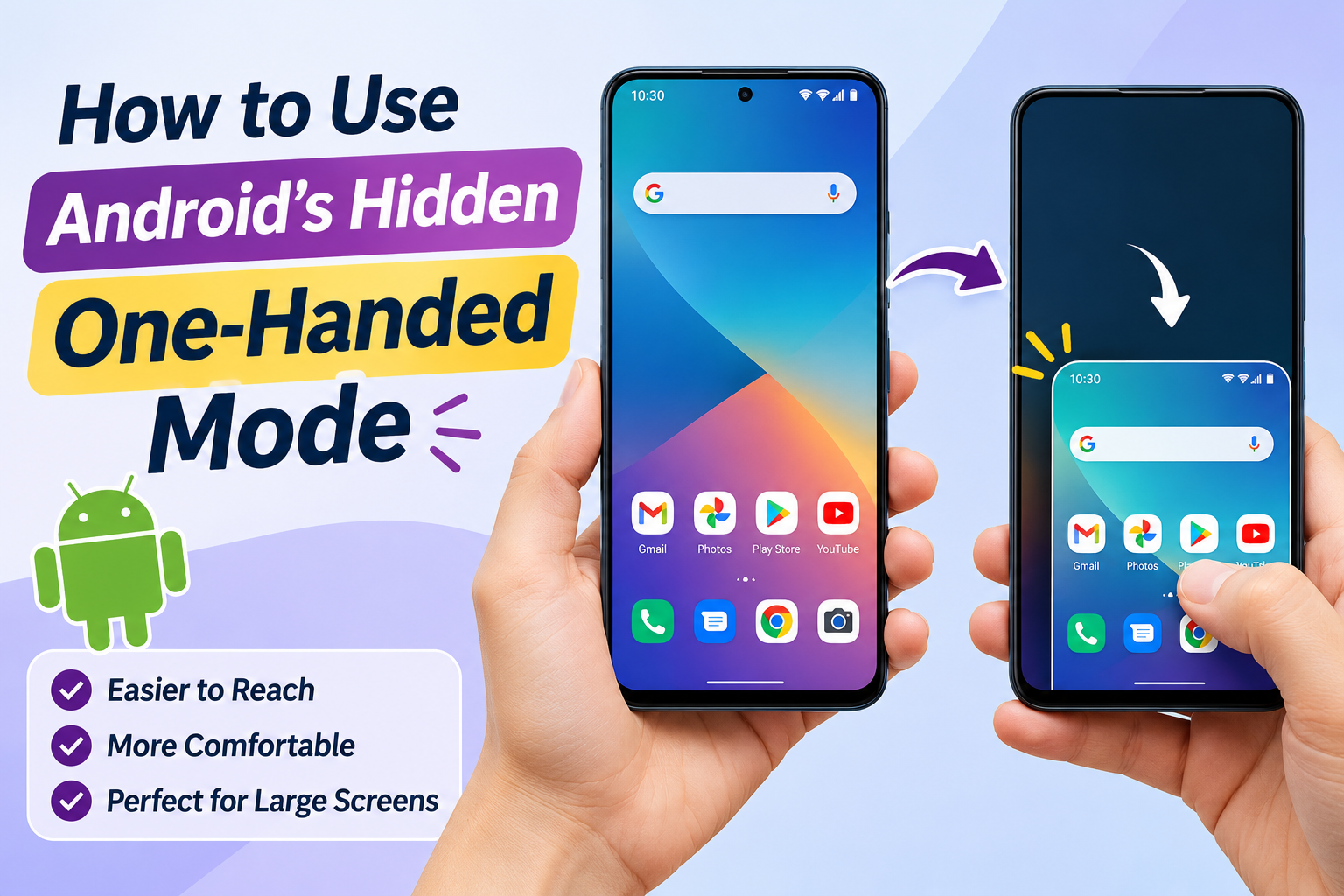
Smartphones are getting bigger every year, but using a large screen with just one hand can sometimes be uncomfortable. Reaching the notification panel, opening settings, or tapping icons near the top of the display isn’t always easy, especially when you’re holding something in your other hand.
What if you could make your phone screen easier to reach without changing its display size permanently?
That’s where Android’s One-Handed Mode comes in.
This useful accessibility and convenience feature makes it easier to operate your smartphone using one hand. It temporarily adjusts the screen interface so that important controls become easier to reach with your thumb.
Many Android users don’t even know this feature exists. In this guide, you’ll learn what One-Handed Mode does, how to enable it, how to use it on different Android phones, and what to do if you cannot find the setting.
What Is One-Handed Mode on Android?
One-Handed Mode is a built-in smartphone feature that makes large-screen devices easier to operate with one hand.
Depending on your phone manufacturer and Android version, it may work in different ways.
On many Android phones, the active screen moves downwards, making the upper part of the interface easier to reach.
On some devices, the screen interface becomes smaller and moves towards one corner of the display.
For example, imagine you want to open an app located at the top of your screen while holding your phone in one hand. Instead of stretching your thumb or adjusting your grip, you can activate One-Handed Mode and bring the screen content closer.
It is particularly useful for:
- People using large-screen smartphones.
- Users who frequently operate their phones with one hand.
- Quickly accessing notifications and settings.
- Using your phone while carrying shopping bags or other objects.
- Making certain touchscreen controls easier to reach.
The exact appearance and activation method depend on the device.
How to Enable One-Handed Mode on Android
On Android phones that support Google’s standard One-Handed Mode, you can usually enable it through the Settings application.
Follow these steps:
Step 1: Open Settings
Unlock your Android phone and open the Settings application.
Step 2: Find System Settings
Scroll down and look for the System section. On some phones, the option may appear under Additional Settings or another manufacturer-specific menu.
Step 3: Open Gestures
Look for the Gestures option and open it.
Step 4: Select One-Handed Mode
Find One-Handed Mode in the available gesture settings.
Step 5: Turn It On
Enable the One-Handed Mode option.
If your phone provides a shortcut setting, you may also need to enable the shortcut to activate the feature.
Step 6: Activate One-Handed Mode
On many Android versions using Google’s implementation, swipe down near the bottom edge of the screen to activate the mode.
The screen content should move down, making the upper interface easier to reach.
Note: These steps describe a common Android setup. Menu names and activation gestures vary across Android versions and manufacturers.
How to Use One-Handed Mode on Samsung Phones
Samsung provides its own One-Handed Mode feature through One UI.
On supported Samsung Galaxy devices, follow these steps:
- Open Settings.
- Tap Advanced features.
- Select One-handed mode.
- Turn on the feature.
- Choose your preferred activation method, if available.
Samsung generally provides two ways to activate the feature:
Gesture method: Swipe downwards near the bottom centre of the screen, depending on your selected navigation settings.
Button method: Double-tap the Home button if you use the navigation button option and your device supports it.
Once activated, the screen becomes smaller and moves towards the left or right side.
You can usually change its position by tapping the arrow or using the available controls.
This makes it easier to reach different areas of the display with your thumb.
How to Enable One-Handed Mode on Google Pixel Phones
Google Pixel phones running supported Android versions offer One-Handed Mode through the system gesture settings.
Try these steps:
- Open Settings.
- Select System.
- Tap Gestures.
- Choose One-Handed Mode.
- Enable the feature.
- Turn on its shortcut if required.
On supported versions, you can activate it by swiping down near the bottom edge of the screen.
The upper portion of the interface moves down, allowing you to reach controls more comfortably.
If you cannot find the option, check your Android version and search for “One-Handed Mode” directly in Settings.
What If Your Android Phone Does Not Have One-Handed Mode?
Not every Android phone offers the same version of this feature.
Some manufacturers provide their own implementation, while older devices may not include it.
If you cannot find One-Handed Mode, try these alternatives:
1. Search Settings
Open Settings and use the search bar to look for:
- One-Handed Mode
- One-Handed Operation
- One-Handed Use
- Gestures
The exact name depends on your manufacturer.
2. Check Accessibility Settings
Some manufacturers include screen and interaction adjustments under Accessibility or related settings.
3. Check Navigation Settings
Certain shortcuts depend on whether your phone uses gesture navigation or three-button navigation.
4. Check for Software Updates
If your device supports the feature but you cannot find it, check whether a system update is available.
5. Explore Manufacturer-Specific Features
Samsung and other Android manufacturers may offer additional tools that make large-screen phones easier to operate.
Avoid installing unknown applications that request unnecessary accessibility permissions just to imitate this feature.
One-Handed Mode vs One-Handed Keyboard: What’s the Difference?
Many users confuse One-Handed Mode with the one-handed keyboard feature. However, they serve different purposes.
| Feature | What It Does |
|---|---|
| One-Handed Mode | Makes the screen interface easier to reach |
| One-Handed Keyboard | Moves the keyboard towards one side |
| Display Size | Changes the overall size of interface elements |
| Magnification | Enlarges content on the screen |
For example, if you struggle to type messages using one hand, the one-handed keyboard may be more useful.
If you find it difficult to reach icons and buttons near the top of your display, One-Handed Mode is the better option.
How to Use One-Handed Keyboard on Android
If your main problem is typing on a large smartphone, you can also try the one-handed keyboard feature.
Many Android phones using Gboard support this option.
Follow these steps:
- Open an application where you can type, such as Messages.
- Tap the text field to open the keyboard.
- Open the keyboard’s toolbar or menu.
- Look for the One-Handed Mode option.
- Select it to move the keyboard towards one side.
You can usually switch the keyboard to the left or right depending on which hand you use.
If you cannot find the option, check your keyboard settings or update the keyboard application.
Benefits of Using One-Handed Mode
One-Handed Mode may seem like a small feature, but it can make everyday smartphone use more comfortable.
Easier Navigation
You can reach controls that would otherwise require stretching your thumb or adjusting your grip.
Better Convenience
It is useful when you need to perform quick tasks while holding something in your other hand.
More Comfortable Smartphone Use
People who prefer compact devices may find large-screen phones easier to manage with this feature.
Quick Access to Screen Controls
Depending on the implementation, you can access notifications, settings, and other interface elements more comfortably.
No Additional Application Required
On supported devices, One-Handed Mode is already included in the phone’s software.
Tips for Getting the Most Out of One-Handed Mode
Here are a few practical tips:
- Keep the activation gesture enabled if you use the feature frequently.
- Choose the side that feels comfortable for your dominant hand when your device offers that option.
- Use a one-handed keyboard if typing is your main difficulty.
- Learn the gesture for returning to normal screen mode.
- Keep your phone’s software updated.
- Avoid changing display settings unnecessarily if One-Handed Mode already solves your problem.
Final Thoughts
Android’s One-Handed Mode is a simple but useful feature that can make large smartphones easier to operate.
Instead of struggling to reach the top of your screen, you can activate this feature and bring important controls closer to your thumb.
Whether you use a Google Pixel, Samsung Galaxy, or another Android smartphone, it is worth checking your settings to see whether this option is available.
The next time your phone feels too large to operate comfortably with one hand, try One-Handed Mode. You might find it becomes one of your most useful everyday smartphone tricks.
Frequently Asked Questions
1. Does every Android phone have One-Handed Mode?
No. Availability depends on the Android version, device manufacturer, and phone model. Many newer Android devices offer this feature, but the settings and activation methods can differ.
2. How do I turn on One-Handed Mode on Android?
On supported devices, open Settings, search for One-Handed Mode, and enable it. You may also find it under System, Gestures, or manufacturer-specific settings.
3. How do I exit One-Handed Mode?
The exit method depends on your phone. You may be able to tap the empty area above the reduced screen, swipe upwards, or use the on-screen control.
4. Does One-Handed Mode reduce screen quality?
No. It changes how the interface is positioned or displayed. It does not normally reduce the actual display resolution.
5. Is One-Handed Mode available on Samsung phones?
Yes. Supported Samsung Galaxy devices include One-Handed Mode under Settings, Advanced features. The exact options can vary by One UI version.
6. What is the difference between One-Handed Mode and One-Handed Keyboard?
One-Handed Mode adjusts the screen interface to make controls easier to reach. One-Handed Keyboard moves the typing keyboard towards one side for easier thumb access.
7. Can I use One-Handed Mode without installing an application?
Yes. If your Android phone supports the feature, you can enable it directly through the built-in Settings application.

















NEW88.COM – Nhà Cái Gi?i Trí Tr?c Tuy?n Hàng ??u, Mang ??n Tr?i Nghi?m Cá C??c ??ng C?p V?i Kho Game ?a D?ng t?i: https://videomovil.com.co
NEW88.COM – Nhà Cái Gi?i Trí Tr?c Tuy?n Hàng ??u, Mang ??n Tr?i Nghi?m Cá C??c ??ng C?p V?i Kho Game ?a D?ng t?i: https://videomovil.com.co
NEW88.COM – Nhà Cái Gi?i Trí Tr?c Tuy?n Hàng ??u, Mang ??n Tr?i Nghi?m Cá C??c ??ng C?p V?i Kho Game ?a D?ng t?i: https://oakjrscollxo.sa.com