




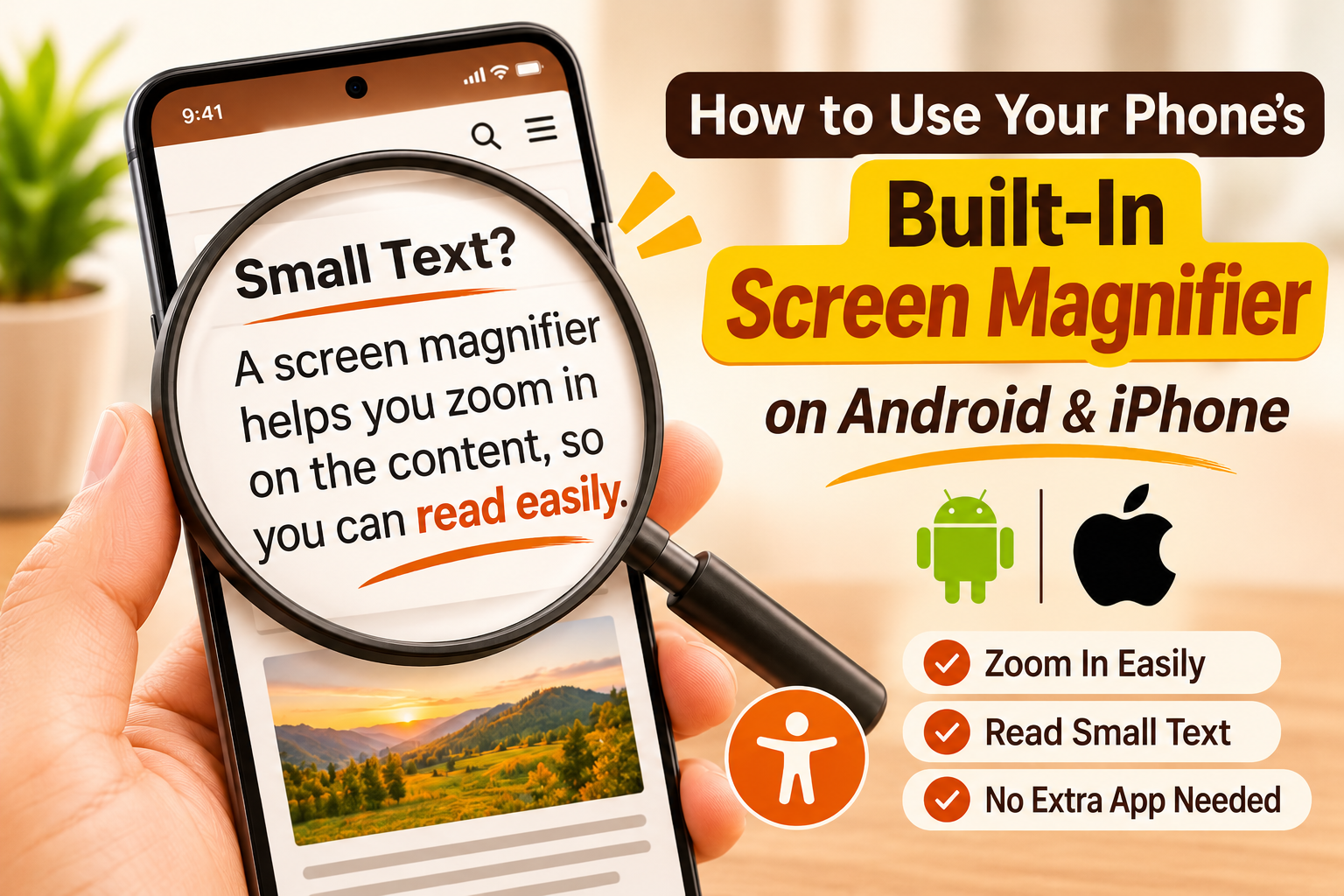
Have you ever struggled to read small text on your phone? Maybe a website has tiny letters, an app displays buttons that are difficult to see, or you want to zoom in on a particular part of the screen without changing the entire display size.
You might think you need to install a magnifier app for this, but your smartphone may already have the feature you need.
Both Android phones and iPhones include built-in screen magnification features. These tools are designed to enlarge parts of your screen, making small text, icons, menus, and other details easier to see.
The interesting part is that many users never explore these accessibility settings, even though they can be useful in everyday situations.
In this guide, you will learn how to use your phone’s built-in screen magnifier, enable it, zoom in and out, and customise its settings without installing any additional applications.
What Is a Screen Magnifier on a Smartphone?
A screen magnifier is an accessibility feature that enlarges content displayed on your phone’s screen.
Unlike simply increasing the font size, screen magnification can zoom in on different areas of the display. This means you can enlarge small text, icons, buttons, images, and other details whenever needed.
For example, imagine reading a website where the text is too small. Instead of changing the website settings or downloading another application, you can activate your phone’s magnification feature and zoom in on the section you want to read.
Depending on your phone, you may be able to:
- Magnify the entire screen.
- Zoom in on a selected area.
- Move around an enlarged section.
- Adjust the magnification level.
- Turn magnification on and off using gestures or shortcuts.
This feature is particularly useful for people who have difficulty reading small text or seeing details on a mobile display.
1. How to Enable Screen Magnification on Android
Android phones have a built-in Magnification feature, although the exact menu names and available options can vary depending on the manufacturer and Android version.
Follow these steps:
Step 1: Open the Settings app on your Android phone.
Step 2: Scroll down and select Accessibility.
Step 3: Look for the Magnification option.
Step 4: Tap Magnification to open its settings.
Step 5: Enable the Magnification shortcut.
Your phone may offer different shortcut options, such as an accessibility button, a floating button, or a gesture.
Once enabled, you can use the selected shortcut to activate magnification.
Note: On some Samsung, Xiaomi, OnePlus, and other Android devices, the option may appear under a slightly different menu. If you cannot find it, search for “Magnification” in your phone’s Settings search bar.
2. How to Zoom In and Out on an Android Phone
After enabling magnification, you can use the shortcut you selected to zoom into the screen.
On Android devices using the common full-screen magnification gesture:
- Activate the magnification shortcut.
- Tap the screen to zoom in, if required by your selected shortcut.
- Use two fingers to move around the enlarged screen.
- Pinch with two fingers to adjust the zoom level, where supported.
- Use the shortcut again to turn magnification off.
Some Android versions also provide a partial-screen magnification option, which enlarges only a selected area instead of the entire display.
The exact gestures can differ between Android versions and device manufacturers, so check the instructions shown in your Magnification settings.
3. How to Use Screen Magnifier on Samsung Phones
Samsung Galaxy phones include accessibility tools that allow users to enlarge content on the display.
To check the magnification settings:
- Open Settings.
- Tap Accessibility.
- Select Vision enhancements.
- Look for Magnification.
- Open the option and enable the available shortcut.
Depending on your Samsung model and software version, you may find different magnification methods and shortcut options.
Once enabled, use the selected shortcut to zoom in on the screen.
You can also search for “Magnification” directly in Samsung Settings if the menu layout is different.
4. How to Enable Screen Zoom on an iPhone
iPhones also have a built-in screen magnification feature called Zoom.
It allows you to enlarge the entire screen or a selected area, depending on your chosen settings.
Here is how to enable it:
Step 1: Open the Settings app on your iPhone.
Step 2: Tap Accessibility.
Step 3: Select Zoom.
Step 4: Turn on the Zoom toggle.
Your iPhone will now support screen magnification.
You can customise additional settings, including the zoom level, zoom region, and controller options.
5. How to Use the Zoom Gesture on an iPhone
Once Zoom is enabled, you can use simple finger gestures to control the magnified screen.
To Zoom In: Double-tap the screen with three fingers.
To Zoom Out: Double-tap again with three fingers.
To Move Around: Drag three fingers across the screen while zoomed in.
To Change the Zoom Level: Double-tap with three fingers and drag upward or downward without lifting your fingers.
These gestures help you enlarge specific sections of your screen without changing your iPhone’s overall display settings.
If you find the gestures difficult to use, you can also explore the Zoom Controller option in the Zoom settings.
6. How to Choose Between Full Screen and Window Zoom
One useful feature of smartphone magnification is that you may be able to choose how the enlarged content appears.
On an iPhone, Zoom provides different zoom styles:
Full Screen Zoom: Enlarges the entire display. You can move around the enlarged screen using three fingers.
Window Zoom: Displays a magnification window that enlarges only the area underneath it.
Pinned Zoom: Some iOS versions also offer options for keeping the zoom area in a particular position.
To change the zoom style:
- Open Settings.
- Go to Accessibility.
- Select Zoom.
- Tap Zoom Region.
- Choose Full Screen Zoom or Window Zoom, depending on your preference.
The window option is particularly useful when you want to enlarge a small section without making the entire screen bigger.
7. How to Use Screen Magnification for Everyday Tasks
Screen magnification is not just an accessibility feature. It can also help with several everyday activities.
Here are a few examples:
Reading Small Text: Zoom in when reading small text on websites, documents, or digital menus.
Viewing Images: Enlarge specific details in pictures without opening another editing application.
Checking Small Buttons: Magnify small interface elements when navigating applications.
Reading Product Details: Zoom in on product descriptions, labels, or other information displayed in small text.
Using Complex Websites: Enlarge sections of a webpage when buttons, menus, or other elements are difficult to see.
Keep in mind that some apps and websites may restrict magnification or behave differently when zoomed in.
8. How to Turn Off Screen Magnification
If your screen becomes enlarged accidentally, do not worry. You can usually return it to normal using the same shortcut or gesture.
On Android:
- Use the magnification shortcut you enabled.
- Follow the gesture instructions displayed in your Magnification settings.
- If you cannot navigate comfortably, try using the selected accessibility shortcut to turn magnification off.
On iPhone:
- Double-tap the screen with three fingers to zoom out.
- If Zoom is no longer needed, open Settings, select Accessibility, tap Zoom, and turn it off.
You can also disable the magnification shortcut from your phone’s accessibility settings if you activate it accidentally.
9. Screen Magnifier vs Display Font Size: What’s the Difference?
Many people confuse screen magnification with increasing the font size, but these features work differently.
| Feature | Screen Magnification | Font Size |
|---|---|---|
| Enlarges text | Yes | Yes |
| Enlarges icons and buttons | Yes | Not necessarily |
| Enlarges images | Yes | No |
| Zooms into a selected area | Often | No |
| Changes the overall text layout | May | Yes |
| Useful for viewing small details | Yes | Limited |
If you only struggle with reading text, increasing the font size may be enough.
However, if you want to enlarge images, icons, buttons, or an entire section of your display, screen magnification can be more useful.
10. Tips for Using Your Phone’s Screen Magnifier
To get the best experience from this feature, keep these tips in mind:
- Choose a magnification level that makes content readable without making navigation difficult.
- Learn the shortcut or gesture so you can activate it quickly.
- Use window magnification if you only need to enlarge a small area.
- Turn off magnification when you finish using it.
- Avoid zooming in too much, as you may need to move around the screen frequently.
- Explore other accessibility settings, such as larger text, bold text, and display adjustments.
You can also combine magnification with other accessibility features to make your phone easier to use.
Final Thoughts
Your smartphone already includes several useful features that you may not have discovered yet. Screen magnification is one of them.
Whether you use an Android phone or an iPhone, you can enable this feature through the accessibility settings and enlarge content whenever you need it.
You do not need to install a separate magnifier application or change your phone’s display permanently. Simply enable the feature, learn its gestures, and use it whenever small text or screen details become difficult to see.
Sometimes, the most useful mobile tricks are already hidden inside your phone’s settings.
Frequently Asked Questions (FAQs)
1. Does every smartphone have a built-in screen magnifier?
Most modern Android phones and iPhones include built-in screen magnification features. However, the available options and gestures may differ depending on the operating system and device model.
2. Is screen magnification available on Android?
Yes. Android includes a Magnification accessibility feature. You can usually find it under Settings, Accessibility, and Magnification.
3. How do I magnify my iPhone screen?
Open Settings, select Accessibility, tap Zoom, and turn it on. You can then use three-finger gestures to zoom in, zoom out, and move around the enlarged screen.
4. Does screen magnification require an internet connection?
No. Screen magnification is a built-in accessibility feature and does not normally require an internet connection.
5. Can I magnify only one part of my phone screen?
Yes, depending on your phone. Android devices may offer partial-screen magnification, while iPhones provide a Window Zoom option.
6. Does screen magnification make my phone’s text permanently bigger?
No. Magnification enlarges the screen temporarily. If you want text to remain larger across your phone, you can change the font size or display settings.
7. How do I fix my phone screen if it is accidentally zoomed in?
On an iPhone, try double-tapping with three fingers to zoom out. On Android, use the magnification shortcut or gesture configured in your Accessibility settings.