







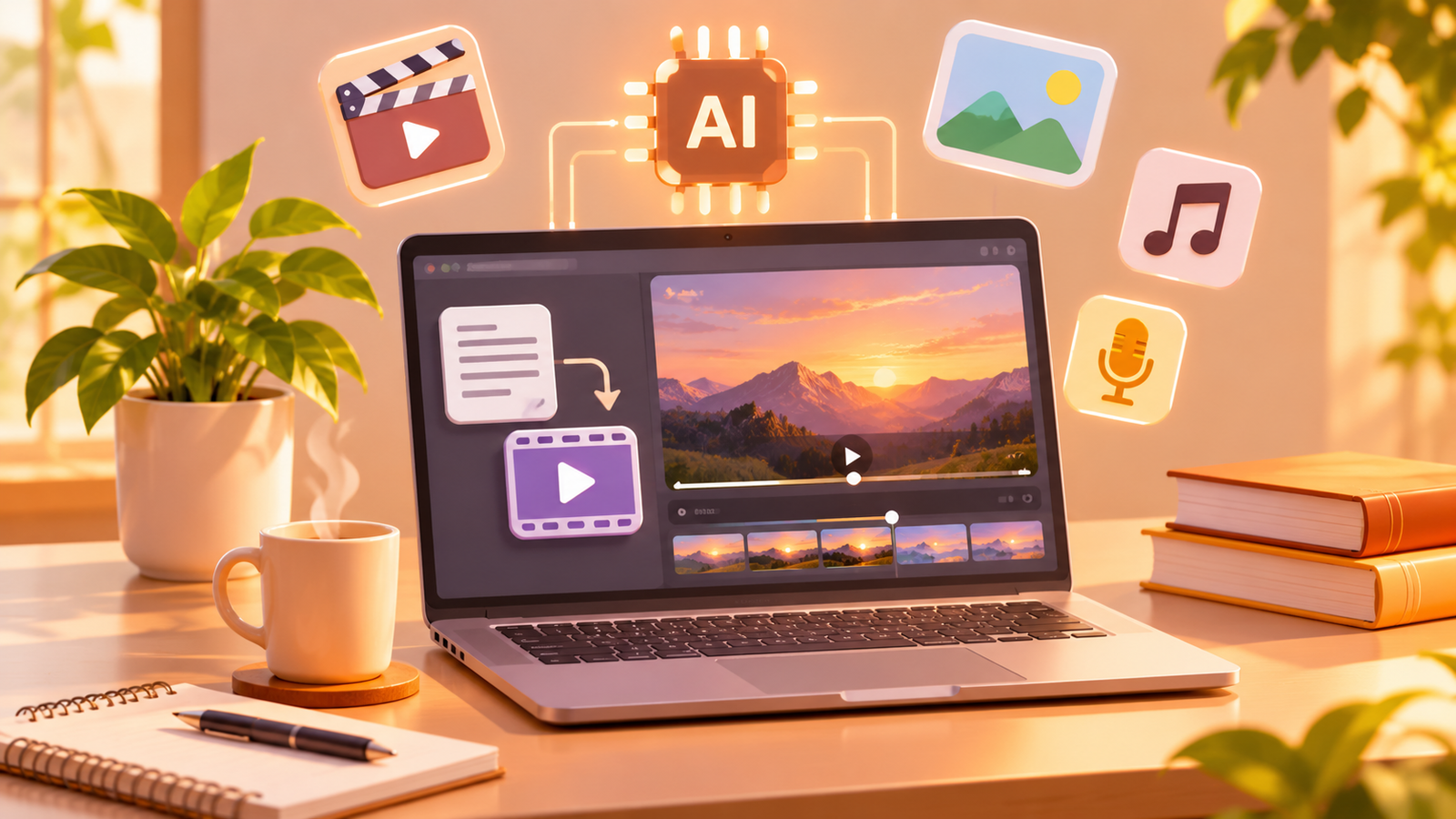
How to turn text into videos using AI tools is a useful skill for bloggers, YouTubers, freelancers, and business owners who want to create engaging video content without spending hours filming and editing. With the right AI tools, you can turn a written script, a short description, or a simple idea into a video for YouTube, Instagram Reels, TikTok, or your website.
You do not always need a camera, a studio, or advanced editing skills. Many AI video tools can generate short clips from text prompts, while other platforms can turn scripts into videos with visuals, voiceovers, subtitles, and music.
In this guide, you will learn how text-to-video AI works, which tools you can try, and how to create your first AI video step by step.
What Is Text-to-Video AI?
Text-to-video AI is technology that uses artificial intelligence to create video content from written instructions. You describe the scene, action, style, or story you want, and the tool generates a video based on your prompt.
For example, you could enter this prompt:
“Create a cinematic video of a small coffee shop on a rainy evening. Warm lights glow through the windows, people walk past with umbrellas, and the camera slowly moves towards the entrance.”
An AI video generator may turn that description into a short moving scene.
Some tools generate original video footage directly from prompts. Others use your script to assemble stock footage, images, animated elements, subtitles, and voiceovers into a complete video. The results and available features depend on the platform.
Best AI Tools to Turn Text Into Videos
Here are five tools worth exploring. Check each tool’s current plans, usage limits, export options, and availability before choosing one.
1. Gemini — AI Video Generation
Best for: Creating short AI-generated video clips from prompts and visual references.
Gemini offers AI video creation features through Google’s video-generation technology. Depending on your access and plan, you can describe a scene, generate a clip, and work with images or other inputs.
Try it here: Google Gemini Video Generation
You can use it for creative scenes, short social media visuals, product concepts, and video ideas that would be difficult to film in real life.
2. Runway — Creative AI Video Generation
Best for: Cinematic visuals, creative concepts, and experimental video scenes.
Runway provides AI-powered video generation and creative tools that can help turn written descriptions or visual references into moving footage.
Visit: Runway
It can be useful for creators who want more control over the look and feel of their videos. Experiment with different prompts and review the results before using them in a final project.
3. Canva — AI Video Creation and Editing
Best for: Beginners, marketing videos, and branded social media content.
Canva combines AI video features with templates and editing tools. You can generate clips, add text, arrange visuals, and prepare content for different platforms.
Try it here: Canva AI Video Generator
Canva is especially useful when you want a video that matches your brand colours, fonts, and overall design style.
4. InVideo AI — Script-to-Video Creation
Best for: Explainer videos, narrated content, and videos built around a script.
InVideo AI helps users create videos from written prompts and scripts. Depending on the workflow, it can help assemble scenes, voiceovers, and other video elements.
Visit: InVideo AI
This approach is useful when you want to explain a topic rather than generate just one cinematic scene. Always review the selected footage and narration to ensure they match your message.
5. CapCut — Video Editing and Finishing
Best for: Editing Reels, YouTube Shorts, captions, and social media videos.
CapCut offers video editing features and AI-assisted tools that can help polish your content. Its features vary by platform and region, so check which options are available to you.
Visit: CapCut
CapCut is a useful finishing tool for trimming clips, adding captions, adjusting sound, and preparing videos for social media.
How to Turn Text Into a Video Using AI
Follow these steps to create your first video, even if you have never edited one before.
Step 1: Choose a Clear Video Idea
Start with one specific idea instead of trying to explain too much in a single video.
For example, if you run a technology blog, you could create a short video about three ways AI saves time at work.
If you own a business, you might create a product showcase, a service explainer, or a short promotional video.
Before generating anything, decide:
- Who is the video for?
- What should viewers learn or feel?
- Where will you publish it?
- How long should it be?
For Instagram Reels and YouTube Shorts, a vertical format is often a practical choice. For traditional YouTube videos, landscape format may be more suitable.
Step 2: Write a Short Script
A good video starts with a clear message. Write a simple script with a hook, a main point, and an ending.
For a 20-second video, your script might look like this:
Hook: “Still spending hours creating social media content?”
Main message: “AI tools can help you generate video ideas, create visuals, and prepare short clips faster.”
Ending: “Choose one tool, test it, and build a workflow that works for you.”
Keep the wording natural. If you plan to use an AI voiceover, read the script aloud to check whether it sounds conversational.
Step 3: Write a Detailed AI Video Prompt
Your prompt tells the AI what to create. Vague instructions often produce generic results, so describe the scene clearly.
A useful prompt includes:
- Subject: Who or what appears in the scene?
- Action: What is happening?
- Location: Where does the scene take place?
- Visual style: Realistic, cinematic, animated, or minimalist?
- Camera movement: Close-up, wide shot, tracking shot, or slow zoom?
- Lighting and mood: Bright daylight, soft studio lighting, or a dramatic evening scene?
- Format: Vertical 9:16 or landscape 16:9, where supported.
Here is an example prompt:
“Create a realistic vertical video of a young entrepreneur working at a clean modern desk. The entrepreneur types on a laptop while colourful digital graphics appear on the screen. Soft daylight enters through a window, the camera slowly moves closer, and the mood feels positive and professional. Use natural movement, realistic details, and a clean background. No visible text, captions, or logos.”
You can adapt this prompt for your own business, niche, or video concept.
Step 4: Generate the Video
Open your chosen AI video tool and find its text-to-video or video-generation feature.
Paste your prompt, select the available settings, and generate the clip. Some tools may let you choose the aspect ratio, duration, resolution, or reference images.
Review the result carefully. Check whether the main subject looks right, the movement is natural, and the scene matches your idea.
If the result is not satisfactory, adjust one or two details in the prompt and generate another version. Small, specific changes can be easier to evaluate than rewriting the entire prompt every time.
Step 5: Add Voiceovers, Music, and Captions
A generated clip may need extra elements before it is ready to publish.
You can add:
- A voiceover explaining the scene
- Background music that fits the mood
- Captions for viewers watching without sound
- Your logo or brand colours
- A clear call to action
Use an editor such as Canva or CapCut to arrange these elements. Make sure the voiceover matches the visuals and that captions are readable on mobile screens.
Only use music, footage, voices, and other assets you have permission to use.
Step 6: Edit and Export Your Video
Watch the complete video before exporting it. Remove unnecessary pauses, awkward transitions, repeated scenes, and unrelated visuals.
Choose the aspect ratio based on your publishing platform. Use 9:16 for most vertical short-form content and 16:9 for standard landscape video.
Export at a resolution supported by your chosen platform and keep a clean master copy for future edits.
Finally, watch the exported file from beginning to end. Sometimes small editing issues become noticeable only after export.
Tips for Getting Better Results From AI Video Tools
Keep Each Scene Simple
Trying to include several actions, characters, and camera movements in one prompt can make the result harder to control. Describe one main action per clip, then combine multiple clips in an editor.
Use Consistent Visuals
If your video contains the same character or product in multiple scenes, use reference images or consistency features where available. Generated details can still change between clips, so inspect each scene carefully.
Choose the Right Aspect Ratio
Think about the platform before generating. A vertical video may work well for Reels and Shorts, while a landscape video can be better for tutorials and presentations.
Check the Final Output
AI-generated videos may contain distorted hands, inconsistent objects, inaccurate details, or strange movement. Inspect faces, product designs, text, logos, and backgrounds before publishing.
Do Not Publish Without Fact-Checking
If your video explains a technical, financial, health, or educational topic, verify the information independently. AI-generated visuals can look realistic without accurately representing real events or products.
Can You Turn Text Into Videos for Free?
Yes, some platforms offer free access, trial credits, or limited AI features. However, free access does not always mean unlimited video generation.
Depending on the platform, you may encounter limits on the number of generations, video duration, resolution, processing speed, or watermark-free exports. Features can also change over time.
A practical way to start is to use a free or already available plan, create one short test video, and check whether the output quality meets your needs before paying for a subscription.
Common Mistakes to Avoid
When using AI video tools, avoid these mistakes:
- Writing prompts that are too vague
- Trying to fit too many ideas into one clip
- Ignoring the video aspect ratio
- Using visuals that do not match the narration
- Forgetting captions and audio quality
- Publishing generated footage without checking it
- Assuming every tool provides the same features or free limits
AI can speed up video production, but good planning and editing still matter.
Frequently Asked Questions
What is the easiest way to turn text into a video?
Choose a text-to-video tool, write a clear prompt, generate a clip, and review the result. If you want a complete narrated video, consider a script-to-video platform. If you want a cinematic scene, choose a tool designed for generative video.
Can AI create a full YouTube video from a script?
Some AI platforms can help assemble longer videos from a script, using visuals, narration, and editing features. The amount of automation and the quality of the result vary. You should review the script, footage, and final edit before publishing.
Can I use AI-generated videos for business marketing?
Yes, where the tool’s terms and applicable laws permit it. Check commercial-use rights, licences, and any restrictions on generated assets. Avoid using protected logos, a person’s likeness, or copyrighted material without appropriate permission.
Do AI video tools replace video editors?
Not completely. AI tools can automate parts of video creation, but human review remains important for storytelling, pacing, accuracy, branding, and final quality.
Final Thoughts
Turning text into videos using AI tools can make content creation more accessible for beginners, creators, and businesses. You can start with a simple script, generate a few short clips, and use an editor to combine them into a polished video.
The best workflow depends on what you want to create. Try Gemini or Runway for generated scenes, Canva for branded content, InVideo AI for script-led videos, and CapCut for editing and finishing.
Start with one short video, test different prompts, and improve your process with each project. The goal is not simply to generate a video quickly; it is to create something useful, clear, and worth watching.



















A great article with plenty of useful takeaways.\
Great job putting together this informative resource.\
Thanks for sharing such an accessible explanation.\
The article provides some valuable general knowledge.\
This is a great introduction to an interesting subject.\
This post gives readers plenty to think about.\
Good work presenting the information so clearly.\
Very good information with plenty of useful context.\
I found the topic interesting and relevant.\
This is a helpful resource for anyone exploring the subject. The topic deserves more attention and careful discussion. Please keep sharing clear and informative content.
The information here is worth considering. It is useful to distinguish established evidence from claims that need more study. A follow-up article would be interesting.
This post offers a good starting point. The information gives readers a sensible place to continue their research. Thanks for making the topic easier to understand.
This post offers a good starting point. The points here encourage readers to think carefully about their options. This was time well spent.
This is a helpful resource for anyone exploring the subject. This encourages me to do a little more reading on the subject. Good work keeping the discussion approachable.
This is a thoughtful look at the subject. I found the emphasis on making informed decisions particularly useful. I will keep these points in mind.
This article is a helpful read. Reliable information can make it easier to know which questions to ask next. Thanks for putting these ideas together.
I learned something useful from this post. I appreciate content that explains complex ideas without unnecessary jargon. The straightforward writing makes a difference.
This gives me some useful points to look into further. It is always useful to understand the basics before making decisions. A useful read that I can refer back to.
The information is presented in a reader-friendly way. A clear explanation can make it easier to recognize what questions remain. Thanks for sharing a thoughtful article.
The topic is explained in a straightforward way. The subject deserves careful attention, and this is a good introduction. Keep up the informative work.
I like how clearly the subject is presented. Understanding the basics can help people make better-informed decisions. A follow-up article would be interesting.