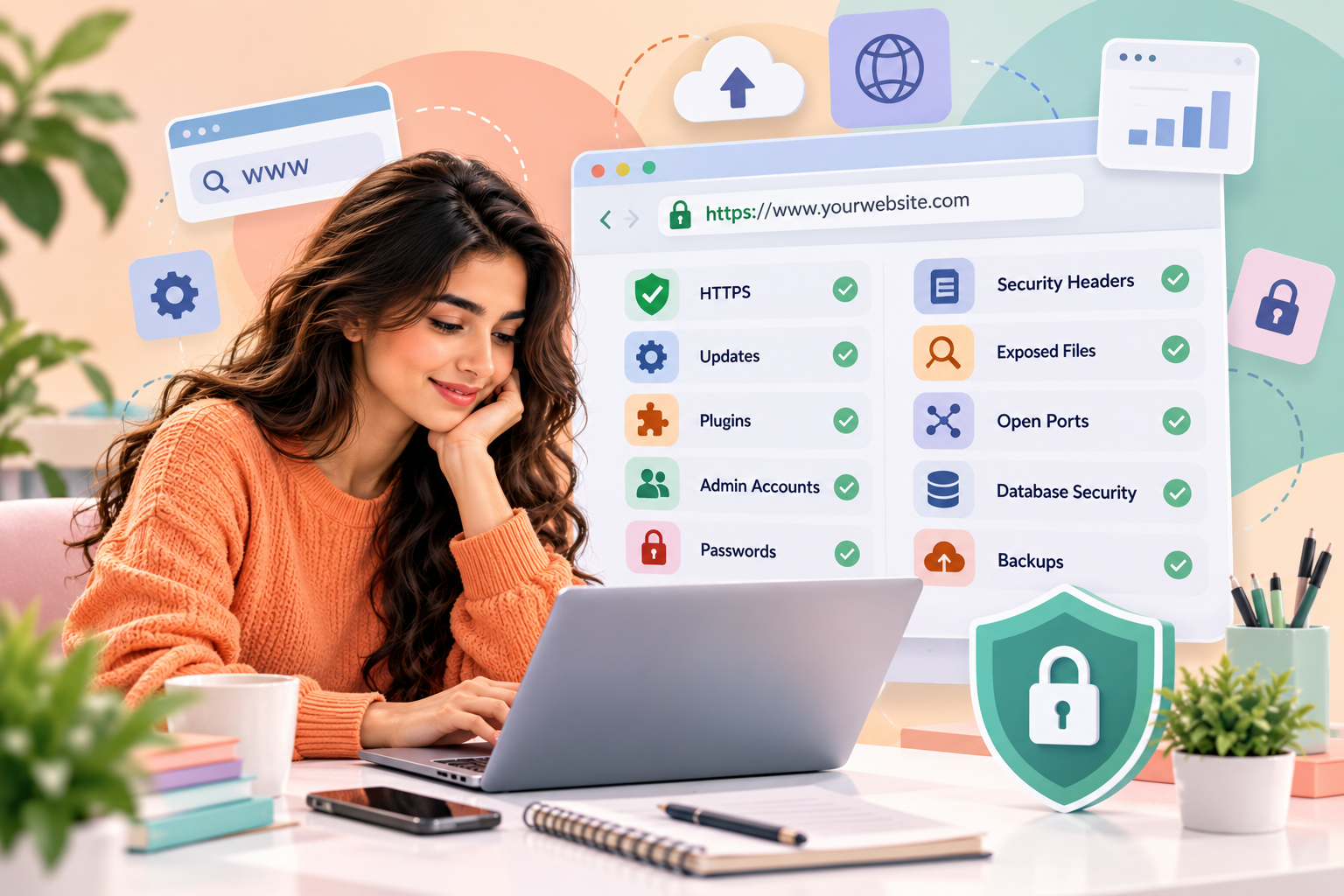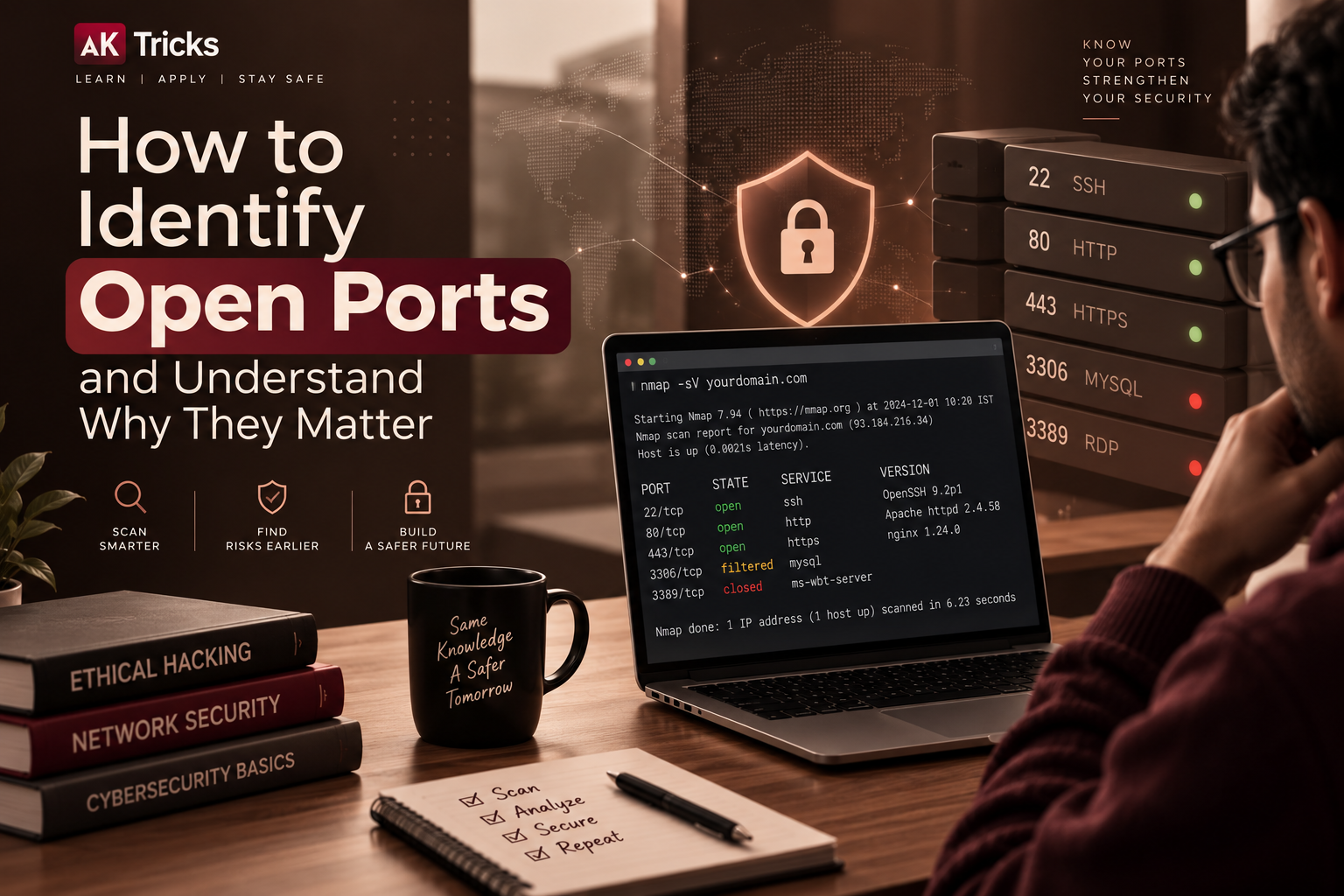






Your website may look professional and work perfectly, but that does not necessarily mean it is secure. Weak passwords, outdated plugins, incorrect permissions, and misconfigured security settings can expose websites to cyberattacks.
Learning how to test your own website for common security weaknesses helps you identify problems before they become serious. You do not always need expensive security software to begin. Many important checks can be performed using your hosting dashboard, browser tools, website security plugins, and trusted testing resources.
In this guide, you will learn how to check your website’s basic security, identify common warning signs, and take practical steps to protect your website and visitors.
What Are Website Security Weaknesses?
Website security weaknesses are flaws in software, settings, access controls, or development practices that may allow someone to misuse a website or access information they should not be able to access.
For example, an outdated plugin may contain a known vulnerability, or a website administrator may use a weak password that is easy to guess.
Common website security weaknesses include:
- Outdated content management systems and plugins.
- Weak administrator passwords.
- Missing or incorrectly configured HTTPS.
- Excessive user permissions.
- Insecure file and directory permissions.
- Missing security headers.
- Poor backup and recovery practices.
- Vulnerable forms and application code.
These weaknesses do not automatically mean a website has been hacked. However, identifying and fixing them can reduce the risk of unauthorised access, data exposure, and website disruption.
1. Check Whether Your Website Uses HTTPS
HTTPS helps protect information exchanged between a visitor’s browser and your website by encrypting the connection.
It is especially important for websites that handle login credentials, contact forms, customer information, or online payments.
How to check HTTPS
- Open your website in a browser.
- Confirm that its address begins with
https://. - Click the connection or site-information icon beside the address, where available.
- Review any browser security warnings.
- Check whether your hosting provider has an active, correctly configured TLS certificate.
You can also use the free SSL Labs SSL Server Test to review a public website’s TLS configuration.
What should you look for?
- A valid certificate for your domain.
- No certificate expiry warnings.
- No mixed-content warnings caused by insecure resources.
- Correct HTTPS redirection where appropriate.
Remember that HTTPS does not guarantee that a website is free from vulnerabilities. It protects the connection, but it cannot make weak passwords, unsafe plugins, or vulnerable application code secure by itself.
2. Update Your Website Software and Plugins
Outdated software is a common source of website security risk. Attackers may target publicly known vulnerabilities in older versions of content management systems, themes, plugins, frameworks, and server software.
If you use WordPress, check the following:
- WordPress core version.
- Installed themes.
- Active and inactive plugins.
- PHP version supported by your website.
- Other software used by your hosting environment.
Remove plugins and themes you no longer need, especially abandoned components that no longer receive security updates.
Before updating a live website, create a backup and test important changes on a staging site when possible. Updates can occasionally cause compatibility problems, so confirm that your website still works afterwards.
Do not install unofficial or modified premium plugins from unknown sources. They may contain malicious code or lack important security fixes.
For WordPress-specific guidance, visit the official WordPress Security documentation.
3. Test Your Website’s Password and Login Security
Your website’s administrator account is one of its most important security controls. If someone gains access to it, they may be able to modify pages, install software, access information, or change website settings.
Review your login security using these steps:
- Ensure every administrator has a unique, strong password.
- Enable multifactor authentication where supported.
- Remove administrator accounts that are no longer required.
- Check whether former employees or contractors still have access.
- Use a reputable password manager.
- Review login alerts and available activity logs.
You should also review login protection settings, such as rate limiting and temporary account lockouts, where appropriate.
Avoid repeatedly submitting incorrect passwords to test your website’s response. Instead, review the security configuration or use a controlled test account on a staging environment.
For more information, read our related AK Tricks article, How to Spot a Fake Login Page Before Entering Your Password.
4. Review User Roles and Access Permissions
Not every website user needs administrator access.
For example, a content writer may only need permission to draft and edit articles. Giving that person full administrator privileges increases the potential damage if their account is compromised.
Review each account and ask:
- Does this person still need access?
- Is the assigned role appropriate for their work?
- Can unnecessary permissions be removed?
- Are shared administrator accounts being used?
- Are old accounts still active?
On WordPress, review the Users section in your dashboard and confirm that each person has the correct role.
For custom websites, developers should check that server-side access controls enforce permissions correctly. Hiding a button or menu in the browser is not sufficient if the underlying action remains accessible without proper authorisation.
Access-control problems are among the risks highlighted in the OWASP Top 10:2025. The list is a useful starting point for understanding common web application security risks. <Cite refs={[“turn746282search3″,”turn746282search4”]}/>
5. Check Your Website’s Security Headers
HTTP security headers help browsers handle certain security-related behaviours. Correctly configured headers can reduce some risks, although they cannot fix every application vulnerability.
Some important headers include:
| Header | What it helps with |
|---|---|
| Content-Security-Policy | Restricts which sources a browser may load certain resources from |
| Strict-Transport-Security | Tells browsers to use HTTPS for a specified period after receiving the header securely |
| X-Content-Type-Options | Helps prevent browsers from interpreting files as a different content type |
| Referrer-Policy | Controls how much referrer information browsers send |
| Permissions-Policy | Controls access to supported browser features |
How to check security headers
You can start with Mozilla’s HTTP Observatory, which analyses HTTP headers and other security configurations for a website. <Cite refs={[“turn746282search19”]}/>
Enter your own public domain and review the report.
Pay attention to the recommendations, but do not try to enable every header blindly. For example, a strict Content Security Policy can break scripts or other resources if it is not configured for your website.
Make changes carefully, test the site afterwards, and consult your developer or hosting provider if you are unsure.
6. Check for Exposed Files and Directory Listings
Websites sometimes contain files that should not be publicly accessible. These may include old backups, configuration files, database exports, logs, or development files.
If exposed, such files can reveal information about the website or its infrastructure.
Review your website’s file manager or deployment repository for:
- Old database exports.
- Backup archives stored in public directories.
- Temporary files containing sensitive information.
- Development or debugging files left on the live site.
- Configuration files containing secrets.
- Public directory listings that reveal files unnecessarily.
Do not upload sensitive files to a public web directory unless access is properly restricted.
Also, remember that a file not appearing in a normal menu does not mean it is private. Access should be controlled by the server, not simply by whether a link is visible.
For a WordPress site, use the hosting provider’s file manager or secure file-transfer method to inspect the website directory. Avoid deleting unfamiliar system files until you understand their purpose.
7. Check Your Website for Malware and Suspicious Changes
Malware can be introduced through vulnerable plugins, stolen credentials, compromised hosting accounts, or unsafe third-party components.
Warning signs may include unexpected administrator accounts, unfamiliar plugins, strange redirects, modified website files, or browser warnings.
You can begin with these checks:
- Review administrator accounts and recent login activity.
- Look for plugins or themes you do not recognise.
- Check your hosting provider’s malware or security reports.
- Review recent file changes where your hosting tools support it.
- Use a reputable website security scanner.
- Check whether browsers or search engines have reported a security issue.
For WordPress, a reputable security plugin may help monitor files, detect certain malware patterns, and review security settings. Choose tools from trusted providers and check their privacy and access requirements before installation.
You can also use Google Safe Browsing’s site status tool to check whether Google currently identifies a public site as dangerous.
Keep in mind that no single scanner detects every threat. A clean scan is useful evidence, but it is not proof that the website is completely secure.
If you find signs of a real compromise, preserve relevant logs, contact your hosting provider, secure your administrator accounts from a trusted device, and follow a structured incident-response process rather than deleting files at random.
8. Review Your Website’s Forms and Input Validation
Contact forms, registration pages, search fields, comment boxes, and other input areas need proper validation and security controls.
Poorly designed input handling can create risks such as cross-site scripting (XSS) or injection vulnerabilities.
For a basic review of your own website:
- Confirm that forms accept only the information they are designed to collect.
- Check that required fields and input formats are validated.
- Verify that error messages do not reveal passwords, database details, or internal paths.
- Confirm that sensitive actions require appropriate authentication.
- Check that the site uses suitable protections against automated submissions and spam.
- Ensure that developers use safe database queries and context-appropriate output encoding.
Do not experiment with attack payloads against a live production site without a defined test plan and permission. If you need deeper testing, use a staging environment with test data.
The OWASP Web Security Testing Guide provides a structured resource for testing web application security, including authentication, authorisation, input validation, configuration, and error handling. <Cite refs={[“turn746282search0″,”turn746282search6”]}/>
9. Check Your Website’s Backups and Recovery Plan
Backups do not prevent every attack, but they can help you recover from malware, accidental deletion, failed updates, and server problems.
A website owner should confirm that:
- Backups run on a regular schedule.
- Both website files and the database are included where applicable.
- Backup copies are protected from unauthorised access.
- At least one recovery copy is kept separate from the live website.
- Backup retention periods are appropriate.
- Restoration has been tested successfully.
A backup that has never been tested may not be usable when you need it.
For a business website, consider a recovery plan that explains who is responsible for restoration, where backup copies are stored, and how to verify that the website is functioning correctly after recovery.
10. Use a Website Security Scanner
Automated security scanners can help identify common configuration problems, exposed information, and certain known vulnerabilities.
For beginners, consider these resources:
Mozilla HTTP Observatory: Useful for reviewing HTTP security headers and related configuration.
OWASP Web Security Testing Guide: Provides structured guidance for planning and conducting web application security tests.
Google Safe Browsing: Helps you check whether Google currently lists a public website as unsafe.
Your hosting provider’s security tools: May include malware scanning, access logs, firewall settings, backup status, and alerts.
Choose a scanner based on what you need to check. Some tools review only public-facing settings, while others require deeper access or professional configuration.
Start with non-intrusive checks. Do not run aggressive scans against a production website without permission, a clear scope, and a plan to manage possible disruption.
A Simple Website Security Checklist
Use this checklist to track the basic security checks for your own website.
{@body const checks = [
“HTTPS and TLS certificate are configured correctly”,
“WordPress, plugins, themes, and server software are updated”,
“Administrator accounts use strong, unique passwords”,
“Multifactor authentication is enabled where available”,
“User roles and permissions are appropriate”,
“Security headers have been reviewed”,
“Unnecessary public files and directory listings are removed”,
“Malware reports and website changes have been reviewed”,
“Forms and input handling have been checked”,
“Backups are protected and restoration has been tested”
]}
{@body const [completed, setCompleted] = DIL.useState([])}
<box border radius=”lg” padding={3} gap={3}>
<row align=”center” justify=”between”>
<title size=”md”>Website security checklist</title>
<text color=”secondary” size=”sm”>{completed.length} of {checks.length} checked</text>
</row>
<box background=”surface-tertiary” radius=”full” height=”6px” clip>
<box background=”surface-inverted” radius=”full” height=”6px” width={${completed.length / checks.length * 100}%} />
</box>
{#each checks as item, i}
<checkbox key={item} checked={completed.includes(i)} onChange={(value) => setCompleted(old => value ? […old, i] : old.filter(n => n !== i))}>{item}</checkbox>
{/each}
<row justify=”end”>
<button variant=”outline” size=”sm” onClick={() => GenUI.copy(checks.map((item,i) => ${completed.includes(i) ? "[x]" : "[ ]"} ${item}).join(“\n”))}><icon name=”copy” size=”xs” /> Copy checklist</button>
</row>
</box>
This checklist is a starting point, not a complete penetration test. Websites that process payments, health information, customer records, or other sensitive data may need a more comprehensive assessment.
Frequently Asked Questions
Can I test my website’s security for free?
Yes. You can perform many basic checks using your hosting dashboard, browser tools, software updates, security plugins, and free resources such as Mozilla HTTP Observatory. More complex testing may require specialist tools or a qualified security professional.
How often should I check my website’s security?
Review updates and security alerts regularly, check accounts and backups periodically, and perform additional checks after major website changes. The appropriate schedule depends on the site’s complexity, the information it handles, and its level of risk.
Does HTTPS mean my website is completely secure?
No. HTTPS protects data in transit, but it does not fix vulnerable plugins, weak passwords, broken access controls, or insecure application code.
Can a WordPress security plugin protect my entire website?
A security plugin can provide useful features, such as monitoring, firewall protection, and malware detection. However, no plugin can guarantee complete security. Updates, secure hosting, good access controls, and reliable backups remain important.
What should I do if my website has a security weakness?
First, understand the finding and determine its severity. Back up the site before making significant changes, apply the appropriate fix, and verify that the problem is resolved. If you suspect an active compromise, contact your hosting provider or a qualified security professional.
Conclusion
Testing your own website for common security weaknesses is an important part of maintaining a reliable online presence. Start by checking HTTPS, updating software, reviewing administrator access, inspecting security headers, and verifying that your backups work.
These basic checks can help you identify many common risks before they cause serious problems. For deeper testing, use a structured methodology such as the OWASP Web Security Testing Guide and test only systems you own or have permission to assess.
Website security is not a one-time task. Regular reviews, timely updates, careful access management, and a tested recovery plan can help you protect your website and the people who use it.