




Your website may look perfectly normal to visitors, but that does not mean it is secure. A basic security check on your own website can help you find weak passwords, outdated software, exposed information, unsafe settings, and other security problems before they become serious.
You do not need to be an advanced ethical hacker to perform a basic check. With a few simple steps and the right security tools, website owners can identify many common weaknesses and take action to reduce their risk.
In this guide, you will learn how to perform a basic website security check safely, what areas to inspect, which warning signs to look for, and what to do when you discover a problem.
Why Should You Check Your Website Security?
Websites are constantly exposed to automated scans, bots, phishing attempts, malware campaigns and other security threats.
A small mistake can sometimes create a much bigger problem.
For example, an outdated plugin may contain a known vulnerability. A weak administrator password could allow an attacker to take over an account. An incorrectly configured server could expose information that was never supposed to be public.
Regular security checks help you discover these issues earlier.
A basic security check can help you:
- Find outdated software
- Identify weak account security
- Check website security settings
- Look for exposed information
- Review administrator accounts
- Check SSL/TLS configuration
- Find unnecessary services
- Review security headers
- Detect suspicious changes
- Reduce your website’s attack surface
The goal is not to attack your website. The goal is to understand where it may be vulnerable and fix those weaknesses.
1. Make Sure You Have Permission to Test
Before doing any security testing, make sure you own the website or have explicit permission to test it.
This is especially important when using security scanners, port scanners or vulnerability-testing tools.
Testing your own website is a useful way to learn ethical hacking. Testing someone else’s website without permission can create legal and security problems.
If you are learning cybersecurity, consider using a local lab or intentionally vulnerable application instead of testing random websites online.
2. Check Your Website’s HTTPS
Start with one of the easiest checks: HTTPS.
Open your website in a browser and check whether it uses an HTTPS connection.
For example:
rather than:
http://example.com
HTTPS helps protect information travelling between the visitor’s browser and your website.
However, seeing the padlock does not automatically mean your entire website is secure. HTTPS protects the connection, but it does not fix weak passwords, vulnerable plugins, insecure code or compromised accounts.
So treat HTTPS as one part of your security checklist, not the complete solution.
3. Check for Outdated CMS Software
If your website uses WordPress, Joomla, Drupal or another content management system, check whether the software is up to date.
Outdated software can become a security risk because vulnerabilities may be publicly documented after developers release fixes.
Check:
- CMS version
- Themes
- Plugins
- Extensions
- Server software
- Libraries
- Security tools
If something is outdated, check whether an official update is available.
Do not install random updates from unofficial websites simply because they claim to fix a security issue. Fake software updates can themselves contain malware.
You can also read our guide on How to Spot a Fake Software Update Before Installing It to understand some of the warning signs.
4. Review Your Plugins and Extensions
Plugins are useful, but every additional plugin can increase the complexity of your website.
Go through your installed plugins and ask:
- Do I still use this plugin?
- Is it actively maintained?
- Is the developer trustworthy?
- Is the latest version installed?
- Does it have a history of serious vulnerabilities?
- Do I really need it?
Remove plugins that you no longer need instead of simply leaving them disabled.
The same principle applies to themes, extensions and other third-party software.
Fewer unnecessary components can mean fewer things that need to be secured.
5. Check Administrator Accounts
Next, review who has access to your website.
Look at all administrator or privileged accounts and remove accounts that are no longer needed.
For every account, check:
- Is the user still working with the website?
- Does the account really need administrator access?
- Is the password strong?
- Is multi-factor authentication enabled?
- Is the account protected by a unique password?
Avoid giving everyone administrator privileges.
A user who only needs to publish articles probably does not need the same level of access as the website owner.
This is an example of the principle of least privilege: give users only the access they actually need.
6. Strengthen Your Login Security
Your website’s login page deserves special attention.
Use strong, unique passwords for administrator accounts and avoid using the same password across multiple services.
Where supported, enable:
- Multi-factor authentication
- Passkeys
- Login protection
- Rate limiting
- Security alerts
- CAPTCHA or bot protection where appropriate
You should also avoid predictable administrator usernames.
If you want to understand how attackers try to trick users into entering credentials, read our guide on How to Spot a Fake Login Page Before Entering Your Password.
7. Check Your Website Security Headers
Security headers provide browsers with additional instructions about how your website should behave.
Depending on your website and configuration, useful headers may include:
- Content-Security-Policy
- Strict-Transport-Security
- X-Content-Type-Options
- Referrer-Policy
- Permissions-Policy
Not every website needs exactly the same configuration.
For example, an overly strict Content Security Policy can sometimes break legitimate website functionality if it is implemented incorrectly.
The important point is to understand what each header does before changing it.
You can use reputable security-header testing tools to review your website’s current configuration.
8. Look for Exposed Information
Search engines can sometimes index information that website owners did not intend to make publicly visible.
Check whether your website exposes:
- Backup files
- Old documents
- Development pages
- Test pages
- Directory listings
- Configuration files
- Error messages
- Internal documentation
- Old versions of pages
You can also search your own domain using search engines to see what information is publicly discoverable.
For example, search for your domain together with terms related to old files, login pages or documents.
Do not attempt to access private information that does not belong to you. The purpose of this check is to understand what your own website is publicly exposing.
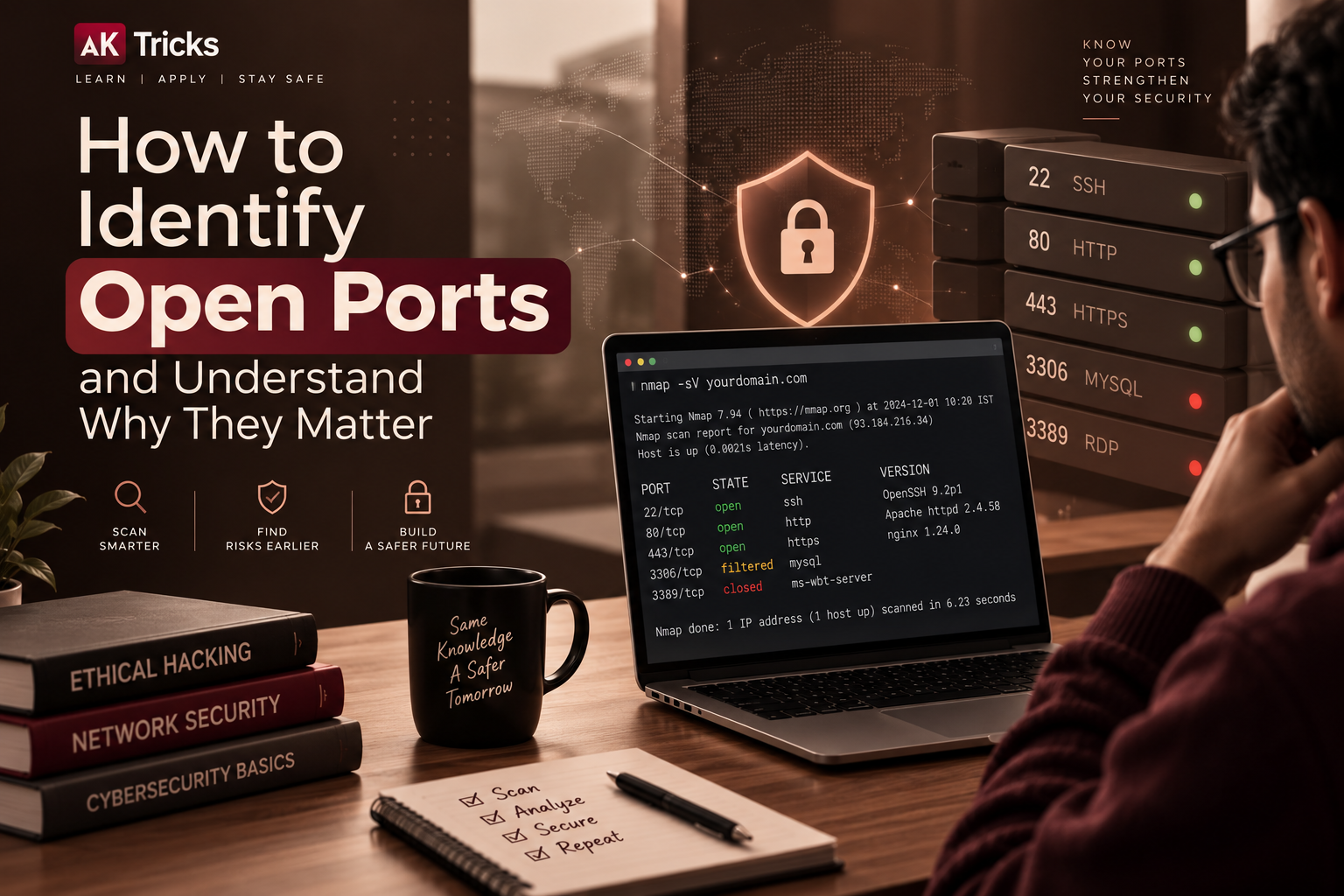
9. Check Open Ports and Running Services
If you manage your own server, checking open ports can help you understand which network services are exposed.
A port is essentially a communication endpoint used by network services.
For example, web servers commonly use ports such as 80 and 443.
However, an open port is not automatically a security vulnerability.
The important questions are:
- What service is running?
- Is the service actually required?
- Is it properly secured?
- Is it exposed to the public internet?
- Is the software up to date?
If you want to understand this process in more detail, see our guide on How to Identify Open Ports and Understand Why They Matter.
Only scan systems you own or are authorised to test.
10. Check File and Directory Permissions
Incorrect permissions can sometimes allow users or processes to access files they should not be able to modify.
Review sensitive areas of your website and server configuration.
Look for:
- Writable configuration files
- Publicly accessible backup files
- Unnecessary write permissions
- Shared accounts
- Incorrect ownership settings
- Sensitive files stored inside public directories
The exact permissions depend on your hosting environment and operating system, so avoid blindly applying permission values copied from an unrelated tutorial.
11. Check for Suspicious Website Changes
If your website has already been compromised, attackers may modify pages, scripts or administrator accounts.
Look for unexpected changes such as:
- New administrator accounts
- Unknown plugins
- Strange JavaScript
- Unexpected redirects
- New files
- Unusual pop-ups
- Spam pages
- Unknown advertisements
- Changes to website settings
- Unfamiliar login activity
If you notice something suspicious, do not immediately delete random files.
First create a backup or preserve relevant evidence if possible, then investigate the change carefully.
For serious incidents, consider contacting your hosting provider or a qualified security professional.
12. Review Your Website Backups
Backups are not exactly a vulnerability test, but they are an important part of website security.
Check whether your website has recent backups and, more importantly, whether those backups can actually be restored.
A backup that cannot be restored when you need it is not very useful.
Ideally, maintain backups of:
- Website files
- Database
- Important configuration
- Business-critical content
Keep backup copies protected from the main website environment where possible.
If an attacker compromises your website and can also delete its backups, recovery becomes much more difficult.
13. Run a Vulnerability Scan
Once you have completed the basic manual checks, you can use a reputable website security scanner.
Depending on your website, a scanner may check for things such as:
- Known software vulnerabilities
- Missing security headers
- SSL/TLS issues
- Outdated components
- Common configuration problems
- Exposed information
- Potentially dangerous settings
Remember that automated scanners are not perfect.
A scanner can produce false positives, miss application-specific vulnerabilities, or report an issue that requires additional investigation.
Treat scan results as a starting point rather than absolute proof that your website is secure.
14. Check Your Hosting Account
Website security does not stop at the website itself.
Log in to your hosting account and review:
- Hosting account users
- FTP accounts
- SSH access
- Database users
- API keys
- Backup settings
- Security alerts
- Login history
Remove accounts and access methods that you no longer use.
If your hosting provider supports two-factor authentication, enable it.
Your hosting account can provide powerful access to your website, so protecting it is just as important as protecting the website administrator account.
15. Check Your Database Configuration
If your website uses a database, make sure database credentials are not publicly exposed.
Database usernames and passwords should never be placed inside publicly accessible files or accidentally committed to public code repositories.
Also check whether your database is unnecessarily exposed to the public internet.
Where possible, database access should be restricted to the systems that actually need it.
16. Review Error Messages
Error messages can sometimes reveal more technical information than necessary.
For example, a poorly configured application might expose:
- File paths
- Software versions
- Database details
- Debug information
- Internal server information
Development and debugging settings should not normally be left exposed on a production website.
If your website displays detailed technical errors to normal visitors, review your application’s production configuration.
17. Check Your Third-Party Services
Modern websites often depend on external services.
These may include:
- Payment providers
- Analytics platforms
- Email services
- CDN providers
- Marketing tools
- Chat widgets
- Social media integrations
- APIs
Review which services have access to your website and whether those connections are still required.
Remove unused API keys and integrations.
If an external service has been discontinued, make sure its credentials are not still active.
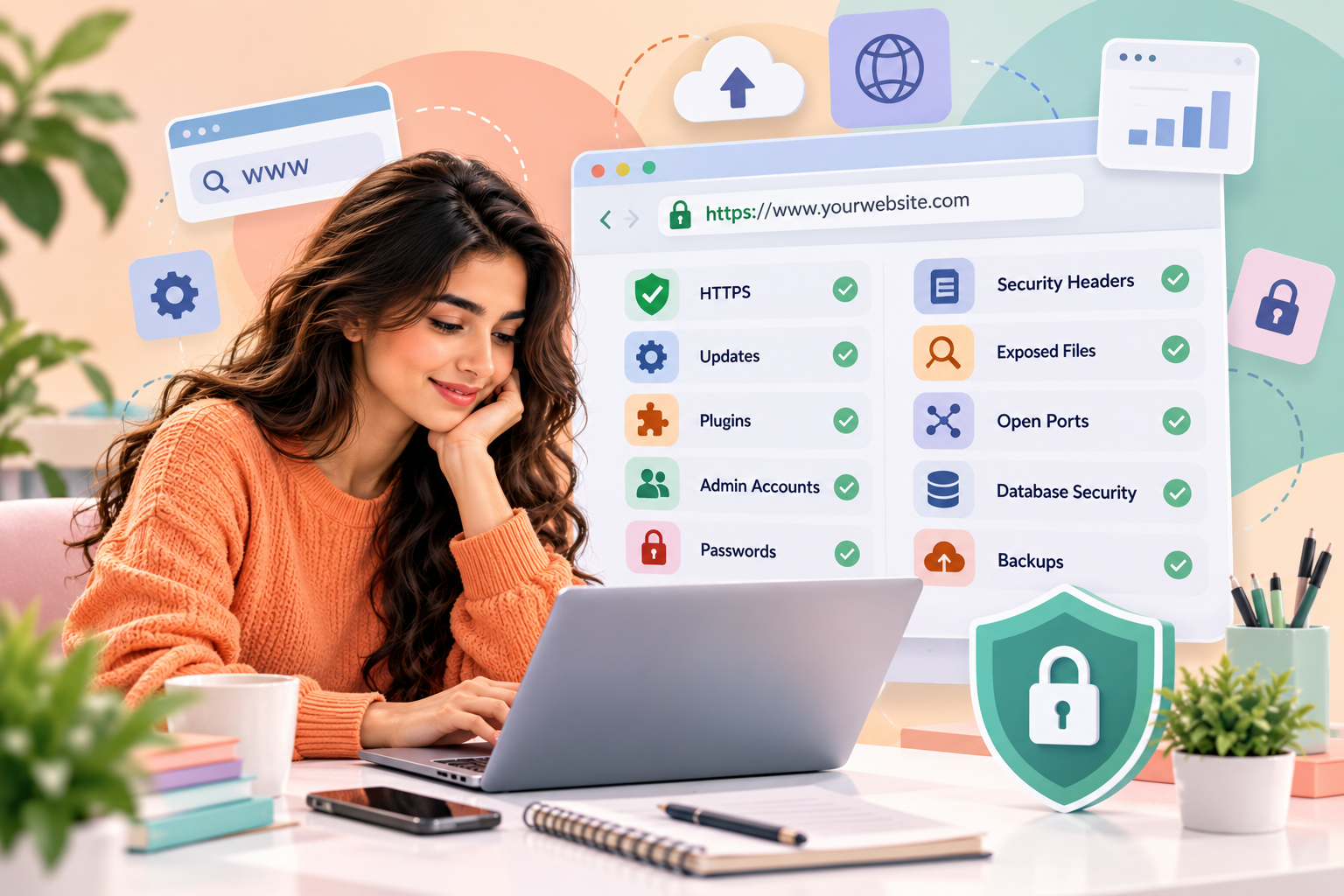
18. Create a Simple Website Security Checklist
You do not need an extremely complicated process.
A basic monthly checklist could look like this:
Website Security Checklist
- HTTPS is working correctly
- CMS is updated
- Plugins and themes are updated
- Unused plugins are removed
- Administrator accounts are reviewed
- Strong passwords are being used
- MFA or passkeys are enabled where possible
- Security headers are reviewed
- Sensitive files are not publicly exposed
- Open ports are reviewed on the server
- File permissions are checked
- Backups are working
- Hosting account access is reviewed
- Database access is restricted
- Suspicious website changes are investigated
- Security scanner results are reviewed
Repeating this checklist regularly is much better than waiting until something goes wrong.
What Should You Do If You Find a Security Problem?
Do not panic.
First, determine what the problem actually is.
Then:
- Record what you discovered.
- Check whether the issue affects a real production system.
- Update vulnerable software if a trusted fix is available.
- Remove unnecessary services or components.
- Change compromised credentials.
- Enable stronger authentication.
- Restrict unnecessary access.
- Review logs for suspicious activity.
- Restore from a clean backup if necessary.
- Contact your hosting provider or security professional for serious issues.
Avoid randomly changing server settings without understanding their purpose. A rushed fix can sometimes create another security problem.
Common Mistakes to Avoid
Installing too many security plugins
More plugins do not automatically mean better security.
Choose reputable tools that solve specific problems and keep them updated.
Assuming HTTPS means the website is completely secure
HTTPS is important, but it does not protect against every type of attack.