







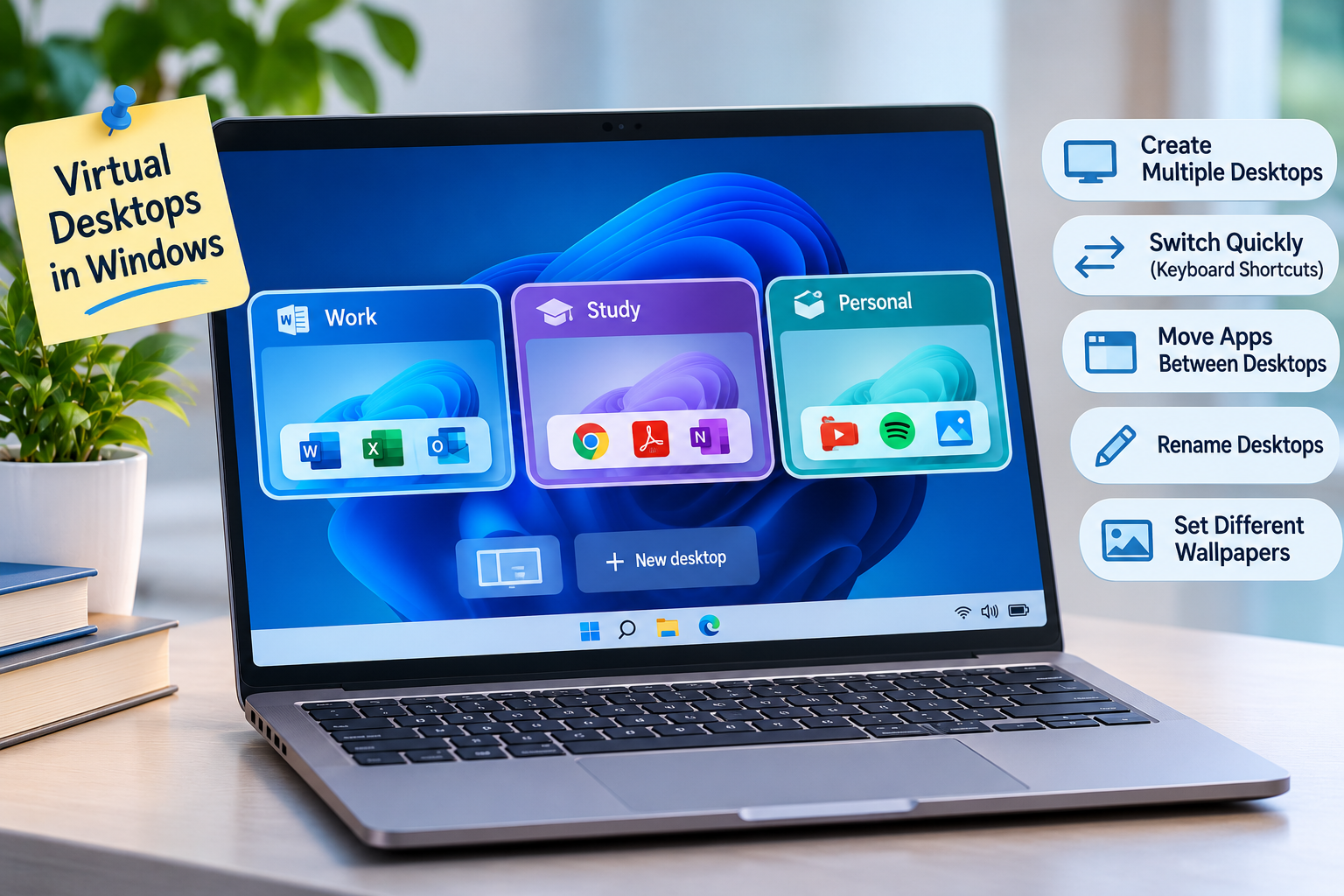
Do you often find yourself opening too many windows on your laptop? Perhaps you are working on a project, checking emails, attending online meetings, and browsing the internet at the same time. Switching between all these windows can quickly make your screen feel crowded.
But what if you could organise your work into separate desktop spaces without closing anything or buying another monitor?
Windows has a built-in feature called Virtual Desktops that lets you create multiple desktops on the same laptop. You can use one desktop for office work, another for personal tasks, and a third for studying or entertainment.
The interesting part is that you do not need to install any additional software to use this feature.
In this guide, you will learn how to open multiple desktops on one laptop, switch between them using keyboard shortcuts, move apps between desktops, and organise your workspace more efficiently.
What Are Virtual Desktops in Windows?
Virtual Desktops allow you to create multiple separate desktop workspaces on a single Windows computer.
Each desktop can have its own open applications and windows. For example, you can keep your browser, documents, and work-related tools on one desktop while keeping music, personal browsing, and messaging apps on another.
Think of it as having several organised workspaces on one screen.
Here is a simple example:
- Desktop 1 – Work: Microsoft Word, Excel, email, and work-related browser tabs.
- Desktop 2 – Study: Online classes, PDF notes, research websites, and educational videos.
- Desktop 3 – Personal: Messaging apps, entertainment, and personal browsing.
You can move between these desktops whenever you want. Your applications remain open, so you do not have to repeatedly close and reopen them.
1. How to Open Multiple Desktops on Your Laptop
Creating another desktop in Windows is very simple. Follow these steps:
Step 1: Press the Windows + Tab keys together on your keyboard.
Step 2: Windows will open Task View, where you can see your currently open windows and available desktops.
Step 3: Look for the New desktop (+) option.
Step 4: Click the plus icon to create a new desktop.
Step 5: Click the newly created desktop to open it.
That’s it! You now have another desktop on the same laptop.
You can repeat these steps to create additional desktops whenever you need them.
2. The Fastest Way to Create a New Desktop
If you do not want to open Task View every time, there is a keyboard shortcut that makes the process much faster.
Simply press:
Windows + Ctrl + D
This shortcut immediately creates a new virtual desktop and switches you to it.
You do not need to open any menu or click anything else.
This is particularly useful when you want to separate a new task from your existing workspace quickly.
3. How to Switch Between Multiple Desktops
Once you have created multiple desktops, you can move between them without closing your applications.
There are two easy methods.
Method 1: Using Keyboard Shortcuts
Press the following keys together:
Windows + Ctrl + Left Arrow– Switch to the desktop on your left.Windows + Ctrl + Right Arrow– Switch to the desktop on your right.
These shortcuts make switching between workspaces quick and convenient.
Method 2: Using Task View
- Press
Windows + Tab. - You will see your available desktops at the top of the screen.
- Click the desktop you want to open.
You can also use your mouse to select a desktop from Task View.
4. How to Move an Open Application to Another Desktop
Here is another useful feature that many laptop users overlook.
Suppose you have opened Microsoft Word on Desktop 1, but you now want to move it to Desktop 2. You do not need to close the application or open it again.
Follow these steps:
- Press
Windows + Tabto open Task View. - Find the application window you want to move.
- Right-click on that window.
- Select Move to.
- Choose the desktop where you want the application to appear.
Your application will now be available on the selected desktop.
You can use this feature to organise your applications according to different tasks.
5. How to Rename Your Virtual Desktops
If you create several desktops, remembering which one is used for what can become confusing.
Windows allows you to rename your virtual desktops so you can identify them easily.
Here is how:
- Press
Windows + Tab. - Find the desktop you want to rename.
- Right-click on its thumbnail.
- Select Rename.
- Enter a name such as Work, Study, Personal, or Projects.
- Press Enter.
You can now identify each workspace by its name instead of remembering its position.
6. How to Set Different Wallpapers for Each Desktop
Want to make your virtual desktops look different from each other?
Windows 11 allows you to assign a different background image to each virtual desktop.
Follow these steps:
- Open Task View by pressing
Windows + Tab. - Right-click on the desktop you want to customise.
- Select Choose background.
- Select the wallpaper you want to use.
You can use a professional background for your work desktop and a different image for your personal workspace.
This makes it easier to recognise which desktop you are currently using.
Note: The separate wallpaper option is available in Windows 11. Windows 10 does not offer the same built-in per-desktop wallpaper feature.
7. How to Close an Extra Desktop Without Closing Your Work
Sometimes you may create a desktop that you no longer need.
You can close it without manually closing every application inside it.
There are two ways to do this.
Method 1: Using a Keyboard Shortcut
Press:
Windows + Ctrl + F4
This closes the virtual desktop you are currently using.
Method 2: Using Task View
- Press
Windows + Tab. - Move your mouse over the desktop you want to close.
- Click the X icon that appears.
Your desktop will be removed.
Important: Closing a virtual desktop does not automatically close its open applications. Windows moves those windows to another available desktop, so you can continue working with them.
8. How to Keep an Application Visible on Every Desktop
This is a particularly useful option when you want an application to remain accessible from all your virtual desktops.
For example, you may want a messaging app or music player to remain visible while switching between workspaces.
To do this:
- Press
Windows + Tab. - Find the application window in Task View.
- Right-click on the window.
- Select Show this window on all desktops.
If you want all windows from that application to appear across desktops, you can select Show windows from this app on all desktops, when that option is available.
This can save time when you regularly use the same application across different tasks.
Useful Windows Virtual Desktop Keyboard Shortcuts
You do not need to remember every step once you learn these shortcuts.
| Keyboard Shortcut | What It Does |
|---|---|
| Windows + Tab | Opens Task View |
| Windows + Ctrl + D | Creates a new desktop |
| Windows + Ctrl + Left Arrow | Switches to the desktop on the left |
| Windows + Ctrl + Right Arrow | Switches to the desktop on the right |
| Windows + Ctrl + F4 | Closes the current desktop |
Tip: Save this shortcut list somewhere on your laptop. After using these combinations a few times, switching between virtual desktops will become much easier.
Does This Feature Work on Windows 10 and Windows 11?
Yes. Virtual Desktops are supported in both Windows 10 and Windows 11.
However, some features and their appearance may differ between the two versions.
| Feature | Windows 10 | Windows 11 |
|---|---|---|
| Create multiple desktops | Yes | Yes |
| Switch using keyboard shortcuts | Yes | Yes |
| Rename desktops | Yes | Yes |
| Move apps between desktops | Yes | Yes |
| Different wallpaper for each desktop | No | Yes |
| Show an app on all desktops | Yes | Yes |
The main virtual desktop shortcuts work in both versions, although the Task View interface may look slightly different.
Why Should You Use Multiple Desktops?
Virtual Desktops are not just a hidden Windows feature. They can also make everyday laptop use more organised.
Here are a few situations where they can be helpful:
1. Better Work Organisation: Keep office-related applications separate from personal activities.
2. Easier Multitasking: Switch between different tasks without minimising dozens of open windows.
3. Less Screen Clutter: Organise applications into separate workspaces instead of keeping everything on one desktop.
4. Useful for Students: Keep study materials, online classes, and entertainment in separate spaces.
5. Better Focus: Create a dedicated desktop for a particular project and avoid unnecessary distractions.
Final Thoughts
You do not need multiple monitors or additional software to organise your laptop workspace. Windows Virtual Desktops allow you to create separate workspaces and switch between them whenever you need.
From creating a new desktop with Windows + Ctrl + D to moving applications and setting different wallpapers, these small features can make everyday laptop use much easier.
If you have never tried Virtual Desktops before, start by creating two workspaces: one for work and one for personal activities. Once you get comfortable, you can organise your laptop in a way that suits your daily routine.
Sometimes, the most useful laptop features are already available on your computer. You just need to know where to find them.
Frequently Asked Questions (FAQs)
1. Can I create multiple desktops on one laptop?
Yes. Windows 10 and Windows 11 allow you to create multiple virtual desktops on the same laptop. You can use them to organise different applications and tasks.
2. What is the shortcut to create a new desktop in Windows?
Press Windows + Ctrl + D to create a new virtual desktop instantly.
3. Will closing a virtual desktop delete my files?
No. Closing a virtual desktop does not delete your saved files or automatically close your open applications. Windows moves the open windows to another desktop.
4. Can I use different wallpapers on different desktops?
Yes, Windows 11 supports separate wallpapers for virtual desktops. This feature is not available in the same way in Windows 10.
5. Can I move Chrome or other applications between desktops?
Yes. Open Task View by pressing Windows + Tab, right-click the application window, select Move to, and choose your preferred desktop.
6. Do virtual desktops make a laptop faster?
No. Virtual Desktops are mainly an organisation and productivity feature. They do not increase your laptop’s processing speed or RAM. Applications running across desktops still use system resources.
7. How many virtual desktops can I create?
Windows supports multiple virtual desktops, but the practical number depends on your system resources and how many applications you keep open. You do not need to create a separate desktop for every small task.




















I appreciate how thoroughly you covered “How to Open Multiple Desktops on One Laptop” without unnecessary fluff. Focusing on yourself really clarifies the most common bottlenecks people face.