







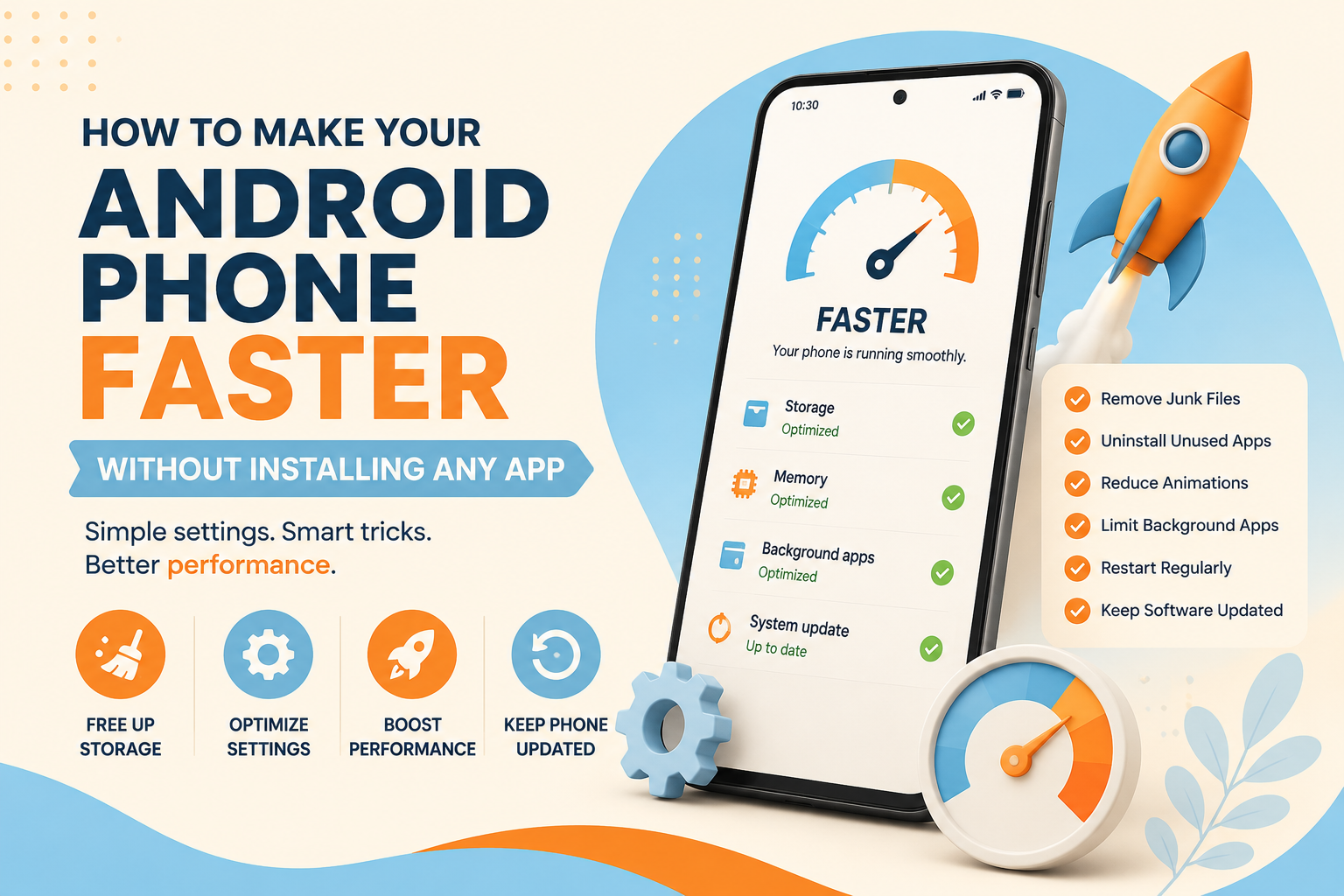
Make Android Phone Faster without installing another app by changing a few settings and removing things that unnecessarily consume storage, memory, battery, or processing power.
If your Android phone has become slow over time, you don’t necessarily need a “phone booster” or “RAM cleaner.”
In fact, installing another app to fix a slow phone can sometimes make the problem worse.
Your phone may be slowing down because of:
Low storage
Too many background processes
Outdated software
Heavy apps
Too many browser tabs
Excessive animations
Unused applications
Large media files
Battery or performance restrictions
The good news is that Android already includes several tools that can help you improve performance.
Here are some practical tricks you can try.
1. Check How Much Storage You Have Left
One of the first things to check is your available storage.
When your phone’s storage becomes extremely full, managing files and running applications can become more difficult.
Go to:
Settings ? Storage
The exact menu name can vary depending on your phone manufacturer and Android version.
Check how much space is available.
If your storage is nearly full, start by removing things you don’t need.
2. Delete Large Videos You Don’t Need
Videos can consume enormous amounts of storage.
Open your gallery or file manager and look for:
Old videos
Duplicate videos
Downloaded movies
Screen recordings
Large WhatsApp or messaging media
Delete files you no longer need and back up important memories before removing them.
This can free up significant storage without installing anything.
3. Remove Apps You Never Use
Take a look at your installed applications.
You may find apps you downloaded months or years ago and haven’t opened since.
Go to your app list and uninstall applications you no longer need.
Fewer unnecessary applications can mean less background activity and more available storage.
4. Check Which Apps Use the Most Storage
Instead of guessing what is consuming your storage, check it.
Go to:
Settings ? Apps
Select an application to view its storage usage.
Large apps may have accumulated substantial amounts of:
Cache
Downloads
Offline content
Temporary files
User data
Review the information carefully before deleting anything.
5. Clear Cache for Problematic Apps
Some Android apps store temporary data called cache.
Over time, a particular app can accumulate a large cache.
If one application is behaving strangely or consuming excessive storage, clearing its cache may help.
Depending on your Android version, you may find it under:
Settings ? Apps ? Select App ? Storage ? Clear Cache
Be careful not to select Clear Storage or Clear Data unless you understand what it does.
Clearing app data can log you out and remove locally stored information.
6. Reduce the Number of Browser Tabs
If you regularly keep dozens of browser tabs open, close the ones you no longer need.
A huge collection of open tabs can make browsing harder to manage and may consume additional resources depending on the browser and device.
Keep important pages bookmarked instead of leaving hundreds of tabs open.
7. Restart Your Phone
This is one of the simplest tricks, yet many people rarely do it.
A restart can:
Clear temporary processes
Resolve minor software glitches
Refresh system services
Close stuck applications
Improve performance in some situations
If your phone has been running continuously for a long time, restarting it is worth trying before looking for complicated solutions.
8. Reduce Animation Speed
This is one of the most useful Android tricks.
Android uses animations when opening applications, switching screens, and navigating menus.
On some phones, reducing animation scales can make the interface feel noticeably faster.
The relevant settings are generally found under Developer Options.
You may see:
Window animation scale
Transition animation scale
Animator duration scale
You can reduce these values or disable animations.
How to Enable Developer Options
On many Android devices:
Open Settings
Go to About Phone
Find Build Number
Tap it several times
You may be asked to enter your screen lock.
Once enabled, Developer Options typically appears in your system settings.
The exact location varies by manufacturer.
Important
Developer Options contains advanced settings.
Don’t change settings you don’t understand.
For this trick, stick to animation settings.
9. Turn Off Unnecessary Live Wallpapers
Animated wallpapers can consume additional resources.
If your phone is older or already struggling with performance, consider using a simple static wallpaper.
It may not transform your phone overnight, but reducing unnecessary visual effects can help keep the interface lighter.
10. Remove Unnecessary Home Screen Widgets
Widgets can be useful, but some continuously update information.
Examples include:
Weather
News
Stocks
Sports
Social media
System monitoring
If you don’t use a widget, remove it from your home screen.
Press and hold the widget and choose the appropriate remove option.
Keep only the widgets you actually need.
11. Limit Background Activity From Heavy Apps
Some applications continue working in the background even when you’re not actively using them.
Depending on your Android version, you may be able to review battery or background activity under:
Settings ? Battery
or
Settings ? Apps ? App Battery Usage
Look for applications consuming unusually high amounts of background resources.
You can adjust their background activity where Android provides those controls.
Be careful with messaging, alarm, navigation, and other apps that you genuinely need to work in the background.
12. Turn Off Auto Sync for Things You Don’t Need
Automatic synchronization keeps information updated across your accounts.
That’s useful, but you may not need every service syncing continuously.
Review your account synchronization settings and disable unnecessary items where appropriate.
Keep essential services enabled.
13. Update Android
Sometimes a slow phone isn’t caused by too many apps or files.
Software bugs can also affect performance.
Check:
Settings ? System ? Software Update
The exact path depends on the manufacturer.
If an official update is available, review it and install it when appropriate.
Updates can include:
Bug fixes
Security improvements
Performance improvements
Compatibility updates
14. Update Your Apps
Outdated apps can sometimes behave poorly with newer versions of Android.
Open your device’s official app store and check for available updates.
Updating applications can fix bugs and improve compatibility.
Don’t install random “performance booster” applications simply because they promise to make your phone faster.
15. Find Apps That Drain Your Battery
Battery usage can sometimes reveal applications that are working excessively in the background.
Go to:
Settings ? Battery ? Battery Usage
Look for applications that consume unusually high amounts of power.
If an application you rarely use is constantly active, investigate its settings.
This can also help identify apps that may be contributing to poor performance.
16. Remove Unnecessary Downloads
Your Downloads folder can become surprisingly large.
Check for:
Old PDFs
Installation files
Images
Videos
Documents
ZIP files
Files downloaded from websites
Delete anything you no longer need.
This is an easy way to recover storage.
17. Clean Up Messaging Media
Messaging applications can quietly accumulate thousands of images and videos.
Check folders associated with your messaging apps.
You may discover:
Duplicate photos
Old memes
Forwarded videos
Large recordings
Unwanted documents
Delete unnecessary files while keeping anything important.
18. Disable Unnecessary Notifications
Notifications don’t necessarily make your phone dramatically slower, but excessive notifications can create unnecessary background activity and make your phone feel cluttered.
Go to:
Settings ? Notifications
Review which applications are allowed to send notifications.
Disable notifications from apps you don’t need to hear from.
You’ll also make your phone less distracting.
19. Use Lite Versions When Available
Some services offer lighter versions of their applications or mobile websites.
If your phone has limited hardware, a lighter alternative can sometimes provide a smoother experience.
However, availability varies by country, device, and service.
20. Don’t Keep Your Phone Permanently at the Storage Limit
This is an important long term habit.
Try to maintain a reasonable amount of free storage.
You don’t need to obsess over a specific percentage because performance varies by device and Android version.
But if your storage is constantly almost full, regularly move or delete unnecessary files.
21. Avoid Installing RAM Cleaner Apps
This may sound surprising.
Many users install apps that promise to:
Boost RAM
Cool the phone
Clean memory
Increase speed
Extend battery life
But Android already manages memory and background processes itself.
A third party “RAM booster” isn’t automatically useful and may add another process to your phone.
Instead, identify the actual cause of the slowdown.
22. Check Whether One App Is Causing the Problem
If your phone became slow immediately after installing a particular application, that app may be part of the problem.
Try uninstalling it and observing whether performance improves.
This is especially useful if you notice:
Battery draining quickly
Phone becoming hot
Frequent crashes
Unexpected pop ups
Heavy background activity
If removing the application fixes the problem, you’ve identified a likely cause.
23. Use Your Phone’s Built In Device Care Tools
Many Android manufacturers include their own device management tools.
Depending on your phone, these may provide options for:
Storage management
Battery optimization
Security scanning
Memory information
App management
Performance monitoring
Use the tools provided by your manufacturer before installing third party “cleaner” applications.
The available features vary by device.
24. Keep Your Phone Cool
Heat can affect device performance.
Avoid leaving your phone in direct sunlight or extremely hot environments.
If your phone becomes unusually hot while doing simple tasks, check which applications are running and investigate the cause.
Don’t use extreme cooling methods such as putting your phone in a refrigerator or freezer.
25. Know When the Hardware Is the Problem
Software tricks can’t solve every performance issue.
If your phone is several years old and struggles with basic tasks even after cleaning storage and updating software, the hardware may simply be reaching its limits.
Factors can include:
Older processor
Limited RAM
Worn battery
Slow storage
Unsupported software
Hardware damage
At that point, upgrading the device may provide a more meaningful improvement than constantly installing optimization tools.
A Quick Android Speed Up Checklist
If your Android phone feels slow, try these steps first:
Check available storage
Delete unnecessary videos
Remove unused apps
Clear cache from problematic apps
Close unnecessary browser tabs
Restart the phone
Reduce animations
Remove unnecessary widgets
Check battery usage
Update Android
Update applications
Clean your Downloads folder
Review background activity
Keep the device cool
Avoid unnecessary cleaner apps
These steps cost nothing and don’t require installing another application.
What You Should Not Do to Speed Up Your Android Phone
Be careful with extreme “optimization” advice online.
Avoid:
Installing unknown booster apps
Deleting system files
Changing advanced Developer Options randomly
Disabling important system services
Using unofficial system modification tools
Installing unknown APK files
Rooting your phone just for speed
These actions can create security, stability, or compatibility problems.
Frequently Asked Questions
How can I make my Android phone faster without an app?
Free up storage, remove unused apps, restart the device, reduce animations, update Android and applications, review background activity, and remove unnecessary files.
Does clearing cache make Android faster?
Clearing the cache of a problematic application can sometimes resolve performance or storage issues. It isn’t necessary to constantly clear every app’s cache.
Does deleting apps improve phone speed?
Removing unnecessary applications can free storage and reduce potential background activity. The effect depends on the device and the applications involved.
Does restarting an Android phone make it faster?
A restart can clear temporary processes and resolve certain software issues. It can help when a phone has become sluggish because of a temporary problem.
Should I use a RAM cleaner app?
Usually, you don’t need a third party RAM cleaner. Android already manages memory, and installing another app may add unnecessary background activity.
Why is my Android phone still slow after cleaning it?
The issue could be related to aging hardware, battery condition, software problems, storage limitations, or a particular application. If basic optimization doesn’t help, the device may simply be reaching its hardware limits.
Final Thoughts
You don’t always need a new phone to improve Android performance.
Before spending money or installing a dozen “booster” applications, try the tools already built into your phone.
Free up storage.
Remove apps you don’t use.
Reduce unnecessary animations.
Check which applications are consuming resources.
Keep your software updated.
Restart your phone occasionally.
And avoid questionable optimization apps that promise unbelievable performance improvements.
The biggest trick is to find what is actually slowing your phone down instead of treating every performance problem the same way.
A few simple changes can make an older Android phone feel cleaner, smoother, and more responsive.
And the best part? You don’t need to install anything.




















“I agree with your points, very insightful!”
Well explained and practical. I’ve had good results with Luna Lisa Alpha () for product photos and posters.. Luna Lisa Alpha
For reference-guided shots, text-to-video app supports prompt-driven action that keeps subject continuity. That helps when validating dialogue timing against picture.
???? ??????? ???? ??????
????? ??? ?? ????????? ?????
?????? ????? ? ?? ?????? ???? ??
????? ???????? ???????? ? ?????? ????? ????? ???? ??? ????? ?? ????
????? ???.
????? ???? ???? ????????? ???? ????? ????????? ???? ?????? ??? ?? ?? ????? ? ????? ????? ???? ? ????? ? ????? ???? ????? ????? ??????.
?? ???? ??? ?? ???? 100% ??????? ?? ???? ?? ???? ???? (?????? ?????????? ?? ?? ??????? ???????? ? ???? ?????????) ?????? ??????? ????? ?????????? ??? ?? ????? ??????? ???????? ? ???????? ??? ?? ???? ??? ???????? ????.
my response samourai
her comment is here https://web-samourai.com/
official website samourai wallet recovery
find here https://web-samourai.com/
click https://ff-swap.to
Experience seamless streaming using this tool for free browser M3U streaming without dealing with tedious installation steps.
I found official station information quickly after searching through this comprehensive open television station index.
i loved this
sideshift
my review here
changenow crypto
Tr?i nghi?m cá c??c th? thao t?i https://fly88.tel/ khá m??t, kèo c?p nh?t nhanh.
Hey, if anyone is looking for a new gaming site to check out, I recommend pakwin777. I’ve been playing there for awhile, and the game selection is awesome.pakwin777
?? ????? ??
??? ????? ??????? ???? ? ???? ?? ???????? ?????????? ????? ??????
??????? ?????? ?? ?????? ??????? ?? ???
????? ????? ?????? ? ???? ?? ?? ????? ???????? ? ??? ?? ?? ???? ??? ??????? ??????.
More Bonuses santander login
????? https://city–exchange.io/%3E?%3F
???????? ???? https://tripscan77.us/%3Etripscan
?????? https://city–exchange.io/%5Dcity
visit site santander bank
click for more info santander bank login
Click This Link santander online
my site santander online banking
Visit Website santander login
???????
???????? ???????? ?? kick ? ?????
???-????
bs2site at ??? ?? ????
?????? ?????? ??????
?? ????? ?? ????????? ?? ???????????? ?????????? ??????? ??????
????? ?? ???? ???? ?? ?? ???? ??????? ???? ???? ????? ?? ??????? ?????
??????? ???? ???? ??????
?? ??? ?? ????? ????????.
If you are curious about anonymous browsing, this free anonymous story viewer review explains how the process actually works.
???? ???? ?? ?? ??????? ????? ??? ?? ???? ????????? ?? ???? ??????? ????? ???? (????? ??????? ???
??????? ???????? ? ?????????????) ?? ????? ????.
The registration process was a breeze. I love how the graphics look on my phone. 98jiliapp is definitely my new go-to for some quick fun.
Really happy with the customer support team here. They solved my deposit issue in minutes. It is hard to find such reliable service as bd09bed these days.
Video editors wanting seamless textural details and natural lighting in ad animations should experiment with Minimax Hailuo H3 rendering .
Someone in our developer community pointed me toward Built for Every Kind of Learner, and it turned out to be the missing piece for this setup.
Really liking the bonuses they offer for new members. Just had a great win today at mgbetcom, feels like the luck is on my side!
The graphics are amazing and the gameplay is very addictive. I spend a lot of my free time here and I’m always winning. Try mc888slot
Adding Seedance 1 Pro Fast directly into our daily routine helped us streamline the whole process you described.