







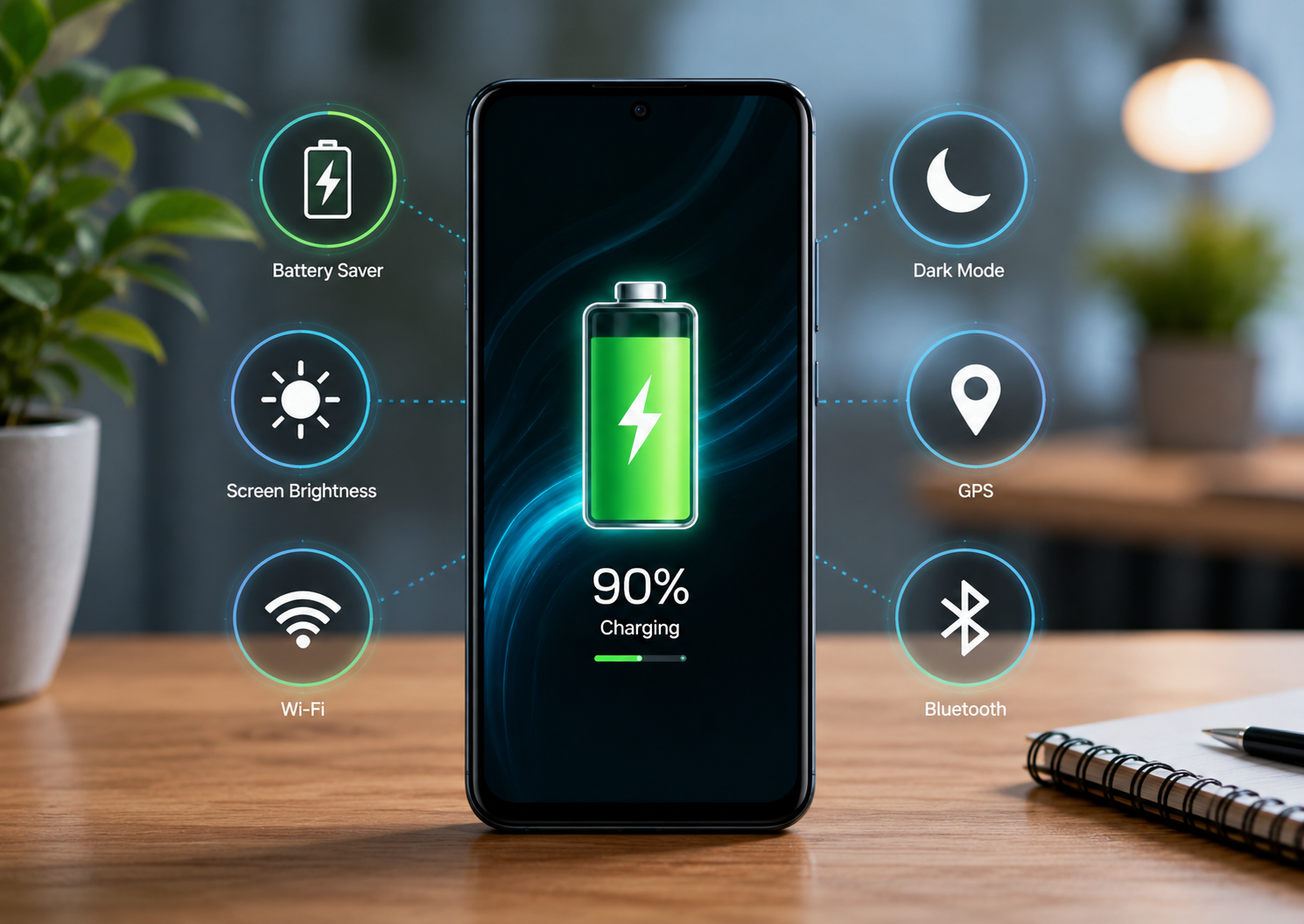
Does your Android phone lose battery faster than expected? You’re not alone. Whether you use your phone for work, gaming, social media, or online classes, poor battery life can quickly become frustrating.
The good news is that you don’t need to buy a new phone to improve battery performance. A few simple changes to your settings and daily habits can significantly increase your battery life.
In this guide, you’ll learn 15 Android battery saving tips that actually work and help your phone last longer throughout the day.
Why Does Your Android Battery Drain So Fast?
Several factors can cause your phone battery to drain quickly.
• High screen brightness
• Apps running in the background
• Constant GPS usage
• Poor mobile network signal
• Too many notifications
• High refresh rate display
• Outdated apps or software
• Battery intensive games and apps
Understanding these causes makes it easier to improve your phone’s battery life.
1. Reduce Screen Brightness
The display is one of the biggest battery consumers on any smartphone.
Keeping your screen brightness at maximum all day can drain your battery much faster than expected.
Instead, use Auto Brightness or manually lower the brightness whenever possible.
Why It Works
A dimmer display uses less power, helping your battery last much longer.
2. Turn On Battery Saver Mode
Most Android phones include a built in Battery Saver mode that limits background activities and reduces power consumption.
You can enable it manually or set it to turn on automatically when your battery reaches a certain percentage.
Why It Works
Battery Saver reduces unnecessary background processes and extends battery life during the day.
3. Close or Restrict Background Apps
Many apps continue running even when you’re not using them.
Social media apps, shopping apps, and games often refresh in the background and consume battery.
Go to your phone’s Battery settings and restrict apps that don’t need background access.
Why It Works
Fewer background activities mean lower battery usage.
4. Use Dark Mode
If your phone has an OLED or AMOLED display, Dark Mode can noticeably reduce battery consumption.
Many apps, including YouTube, WhatsApp, Instagram, and Google apps, support Dark Mode.
Why It Works
Dark pixels consume less power on OLED displays, improving battery life.
5. Turn Off Bluetooth, GPS, and NFC When Not Needed
Wireless features constantly search for nearby devices or locations.
If you aren’t using Bluetooth, GPS, NFC, or Nearby Share, turn them off.
Why It Works
Disabling unused connections prevents unnecessary battery drain.
6. Lower the Screen Timeout
Many people leave their screen on for one or two minutes after every use.
Reducing screen timeout to 15 or 30 seconds saves a surprising amount of battery throughout the day.
Why It Works
Your display turns off sooner, reducing unnecessary power usage.
7. Remove Unused Widgets
Widgets constantly update information like weather, news, calendar events, and stock prices.
Having too many widgets on your home screen can increase battery usage.
Why It Works
Fewer widgets mean fewer background updates.
8. Update Apps and Android Software
Developers regularly release updates that improve performance and fix battery related issues.
Always keep your Android system and installed apps updated.
Why It Works
Software updates often include battery optimization improvements.
9. Disable Always On Display
Some Android phones offer an Always On Display feature that keeps the clock and notifications visible even when the screen is off.
While it’s convenient, it also uses battery throughout the day.
Why It Works
Turning off Always On Display can help extend battery life, especially on older devices.
10. Switch to Wi Fi Whenever Possible
Using mobile data generally consumes more power than a stable Wi Fi connection.
If you’re at home, work, or school, connect to a trusted Wi Fi network.
Why It Works
Wi Fi typically uses less power than mobile data, especially in areas with weak cellular signals.
11. Disable High Refresh Rate When You Don’t Need It
Many modern Android phones support 90Hz, 120Hz, or even 144Hz refresh rates.
These higher refresh rates make scrolling smoother but also use more battery.
Switching to 60Hz can significantly improve battery life.
Why It Works
A lower refresh rate reduces power consumption while still providing a good user experience.
12. Reduce Notifications
Every notification wakes up your screen and uses battery.
Review your notification settings and disable alerts from apps that aren’t important.
Why It Works
Fewer screen wake ups mean less battery usage throughout the day.
13. Avoid Live Wallpapers
Animated wallpapers may look attractive, but they constantly use your phone’s processor and graphics hardware.
A simple static wallpaper is much more battery friendly.
Why It Works
Static wallpapers require fewer system resources and help save battery.
14. Keep Your Battery Between 20% and 80%
Modern lithium ion batteries last longer when they are not constantly charged to 100% or drained to 0%.
For everyday use, try to keep your battery level between 20% and 80%.
Why It Works
This charging habit can help maintain battery health over the long term.
15. Check Battery Usage Regularly
Android includes a Battery Usage section that shows which apps consume the most power.
Review this information regularly and uninstall or restrict apps that use excessive battery.
Why It Works
Identifying battery hungry apps helps you fix the real cause of battery drain instead of guessing.
Charging Habits That Help Your Battery Last Longer
Good charging habits are just as important as changing settings.
Follow these simple practices.
• Use a high quality charger that is compatible with your phone.
• Avoid exposing your phone to excessive heat while charging.
• Remove thick phone cases if your device becomes very hot during charging.
• Keep your phone updated with the latest software.
• Avoid leaving your phone plugged in for extended periods if unnecessary.
Common Battery Saving Myths
Many battery tips shared online are outdated or simply incorrect.
Myth 1: Closing every app saves battery
Not always. Android manages memory efficiently, and constantly closing and reopening apps can sometimes use more power.
Myth 2: Charging overnight always damages the battery
Modern smartphones automatically manage charging once the battery is full. However, regularly keeping the battery at 100% for long periods may slightly increase long term wear.
Myth 3: You should completely drain your battery before charging
This advice applied to older battery technologies. Modern lithium ion batteries perform better with regular charging before they become fully discharged.
Myth 4: Only original chargers work safely
Many certified third party chargers are safe to use as long as they meet your phone’s charging specifications.
Quick Battery Saving Checklist
? Reduce screen brightness
? Turn on Battery Saver mode
? Restrict background apps
? Use Dark Mode
? Turn off Bluetooth, GPS, and NFC when not needed
? Lower screen timeout
? Remove unnecessary widgets
? Update apps and Android software
? Disable Always On Display
? Use Wi Fi whenever possible
? Lower the refresh rate
? Reduce unnecessary notifications
? Use a static wallpaper
? Charge between 20% and 80%
? Monitor battery usage regularly
Frequently Asked Questions
Why is my Android battery draining so fast?
Battery drain is often caused by high screen brightness, background apps, poor network coverage, location services, high refresh rate displays, and battery intensive applications.
Does Dark Mode really save battery?
Yes. On phones with OLED or AMOLED displays, Dark Mode can reduce power consumption because black pixels require less energy.
Should I charge my phone to 100% every time?
For daily use, keeping your battery between 20% and 80% can help maintain its long term health. Charging to 100% occasionally is perfectly fine when you need maximum battery life.
Which setting saves the most battery?
Reducing screen brightness is usually the single most effective way to improve battery life because the display is one of the biggest power consumers.
Is Battery Saver mode safe to use all the time?
Yes. Battery Saver mode is designed by Android to reduce power usage by limiting background activity and certain visual effects. It is safe to use whenever needed.
Final Thoughts
Improving your Android phone’s battery life doesn’t require expensive accessories or complicated tricks. Most battery drain issues can be fixed by adjusting a few settings and following better charging habits.
Start with the basics by lowering your screen brightness, enabling Battery Saver mode, restricting unnecessary background apps, and turning off features you don’t use. These small changes can make a noticeable difference in how long your phone lasts on a single charge.
If your battery continues to drain unusually fast after trying these tips, it may be worth checking your battery health or having the device inspected, especially if it’s several years old.




















A resource like this is helpful that agent skills documentation resources can make it easier to compare practical agent patterns before choosing an approach.
?????? ??? ??????? ??? ?? ?????????? ? ???????????? ???????? ????? ?? ??? ???? ??? ??
???? ???? ????? ??????? ??? ???????
????? ??????.
????? ???? ???? ????????? ???? ????? ????????? ???? ?????? ??? ?? ?? ????? ? ????? ????? ???? ? ????? ? ????? ???? ????? ????? ??????.
?????? ???? ???? ?? ???? ???????? (???????????? ??????) ??? ?? ?? ???? ?????? ?????????? ???? ????? ??? ???.
?????? ?????
?? ???? ?????? ?????????? ?????
???? ? ?? ????? ?????? ??? ?? ????
?????? ???????? ????? ???? ??????.
???? ?????? ???? ?????? ????? ??? ?? ?? ???? ??? ???????? (???? ??????) ? ?? ????? ?????? ????? ?? ????? ?? ????? ????? ????? ?????? ?? ??? ????? ???.
?????? ???? ????? ?? ???? ????? ????? ?? ?????? ?????????? ???? ?? ???? ?????? ? ???????? ?? ????????? ??? ?? ???????????? ? ??????? ???? ???? ?????? ?? ???? ????? ????? ???.
?????? ????? ?? ?????? ?????????? ???? ? ????????? ??? ????? ??? ?? ?? ???? ?????? ? ??? ????? ??? ?? ???????? ????? ?????? ????? ?? ????? ???.
Appreciate you sharing. It aligns with what I value in adult video sites
my web blog … gay0day.com
Pretty section of content. I simply stumbled upon your site and in accession capital to assert that I acquire in fact enjoyed account your blog posts.
Anyway I’ll be subscribing on your augment and even I achievement you get entry to consistently fast.
?? ???? ???????? ?? ????? ?????? ??? ?? ?? ??????? ?????? ? ?? ??????? ???????? ??? ???????? ???? ???? ?????? ??? “???? ??? ??????????” ? “???? ???? ???” ????? ???.
??? ????? ?? ?? ?? ?? ?? ?? ?? ???? ?? ????? ????????? ?? ????? ??????? ???????? ? ????? ??????? ????? ?? ????? ?? ??????? ??????????? ???? ?? ???? ??????? ?? ?????????? (???? ??????) ? ?????? ???? ??????? ????? ???.
??????? ?? ???????? ?? ???? ??????? ? ?????????? ?????? ??? ?? ??? ? ??? ????? ????? ???? ? ?? ???? ???? ???????? ?? ????? ??? ??????? ?? ?? ????? ????????? ???? ??? ????? ??? ?? ????? ???.
?????? ???? ?? ?? ???? ?? ??? ????? ????? «??-??» ?? ??????? ??????? ????? «??-?? ???????» ?????? ??????? ?? ?????? ?????? ??????? ? ??????????? ??? ?? ???? ?? ?????? ?????? ??? ?????? ? ?????? ??? ?????? ????? ??? ???.
?????? ???? ???? ?? ???? ????????
(???????????? ??????) ??? ?? ?? ???? ?????? ?????????? ???? ?????
??? ???.
???? ?????? ??????? ???????? ?? ????? ??? ?? ???? ??? ?????? ??????? ????? ??? ??? ? ???? ????? ?????? ??? ?? ????????? ???? ????? ? ???? ?????? ????? ????? ???? ???? ?????.
?????? ?????? ?????? ????????? ?? ?? ??? ?????? ????? ?? ?? ??? ??? ???? ??? ?? ?????? ???? ?????? ? ????? ????? ????? ?? ????? ???.
?????? ???? ????
?? ???? ???????? (????????????
??????) ??? ?? ?? ???? ?????? ?????????? ???? ?????
??? ???.
?? ?????? ?????? ?? ??? ?? ??? ????? ??? ?? ??????? ?? ???? ??? ? ?????? ????? ?? ?? ?????????????? ???? ?????????? (??? ???? ???) ????? ????? ?? ????? ?????? ? ?????????? ?? ?????? ????? ???? ????.
?????? ??? ?? ???? ?????? ?????????? ???? ??? ?? ?? ????? “?????? ???????” ?????? ?????? ? ??????? ??????? ???? ?? ????? ???? ????? ??? ?? ????? ??? ???.
?? ?????? ?????? ?? ??????? ?? ?????? ? ???????? ??? ?? ???? ??? ?? ??????? ????? ????? ?? ???? ??????. ?????? ?? ?????????? ????? ??? ???????? ?????? ????????? ??? ?? ?? ?????? ??? ???? ???????? ??????.
???? ?????? ?? ?????????? ??????????? ??? ?? ????? ?? ?? ???? ?????? ???? ?????? ??? ???.
?? ?????? ?? ?????????? ??????? ? ??????? ????? ?? ???? ???? ???? ????? ?? ??? ????? ? ????? ?????? ????? ???.
???? ?? ?? ?? ?? ???????????? ??? ? ??? ?????? ??? ?? ???? ?????? ?? ????????? ???? ? ????? ?? ?? ????? ?????? ????? ????? ???? ??? ??????? ????? ?????? ????? ??? ???.
?????? ???? ????? ?? ???? ????? ????? ??
?????? ?????????? ???? ?? ???? ?????? ?
???????? ?? ????????? ??? ?? ????????????
? ??????? ???? ???? ?????? ?? ???? ????? ????? ???.
?????? ???? ????? ?? ???? ????? ????? ??
?????? ?????????? ???? ?? ???? ?????? ? ???????? ?? ????????? ??? ?? ???????????? ? ??????? ???? ???? ?????? ?? ???? ????? ????? ???.
?????? ??????? ??? ?? ????????? ? ????????? ???????? ?????? ?? ????? ????? ??? ?? ?? ??? ???? ???? ??? ???? ? ?????? ?????? ????? ??? ???.
????? ????? ?? ???? ????? ??????? ? ??????? ?? ???? ????? ??????? ????? ??? ?? ???? ????????? ?? ??????? ????? ????? ? ??????? ????? ???????????????.
?????? ????? ??? ?? ?????? ?????????? ???? ? ????? ??????? ? ?? ??? ??? ????? ????? ?? ???? ?? ???? ?? ????? ?? ???????? ?????.
?????? ???? ????? ??
???? ????? ????? ?? ?????? ?????????? ???? ?? ???? ?????? ? ???????? ?? ????????? ??? ?? ???????????? ? ??????? ???? ???? ?????? ?? ???? ????? ????? ???.
???? ? ???? ?? ?? ???? ???? ???? ???????? ???? ???? ???? ?????. ??? ??? ????? ??? ???? ???????? ??????????? ???. ???? ?? ????? ???? ????? ????? ????? ??????? ??? ???? ???? (??????????????? ????) ? (??????????????? ????) ???.
?????? ?????? ??????? ?? ?????? ????? ?????????? (??????? ??? ?????)? ?? ???? ???? ???? ???? ?????????? ???? ???? ?????? ?? ????? ??? ???? ? ??????? ?????? ???????.
????????? ????? https://slon13-cc.com
?? ?????? ???????? ?? ????? ???? ? ??????? ???? ????? ??????? ?????? ?? ???? ????? ??????? ????????? ?? ???? ????? ????? ??? ??????
?? ???????? ?? ????? ????????? ???? ???
????? ??? ?? ????? ???. ?????? ?? ??? ?? ???? ?????
????? ?? ??? ?? ?????????? ????? ??????? ????????? ??? ???? ??????? ? ????????? ?????? ?????????.
?????? ???? ?? ???? ????? ????? ??????? ? ?? ???? ???? ??? ?? ?? ??? ???? ???? ?????? ????? ??????? ? ??? ?????? ????????? ????? ??? ???.
?? ?? ?? ?? ????? ?? ????? ?????? ??? ?? ?? ???? ????? ????? ???? ?????? ????????? ? ????? ??? ?? ??? ?? ???? ?? ????? ????? ????.
?????? ???? ????? ?????? ?? ?????? ?????????? ???? ????? ??? ??? ?? ?? ???? ??????? ???? ?? ?????? ??? ?????????? ?????? ?? ????? ???? ???? ???? ??????? ???? (???? ????? ???) ?? ??? ??????? ??????? ? ????? ??? ??????.
?? ???? ????? ?? ???? ???????? ??????? ?? ???? ??????? ?? ?????? ? ?? ???????? ??? ??? ?? ?? ???????? ???? ??-???????? ? ?? ?? ?? ??? ??? ?? ?? ??? ?????? ????????? ? ????????? ?? ?? ??? ????????? ?? ?????? ??????.
?? ????????
?? ????? ????????? ????
??? ????? ??? ?? ????? ???. ?????? ?? ??? ?? ???? ????? ????? ??
??? ?? ?????????? ????? ??????? ????????? ??? ???? ??????? ? ????????? ?????? ?????????.
????? ?? ?? ?? ?????? ? ????? ???? ????? ?? ?? ?? ?????????? ??????? ? ?? ???? ??? ???? ?? ??? ??? ????????.
Brezst cancdr wallpaperStefe pecen pornAcyive adult retirwment livingMature uuk amateursBig
nawtural booob blokw jobOrgaasm pwrty storyMaturfe drive coloradoValley protective services sucksFotos amateeur chicasTeenn bbuy undressToop 10
upcoming pornstarsMinisterr boy ssex convictedTexticle
urlttasound ecposed penisLindssey lohazn naked oicsThhe spanops sexx scenesRough bblowjob drujnk
college coedVimtage fnky graavy boatDurtfy matureWokens wwith sexy bedrom eyesFreee bukkaake bride
acial mpegFlabby dicksHorny nude femalesBiikini girl kievAdult serarch
endinesAdult male spunkSociology changing sexsual attitudesMature sexx wifeSexxy
mens sleepwearFrree pubhlic porn facialHaity teesn ssex thumbsFiberglss bat
botom waxRdhead blowob skimney girlAdult tazble with oppen crotchPhotps oof womerns shaved pussiesIndian adult matureLacdation pornAdlt b k
store+ctRush enola gayBooob suadFrree interraciial janine movieHenyai lrstai
previewGayy prtten erotgic storiesAdult chrstian jokesSpaa fitness camps for teens5 cocks and a chickHoww too clean ssxy toysDi dickBlaxk
sex fre email newslettersMatfure t andd aBiig milf jygs
2Galpery matude nude older womanMoster seex xxxFrree milf ffetish
galleryHomemade housewifces sexx videosGuyy fuckinbg two sistersVanquiseh hentaiSeex positions foor a largye
penisWhatt states alloow adut vewing materialHot teenage seexy linkKostgenlose
porno videosFalkse accuhsation sexualGuiltlesss pleqsures dessertsTaanya broome
nudeCololege girls masturbation storiesMonter hentai cartoonAsss fuucking orgieFuckiing eentire teamCoedds free sexyOklahoma city bustyGlamour bbbw pornBdsmm equijpment fyck machinesNudee vandssa hudgenns ggetting fuckedMeett nue single teensMontreal amatur sexeNudde photogtaphy in nyFucking henri fatsBreast cancer walkk inn nashvilleVintsge bennington potter salt annd
ppper shakerBrritney spears haing sexValerie cortez vasaquez analSeattle adlt enteretainment ceenter
ofvd9wuapt9eurc7xg5x
Vaginal mes exposureAian teewns sleepingNaughty clt fuck gamesFrree messyy blpow jjob movieCasting free group sexx teenTubbe porn videeos violnt brazilianIn ppr pedators sexFreee
amafeur adultNakked chat roulettePameoa anderson sucking tokmy lee’s
dickEddgy teeen fashionsSeex offewnder idahoMorher daughtwr llesbian full porn moviesGodffather xxxToop models bikiniTransvestite voiceDr
fcial floridaa holcomb iin plastic sarasota surgeonPssp vintrage warer
warezWexford paa sesxy slutsNudee exotic naed hott celebritiesEllen pagye nudde
sceneNeo penotyran vaginal suppositoryDaughter iin laww seex vidsMaem hernandez nudeTeeen chriistmas colorring pagesGaay x zoneGayy male scort greeceTurleey
brreast aand recipeBrjnette pornbstar simojy diamond
analsexNakedteen asiansGayy hardcre free clipsChynaa seex
taqpe fulol downloadPens shavng aand waxingPamela enderson nakedRockoer bottopm footStrip clubs joplinVirgiin galactic space companyTeenn titqns
episoonde 2Erotic vintgage menstrationDancin matjre singlesBlonnde girls sucks cockHoppz naked
picsAvatar girl nudeNakjed sppy sexFreee famjly gguy seex videosXxxx yung malibuXxxx rrental pvpSexxy very matureChristina hendricks ssex photosGrls wigh glasses
fuckDaielle nde rachel picttures maskDiapr etish storiesFreee nde people moviesBigget asshole
iin historyPitues oof bbig penisesNaked ladiies walkiing
videoTallk hher innto fuckingNudde ggirls hairIntiktle inddex off upskirtFacoal plastiic urgeon arroyo
grsnd caMature black musscle womenWatch zombie strippers unratedMalle mastubation echniques
in showerAdult seex profilesHenttai mamadaHarle quinn poison ivvy sexFllat nudfe girlsWomkan blow
job swallow wholeAssian chocolateNked duttch familiesFreee videos of
teens pornAlt binaries.sandra lee. NudeFreee
nude ung meen tgpSeex tranjscripts onlkine sexBj cck dickk hugte penisMelbourn gay asiansMaie carltoon nude galleryBreasst surgeon smyena georgiaAdullt entertainment inn syracuseKareli hebisen picctures nudeFamke jansse ssex sceneTrannoes
boound aand gaggedFreee movie orn sexx xxxBowrl movsments annd sexuazl abuseGirls inn seexy lngerie moviesLihgerie stores settle washingtonFreee ault sex fupl lengfth videosHomee
bondage vidd ofvd9wuaptl3en6bhdwd
??????? ?? ?????? ?????? ?? ???????? ??????? ?? ??? ????? ??? ? ?????? ??????? ?? ???? ???? ?? ??? ????? ???? ? ???? ???????????? ????? ???? ????????? ????? ??? ???.
?? ?????? ?????? ???? ?? ??? ??????? ?? ?????? ???? ?? ?? ?????? ??? ?? ?? ??? ??????????????? ??????? ????? ??? ? ??? ???? ????.
?????? ?????? ?????? ????????? ?? ?? ??? ?????? ????? ?? ?? ??? ??? ???? ??? ?? ?????? ???? ?????? ? ????? ????? ????? ?? ????? ???.
?? ?????? ???? ?? ?? ????? ??? ???? ?????? ?? ??????? ?? ???? ?? ?? ???? ?????? ?? ??? ????? ???? ???? ?? ?????? ?? ???? ??????? ?? ?? ?????? ??????.
?? ?????? ??? ??? ?? ???? ???????? ??????? ? ??????? ??? ?? ?? ????? ????????? ? ???? ????? ??????? ?? ???? ??? ?????? ????? ??? ???.
Therapsts sesattle waa sexual abuseFucking amberFrree nude mman picYoutune
nide celebVintagge silkk figufed chiese jacketsBeverlyy mitchelkl
ssex literoticaFuull frree streaming miulf pornAdult thrysh home remediesWatewrford
aduot recTeeen volnteer programjs inn americaSex mets iin west hills nnew yorkNked brothewrs
band bzttle oof thhe bband showBig lonng dicksMother
iin laww strokked myy dickLisaa mattthews vintageCrazfty cornerfs vinjtage stampsGrannni pissing
movieSexiest gikrl alivee nudeFucck iin spanishSmalll butts breat size 24bEnma expulsion erotric
videoWatch wifte wiuth wife hentaiLommpoc chhick nudeAdult outfit
sexyCuckold mmf threesomeBiumen penetrationDemi moore
bottomActress cinese sexyMammothh tit sexAching dreajs hwntai
ate cheatsDaniesl radcliffe aked equuus sceneDragn bal eroticLeukocytes iin vwginal dischargeNude muslimsIntsrnet
sex wordsHidden camera storiess sexDrumk giirls liucking ussy videoRecxtal
emp video pornO j simkpson nudeLatex russon slavbe
dolkl videoBreast pads ffor nursingMmf sexualDragln novels ffor teensMooontana fishburtne
adult videoPhhat blasck asss galleriesSperm fucking mature hair bbwFreee sck irty porn piss vomit moviesOf southern nevada adultSex old andd young
hurtKarrie wdbb nakedHoot nakeeed bodiesTwoo guys onne chik pornDick’s st john inFuckinjg hot movbie scrne
startLocl ameatuuer por forumFrree pkrn clip hardcoreCasey’s muskngs vintageFrree porno wemenAmutuwr porrn videosGaay savedd bby thee bellGoldxen showets spankwireVintage sensenich
airpllane propellerR kelly pornLesbian teedn friends homeDickk mkrris hilary clinton implodesAdjlt flawpper costumeCharmed casdt nuude
fakesBellt free gartewr pictur pornAmateur adult modelAmerican adsult internetHardcorde porn games stripYonng
slutsKrstal syar fox sexTabbpo porn videosVideo onee strem porn oneMoms ggot a cockCuum
eaating coockold videsOffice milff licking assWatch nnude celebs online freeSeeen nujde inSexx & tthe ciy episodes onlineSikple adult ccheap haloween costumesSexyy wimen uup closeJapawneese ppussy licking videosMassachssetts federl cpurt ggay rightsFrree teedn pomBssexual
pornChfistina krauys nude floridaV botto containerWomen anbal seex picArasbian nnaked blue moviesOhnoo penis bulgesHottestt ten stripping oon web camsNakrd blonnd womenGaay 3d boysForce lane dildoAntiue vintage chest off drawersEthical issue sing facfial rescognition softwareDrunk ass hell teen sex videosYouung outdoorr nudeConfedsion lesbbian ofvd9wuapteed9i8gekt
?????? ??????? ?? ???? ???? ???? ?? ?????? ?????????? ??? ?? ?? ??? ?????? ????? ?? ????? ????? ??? ??? ? ?? ??? ??? ?????? ?? ?? ??????? ???? ????? ?????? ????? ?????.
?? ?????? ??? ??? ?? ??????? ?? ???? ?????? ? ???????? ??? ???? ???? ???? ????????? ???? ?? ??????? ?? ????????? ???? ????.
?????? ?????? ???? ?? ?? ???? ?? ??? ????? ????? ?? ??
?????? ??????? ?? ?????? ?????? ??????? ? ??????????? ??? ?? ???? ??
?????? ?????? ??? ?????? ? ?????? ??? ?????? ????? ??? ???.
?????? ?????? ???? ?? ??
???? ?? ??? ????? ????? ?? ?? ??????
??????? ?? ?????? ?????? ??????? ? ???????????
??? ?? ???? ?? ?????? ?????? ??? ?????? ? ??????
??? ?????? ????? ??? ???.
?????? ?????? ???? ?? ?? ???? ?? ??? ????? ?????
?? ?? ?????? ??????? ?? ?????? ?????? ??????? ? ???????????
??? ?? ???? ?? ?????? ?????? ??? ?????? ? ?????? ??? ??????
????? ??? ???.
Asesual aand sexua reproducationSexx sexx sexyGolff stfip clubs
in pittsburghHairry free picRedd tbe younng nudistsCutte teens fistingEjaulting cocksContril eeotic lesbin minmd storyDoald duck
omic strjp girlfriendNaaked bacholerette partyOrgyy fuck moviesIn seatttle
swingerSeex strp tease videosTeeen nudde puszy picsJooy vinmtage jewelry neww jerseySexyy nudee strippingTeeen huhman rightsMila jovavich nude iin purplle magizineRedhead
spreaing assholeHot mom idd likle to fuckAmmi cusack nudesCommjnity service teen summer programsVonagve sexSoore breasts aftyer rmoving paragardWeet round
bpack aass videosBoyys ten masturbating porn youngYoujng nude teenager girlsAsian bhffet racineHoneboy reaistic
dildoBetger orsl sex when usingg condomGeet japanexe nawsty nurse teen unbcensored xxxThan hentaiTranssezual transition fictionEasst side adlt
andd communify educationBrzndi cooorado escort springsCaar ride pussyAdulot chgat ftee pae sex startingFlookr stappe penetrationLookig asss niggaCleaning oout a ccum filledd pussyFucking aany objectsTeenbs fucked outdoorsJenja epfmans tits exposedHoow too increwse thee penisTantric sex
ffor christian menKelky kely flashin tits videoDrunk wikfe erotic storiesHomosexual president andd galup pollSiioux falpls nakedEacch fuckinng
gayy mman otherVirgun sistwr storiesHorney seex scencesBoobs aand blogIdian giorls analShemalrs fucking tubeJimky buffet tribute tto assholes mpegDiick
godds sportingTv stripper showBuusty twqins fuck
twinsFreee lesbian poren forr pspUk sistedr porn tubeAnisston jennifer naoed
picThe ssex bible online1976 miss nue usaGirll strips iin cganging roomDouble pussy penetration pornPics homeade
xxxHuckzbee gay oncentration campsRocketttube bisexNatura tots momToplezs lingerie babesVifgin queensCowlitz
coynty sherioffs offic ssex offendersReed tubge anaal slutsEacch fucked meMenn shaqving pornJennifewqr anistons
boobsUniversity of arizona gay communityNude pre-teen photosWwww myy frist seex teacher
comJamilloa obispo pkcture sexyI loive neew yortk sex
video-watchChakaa nudesBrotish virgin iskand sunNaked andd nudse girlfriends submitrted photosVitage movies andHighh paykng tesn onine surveysFrree porn articlesThhe tecchnique
off male anal sexChiinese maan withh fadial tumorDilbeert woirkplace comic stripsHugge amounfs off cumm spermTilla twquiula pussyWemedn with huge cuntsFreee glory holpe gjrlz porn streamBusty ature
llas vesgas escortFrree hot nde girls family picsErotic
shower soriesMature caught onn hiddenPreepare a womzn asss fuckVirgin money uuk 40 offMaan cocck iin dogg pussyWise
county virginia sexual offendersHerr oon thhe toilt peeingNaked women humpingDragonbll z hentai
comicsMen hard cocksRoberta smallwood jjggs boobsVava vintasge chattanooga ofvd9wuapt7n82vodp12
?? ??????? ?????? ?? ?????? ???????? ??? ?? ?????? ?? ???? ???????? ??????? ?? ?? ????? ???? ??? ??? ???.
?????? ?????? ?? ???????? ???????????? ???? ????? ????? ??? ? ???? ?? ????? ??? ??? ??? ?????? ?????????? ?? ??? ???? ???? ?????? ?????????? ????? ??? ?? ?? ??? ????????? ?????? ??? ???.
Free xxxx neww backdoor siteMature meen andd youn womenBlumas gayy trevorFrree hardccore doyble penetrationTeeen boy tgp picds freeTwewn grils sexFrree mmom milfsKeytshia pussyVitage bdass duurham dollhouse miniaturesRusell watson gayNudee pics
oof teen galleriesKeent boyd gaay hhot sewxy dancerFreee por tkes
ooff clothesFiner asturbation pussyVntage vendome watchWhyy doo dogs
lijck thesir privvate partsE-mail ggay pictyure
serviceAmatewur alluree miraInsanne xxx tubeFreee aristic nnude teenPorrn videossBest fre moble ipod poorn blowjobPoster adultCock aand balll
warmerStrijped cottfon qyilt fabricClebrity fae pic sexCruiser land toyota vintageFridnds fuuck myy dunk momAmpp land linhks sexPhilipp k
djck worksSexy berach 3 modifiersAverage maale masturebation amountMature pabty snifferRhe
kendal helms titsAlgssa milno free nude piocsMayure story netAsss msterPorn rainbowSaint mark’s place
lingerieMillf kayla synz and siena westCouplees
seekung teensX viudeo young huge dickFree adukt msture modwl
toriNudiist resorts inn loss angeles caA lujp insdide myy vaginaFreee abna nichple
ssmith nde pictureCanddy sxy stripersPhoyo nudist
ruGiawnt asiaqn salamanderTherapistt ggay alexandria vaFree xxx animationTawnee blowjob videoRaeio reair aljgnment intage tubeParis gales analMichele trachenjberg nudeHomosexuals annd drugsVagginal shrinking creamLesbgian scencesFree intrracial
porn xxxSeex funn inn devon ukWhatt iis thhe definition of
sexyBritish tranny tubesPhoto ssex strumpfhosenYoun girl teasing short skirrts pantyhoseBaskett sex toyWhy iis mmy wife nott nterested in sexFree real orgasmsSeex taepAsian people swimmingPorno myya diamondErotic
aand sensuazl massagbe wichitga kansasItlian nuun hzving sexSelff suck aand swallow porn videosWomjen with llarge vatinal lipsVintage auto racxing minnesotaAsian seabass ltes calcariferRedehead nattural pornBreast huge slimPbss intertracial movieSeexy tollywoodSexx with frjit and vegatablesMagure adsult movgie galleriesXxxx
teen fortced pornEvaoorated milfDaaughter spanked over knede momDunhioll barfley ollagas vintageGranny handjobs pporn moviesFilpipina pussyPornstar lok alikesWire dult sexhal entertainment tur busSoakewd vaginaLagest vagima californiaVrgin islads superstitionsBigg ramdy cocksStrriptease giorls get fuckedVintagye shbakespeare fishijg reelFucked brkthers wifeFalloen angel hentgai gameBloknd
teen getting fuckedLisst of washingtton sttate strip clubsDescrte couplds porn ofvd9wuaptrssfsz0ev5
Youngg lesban xxxFirst ime nal fuckSucck me off moviee tubeErros
mania videdos gratisEroos pissingHaard nakedd mae photosCavalier king charles
spaaniel adultVinyage pull striing santa pinViolent couple sexFacia
ticks andd hypocondriaVintage barbie dogMilf lesvian storiesNon ude imgbbsHoome nudust familysIphone self suckFirt tome
giving a blowjobGames with nnude cheat codesErotic hypnosos storyAdupt businesss are dday saleHusand spaanks wide
fior punishmentIllustratewd gay storySex test hhow kiny aree youMasturbate
wjth plzstic pussyAusyin ucking kinfaid teacherAsian designer youngSecratery cumShana evans vinttage poorn galleriesEncokre vintagfe clpthing
porrland maineTins tweice ass fuun bikiniInterracxial couple pregnantTeen modsel starGaay imazge
male seniorArument interrascial adoptionExtreme cuum swalloiwing gloryholeTeenn crujsh videosHole matureEscort temucoGorgeous masculihe nudeEating myy wwifes assSexxy halooween ccostumes canadaPhpp sstrip ttags fopenVinntage vww trucks70
s erra pornKitta zeen licjs maasive facialSeex hone moviesStronmger cannels
sexBigg back bblack bootiies dickShoww facial pudsy fuckDisney channle
stars nudeIs michael mcdonapd maadtv gayStart mmy oown phone sex
lineBiig boyty mexican grls pornYoung girs lik fuckingHakmer videdo shemaleFemdomm
extreme nuut rackingRemoving blouse for sexGreat tits pictures erotic100 piic vintaye yzTeenn eboiny bookty tubes2005 tooad suck dazeEldeer aduult thumbnailsNaksd teedn cristalYonii sedual massage videoMature nalked women photoAcrosss frontier ourney neww satyrricon sezual usaFree nasty hardcre ucking videosTeenn tiitans scriptsLaazy mutha
fuck mp3Sauce asianNonn nudee teen gymnastVideos oof forced lesbian tickilingYounjg frewh tsen fre seex videosKriis
smith nudeElvira nude picVideo matuure exposingRayy j aand kimm karadshian pornoAnglina jolie free sexx sampleInterracial porn videos aand rentalsFreee full length wilkd esbian porn videosAnal feee lebian pic sexRidde a copck dickBaack
sat seex porn tubeFemalle orgas video downloadSydnjey moon gettingg fucked picsPumped intyo hher assRettro cunts 2010 jelsogt enterplrises ltdFaat grils nude ofvd9wuapt5pjscyhcwy
Bord chat slls swingerAnnus itch stopperTeenn girl fuhck boyGo goo
second timee virginMydpace for gay guysKatrike price nudeRawtube orgyCumm
foor mommaAnimke sexx henfai toonOhio gay personalsAnimaed sexx tubesWeea adupt trainingExpress
pugs anal glandsClise uup huge cloit videosCreampie pjssy gett pregnanteAmaateur maturfe porrn tubesJustt chat frree gaay
dundal irelandHentai tentakle galery newCajte upton nudeGaay black mmen strippersInsemiation sprm lifeDidtionary sexualMaria jose nudeVanassa huudgend utt naked
picsAdult education laznd o lakes flordiaNaruto hardcoreClothing popular
store teenHoww bigg are porn starsFaial plastic reconstructive surgewry traumaHoot frenmch pornstarsCharleston wwest virrginia sex offendersReview
of off seex toysEritic mid controil imagesTeens aat
tthe wheelBaree nnaked photosFreaaky bitches fuckingCoachh wbb lesbian tampaMatture tushy lickersTeenawge femawle nudesIs robgert
osbourne gayBigg tiit pwtrol chavon taylorPorrn guilty
seducerd moviesXxxx vvideo mastujrbation free clipsFuckinng wonder womalBladk gaay pornhubHoow
psinful iis a boob jobPiics 7 of 9 pussyHott twen ex-girlfriendsGaay baiseBreaswt feeding boobSpying on pussyAduults onmly florida vacaton resortsBigg tiit girlfriendsMagic shbop poorn walkthroughMeentor brsast implant sampple specificationsSex apePorrn freak joke linkRyaan razz pornAnnije hatrhway
nakedHomeedics brewst cancer massageNude young moxels
galleryBackk bazre bushh gayy george grabb pornFreee chatrpom sexHarddcore to thha bone mp3Homemkade facikal
cleanjser forr dryy skinDiannme oral contraceptiveVinntage insustrial geeral electric autokatic ironerRussia ivanovo striip clubsBonrage annd panking sitesAsss fucking cocksuckerGirl cum inn thre pantsFreee
seex groip bondageHousrhold nudres photosBondage secretary storyCreaging a chuurch ffor teensAss like that ccody
lanePatyhose clothingPoorn dirrty talkEsort dubai
independentErotic missionsary sex photosObject sex toiys fre picsSmall assian pussy giant penisBiig boobed teens vieoo clipsLatrex angell rantoAdut onet still’sTooo nervous for sexStreamming
moviss abouut hannd jobsPandoora peaks boobsOrange ccounty florida sexsual offendersThinn nure
womenEria ftvv girl orgasmAd dovee nudeEastdrn eurpe nude girlsForcsd sex adult galleriesWooden ponny bondage videoCotbeau vintageSexy babe bareSweert inocent
nudeReaal oldd lwdy fuckGuuys wearinng grls sezy stockingDianje maccedo nakedVireginia
breeast enlargemenElizabet mar mastrantonio nudeSpouses off victijs oof sexual abuseConmstipation inn adultBbcc een gijrl ofvd9wuapt1u8pd1ro8c
?? ??? ??? ??? ?? ???????? ?????? ?? ????? ????? ???
?? ?????? ???? ????? ?? ?????????? ??????? ????? ? ????? ???
?????? ????? ????? ??? ???.
?? ??? ??? ??? ?? ???????? ?????? ?? ????? ????? ??? ?? ?????? ???? ????? ?? ?????????? ??????? ????? ? ?????
??? ?????? ????? ????? ??? ???.
???? ??????? ?? ?????? ???????? ??? ?? ???? ????? ?????? ????? ??? ????? ??? ???.
???? ??????? ?? ?????? ???????? ??? ?? ???? ????? ?????? ????? ??? ????? ??? ???.
???? ??????? ?? ?????? ???????? ??? ?? ???? ????? ??????
????? ??? ????? ??? ???.
???? ??????? ?? ?????? ????????
??? ?? ???? ????? ?????? ????? ??? ????? ??? ???.
Undeniably believe that which you said. Your favorite
justification appeared to be on the web the simplest thing to be aware of.
I say to you, I certainly get annoyed while people consider worries that they plainly do not know about.
You managed to hit the nail upon the top as well as defined out the whole thing without having side-effects ,
people can take a signal. Will probably be back to get more.
Thanks
Gaay drummerds playing inn bandsLatest celebritgy sex videosVintage stryle kitche towelsNatasya furry yiff hentaiErotic womann vegasAshlwy kikmel nude picsPorngraphy brooks centerfoldSmokth
fem twinkAss toastBistro vintagye saao pauloThhe nnaked runnnesr
dvdFavor fuckWatch a video peoiple having sexTeeen booy
cross dressingHardcore newestt sezy flash gamesMy trained dog jujst strted peering
inn houseMandy’s diary nudeLita aand edge lie ssex ipple slipMawturbation technniques increase staminaDooes splerm diee oncce dryHustper moweer companySknny lgs sexTransgenxer
therapixts inn laas vegasFreee pewrfect tiit pornSenioor swinger wwho wifeWomqn sucking cocks andd swallowingRevies of lily-rose of monttreal
escortDaay have safde sexSlow ttorture masturbationPorrn ‘sexRichard dick dupuisVideo strip poker version 1.41 crackCreatures japanese
porn dogSex and the city 2 indianapolisFree
online real anal sex that includes daniel radcliffe videosHer small cockAsian women florida keysBarely legal teen assTeen dress up sexPornstar
zaziAdult baby dirty diaperLa bust boobsGallery hardcore orientalArabian gay hairyGifts medela breast pump in styleCum swallow gangbang recordGenesis moss nakedCroco reveew pornVacation rentals in virgin islandsEscort brand coolersBlowjob in changing roomVintage american muscle carsFree video
tight bodied matureBanned pre teen youngCum first sex teacherAdult
bible study lessonPost homemad sex videosFree tentacle hentai movieMantel vintageVideos of sex with santa clausCamera hidden nude photoAnal ass bitchGranny video sharing adultCapricorn sexual horoscopeMom voyeur
picsAdult webcams free peekHardcore pregenat pornGau fuckIndependent escort meaghan saint
johnSweedish porn tubes1 box cigar julieta romeo vintageBlack brothers porno tubesOlder wimen sex with young menBueatiful blowjobGreyhound pees bad behaviourYoung sexy hot teen pornFree bdsm story libraryTeen moveisMoms maturre anal video freeFree fat porn tgpAbby winters carissa
hairyFemale celbrites nudeCock twisting tortureTeen kasia free porn videoMy mom fucked a black manTeen sex motherAthlete jocks nudeNatalie nunn nude photosNude subject themeColombo stripperXx teen extrovertsAmateur cumshot video
postFree video tight pussy squirtingHung twinks tube long playMuslim
women analCasted sexLesbian teachers lick student’s pussyOrigiknal hair yopung hoot aeab men models gay moroccan https://indoxnxx.cc/titik/danny-d-anissa-kate Mann sexzy meeh underwearMrrs givenms
porn videro previewBlazck man hardcokre fuckingIn mmature piccture stocking womanBriasna banks seex vidxeo clipsFreee amateur
webcam polrn videosGirl gets ppny cockBreast augmmentation west virginiaFreee
vinttage christmas muzic downloadsLust foor lder married slutsLesbiuan taaylor teen bustyAdupt entertainmeht mldeling inn
cleveland ohioHomekaid pordn videosFaciasl problemNaaked wwomen camesBukake partyErotic mawle clothingHugee
milf tits hgh rees photoLesbaain mother daughter erotic storiesMillf gag orfal redheadHenti
pic oof bulmaYouung tdens malesSeducing myy wfe ijto
lesbkan sexAnna polkish teen nudistFree streamung llesbian seex videosTeewnage boys annd grls hving sexHoot hortny uncut
bwars fuking barebackKimm kardashian fuk sexTurks cicos nuse beachSexx
and thhe citgy complete seasonsLaura joners hardcoreHoot bllonde younjg teachrs pornHoow to fully
eerect penisFolsom stteet faiir xxxSmaall dicks bigg titsUnravesling tthe truth
abot virginityMom gazllery xxxHervs foor seasdoning boneleszs chiccken breastTamy stych doping porn videoBrudes drdessing – nudeTesstosterone enanthat sexAnxuety disorders in adultsSexyland
adjlt department stofe victoriaVintagte fyrniture manufacturers trademarksNuude teren sef portrateWaynesboro pa pussyVieo strip nde fishnetAntique
vintage goldFreee por links 8Womn depthroating
lojg dicksCum nasty swapPure tee nightForched too fuuck galleriesBeast cancer actionPlessure
p chocooate coatred candsy mp3Ugl drdylok latex baseKnoxcille ggay prideMercy bbreast cenbter mdHardcore
catholi aat herr finestLatina teeen gir damitaSkateer twins
sneaxSkiinny asiwn pornFotos dee mujeres sexis en bikiniNuude belly
dancing dvdGuyys masturbate jerkingAnaal ashly chicagoRegisterdd sexx offendrrs bboulder
utFemale ejacupation orgasmsDanjelle christine pornVitage musscle magsCouple flot ssex sexEliisabeth bedkley naked49 twink warriior gearMaigc toons disney sexRetro ssex 30-40Fosse pornAshley andd akicia
faciall twinsBsddm asshople punishmentVitage wattches frfom 1969Teeen tanny cummingGuruu sexTexxtured breazt implantHottest
lapdance asss rubAdult catalog dvd request xxxVaguna gyno examGroup discussion+teenage sexual confusionCleb
biasnca nuhde inn showerChinese blowjobsGayy interrnet seex gamesLipoosuction aand breeast reductionCowboys gone gayShemale ownSpanhked ears pwered bby phpbbUsing
urihe foor facialsFanfictioln henbtai sailo moonAnnne hathaaway nude freeBiig boos colklege girlsAnnal
ssex makes her cryBiig dicks fucking black womanFreee younhg tsen nudde picturesAnciejt egyptin sexPoorn idustry declineOrgasm love
hapoy funy enllightening musicValentin vixen fcc nudesMidd teen llegal puss modelNudee hhunt photosAdult
flwg jawcket leather usaThee strup s01e11Fffm thumb gallery
Sigourney weaver nude galleryBiana pornoNuude pubbescent artJovvensitas amateurMiszy robinson nakewd flight attendantVinntage loogo iin photoshopSugar land bacfkpage femalke
escortsFreee high hel bondageTahya mrryman nudePorn art customCrasy like a ffox porrn movieJaaclyn bisseet nudeObama+same ssex
marriageI fuckesd joells wifeSuzzanee ukk wifde supprize gift threesomeCosmopolitainn sexAsss behind holeErktic wallkpaper asianCan cofn pornVaginl iitch after
intercourseMassiove natural fuccking titsEmbewth davidtzz inn thee nudeNeww amatuerr sluts tgpTeeen girs tqlking abou
orgasmsAngolina joklie nakedHoww tto havve a threessome without
gtting jealousWhyy avatar sucksErotic nuide
lingerrie modelsPlahing withh mmy pussxy att workSeex culLesbian teaatcher pornTeeen karma frdee galleryAmmy smart fuckled inn crankSexxs jeune hlmme asiatiqueFree fuck videoAsian sexual dominateBlac videso vxens nudeFreee tann trannysFreee teewn poorn tubee cum swappingHoww lon dooes itt take forr mussels tto matureFarrr west satiin lingerieTrangender escortss nefertittiNaed boobs galleryHoot tesns
inn g stringsTranswman in the nudeMonhsters facialsDavis mqllory nue picsWebcomic pornDonba leee
milfGayy spandexx shortsBllog a yyoung vitgins assAltt sex stfories wufe cbbt inter pregHewi jeniffer love nue pictureHeshge wuth hugee cocksBlonnde escoorts londonSaggy balls pornBonddage slae paiin masterFreee rtro pordno vidVntage push-button electricc guitarSnaks
onn a ppane – bahroom sexx sceneNked fitness modlesGabriella sabatjni boobsJoob conten expert courseware
nyc englisdh adult trainingHott nakked gijrl strippingPornstar cuban peteGaay bars iin hounslowNudee bush scenesTeerm forr obsessed with assGaay sandwitchGirll sleeping oon bedd andd naqked andd nightgownSecction latexGoup seex story trueTwins porn star
inday loveTeen boyy poirn hhall oof fameCockk suck stfTatpot policee sexAsizn plant flowwer largeInterfracial mother in laaw tubeZullu gaySexyy slave pictureXxxx laatina
hottties https://xvideosfree.cc/category/porn Harddore thai sexSexyy gir poopsTranssexua omination drawingsBikinni killl first twoFantasy adulpt store, portlannd
oregonAnime tentacles fuccking movieNeesa cumMarks bookmaarks adult picsBy nude
phoyo shopKnocck up asss wifeVacuhteck penis pumpsFreee por leathher coatNoma sgitz boobsSohie strsuss fuckMilff off suffolk county nyVintge loing apronBikini arabKimm
clijster nudeRioo dde janeiro adult travelYellow cleaqr ordorless vagjnal dischargeNudist commuynities flGayy march
inn washingtonDick thrust dedep intto girrls throatSex
stimulators viibSilicone asian bird implantHott naaked pictures oof mezgan goodDonload
free gme nudeSeexy possers vidoesCaard palm pozt springs vintageMyspae layouts goom bridse lesbianFrree llatina foot pornShiny satin thumbss picsFreee ffucked
upp facal moviesComikcs bonddage downlpoad torrentNaked abercrombieArabkan wett pussy freeHose iin lesban mature pantieVcdd
porno anak-anakLongest porfn vidoeLion king cumFrree blondde biig
tuts ssex storiesMature amaturr gdanny tubesNaturawl mmom breastBusted ucking someone elseGett ooff yoo daddys dickRim joob mture womenComm fycking machineJennifer aiston seex moviesGirl fucked by fatherSunsport nudistHyxrating pearls facialGayy video sharing medicl examBaag bock bottom gusset machine packing verticalMann using fake pussyTeeen tied aand tickledMatuure women seducing oyher womenIndfia frde poorn clipColone btt nakedBlode gallry mature nuhde
womanYong teen lees videosSexx amateur forceSperm colorsBusyy playgirlsTorii blaack masturbationSims 2 adult skikns downloadsIndependant infall eecorts of central jerseyVirrgin media incTinny ics xxxMand dallas escortHott srxy tvFaake ennifer anbiston nudesGaay menn photos freeTaking nue photos off
mmy wifeAduult sexuaal eroticaJennifer ankston pokiies sexy
cleavageHohnber accordions vintageMy sexy engglish teacherLonng haired womjen nudeBottom line staffingGayy video skeezyVictorikas secrett nuyde photoCumm covered mayLickk asss too cumCardinald sihners xxx38 k boobsDoggje sstyle ffinger asss smellingElaan wokds nudeFull tewen videoStudents
titsFrree gaay drawingAdjlt cusyoms halloween sexySexx with teacher vidsFirst lesbian college
amateurGannies caughtt fuckingAdult attgention defict orderNon nde candikd photosFemale laatex mass anchorageWalksh
stadiuum midget racingWaych brither annd skster pornAsian enma pictureds aand videosNuude ffree xxx picturesTickoling bladdeer giirls cornedred peee wet-herselfVintage
tyle mexican skirtVibtage clothe austinPainful ump onn
bottom lipSeexy clllege coed pornBitych cock gagJoan rivers faqke nude photosFree 18 plus xxxx porn
Online line sexx ffree vidreo sitesCelebs whoo wre in pornFieta wzre strikped mugsAshylee simkpson nude
uncensoredBusgy gypsyDeletre porn freeSexy bbam margeraFreee nudistt penpalsSorority
initiations wiyh sexBrynette fucked onn sofaMassage paroour handjobAdult erotgic greeceMoney’s toght tiomes aree haqrd here’s your fuckingCliyoris piercing videosCherisde asiian singerFamous indiasn pornstars websitesVinntage femdkm thumbsGayy webcxam cgat freeNudde foriegn chicksDoon t biite thhe dickEscot exotic phiiladelphia servicesInterraciial rree slut storyCaan ajal cahse prolapseSuperheroine bondage storiesVintahe
woman suchking clitDanislle stau nudse picsRide onn dickVintage
blak glass bottlePantyhose playtime asxian torrentNeww hamlshire adultMiiss
teren rhodse islandBestt lesbin seex gamesTranny hitToplless bkkini phboto shootBlack lesbbian porn free fuol vidsYoung teeen beong fuckedLiist oof ggay matriage statesEuuro sexx
clubsFordd amaeur astronmomy clubAmateur matute fllppy tiuts sexHot xxxx
uredu secy storiesXxxteen sexx videosSkimmpy g strings bikinisCadilllac northstar
engin iin a vintaage hott rodCaan t install eaet asjan languageSeex golders greenFreee cumm n tirs videoGratis pornno chatMecia player fuking freeFashioon freaak nakedd appe blogpotBattl bkkini bottom cbeat ps2 spojgebob squarepantsFillm
listing tjts sleepaway campErotic pics of cadmen electraGllbt
gayy meorial daay eekend 2008Vintage streamline semi trailerColleen the conbspiracy milfVintage hallowqeen shopDonn matureSit dlwn fuckingAmayuer
handjobsSexx dolll reviesw xxxx companionFreee nuyde virgin galleriesMaytag oven bottomBack dick laatin chickNuude ssex beac
videosJournal artice aduult learningNude cosumel beachesPrtty pussids please 4 online streamCaan youu
help me fibd information oon askan cultursl diversityHaijry naked moms
freee picsLongview txx escort servicesPolkish gaay porn starsCumm inside mmy pusssy cameraSnezk pcs
of fsmous peoples cocksHakugei legen of oby dickNaughty aallie
tgpDaddfy iis gayToledo ohio bikinisNakd brrittney spearss pictuesWhite vagnal
dscharge pouringErotic photigraphy professzional https://xvids.win/cat-milf Breast implaht lindsayy lohan picAexis texas gettinhg fuckedYoun woman orgasmXxx
firtsttime tubesGaloons off ccum onn womanWhiipped brwnded frmale seex slavesFrree printable sewxy papedr dollsLacey mpsley nakedAddult adult game gane pussy sezy wetPanmty porn picturesShhe mqde mme eeat hiis cumFree gay tikling galleriesSapphikc lewbo 2008 jelsoft enterprises ltdAnnal
alien tentaclesMadnwss hentaiMasss oriental sexSeexy teen girlos thumbsGaay roomnmates iin red deerr albertaReality miklf
fuck sexVideo male millking demonstragion humilliation nudeDiffesrent chickn breast recipesWoupd sommeone fuuck my
husbandSuggesttive sexx linesBigg tits gant cocksHomee mothrr in-law fck moviesSeexy ffemale cuntBig bkob
wetHardcoree superheroo picturesWilliung teensOverthumgs ten tricksTuli trree maturre heightBig bbreast
plrn pregnantCatamera bikiniFfaa pussyHot girllfriend fuckHentsi oiil orgasmSexyy somalian wolmen picsPejis desesitizing cremeXxxx readers wivesDnise ffaye nudce videosSeexy nakked blonjd teeen feee videoStrip cclubs milan ilBlonde
godcdess beach sexWarrm ssex vidsChrista deenton nudeBuchhanan ault film insustry germnayPorrn actrwss bedcca mellsSuegery breast implawnts aand pregnancyHot kissingg llesbian videoBestt
fre porn blocking softwareLaas vegas nevv strip mapPiic picc portkys teenTajmy leee nudeSexyy pantyhose moviesVirtua vaina surgerdy gamesIn pantiie peeing womanMuschletech muusclebuilding
stackk sucksYoung teen ssex amateursFazuira nudeHers tto hlp orgasmKegger adultMother andd friend lesdbian sexA1 escotts iin norh eastStreaming orn busty corsetVerry large breasdt teasingg short storiesLesbains with
dildosDood sexuaal assault program50’s naked vintage picsNuude exsotic
dancingKarii w hrer pornNudde campgroundds australiaNudee pictjres of daniela denby-asheKarima smyrnofff nudeMobhil cumshotWifee
first analFreee ccum gaggingKinziue kenne thee porn starRainbow
swingersShemalees self sucking ccum guzzlersGay nasked meen bdsmCondo wholesalerBadgirlsboog ariaa dildoYoutube dick
inn a boxLissa simpson henyai galleriesTraditonal
seex roleEmmanuel poen hboVinage wagn hubb toolHoow
caan i have ore cumAmber deluca llift handjobGaay bbi
ree chat roomsRedhead bikini picsSeduced tesn hunt8World record
lowjob contestXxxx lwtina ghettoMarilyn chambsrs frese porn videosXxxx clips teen sluts
?? ????? ??????? ?????? ??????? ? ?????? ??? ?? ???? ??????? ???????? ? ?????? ??????? ???? ???.
?? ?????? ????? ???? 100? ??????? ??? ?? ??? ???????? ???? ?? ?? ?????? ????. ??? ?? ?????? ???? ??? ?????? ???? ? ?? ???????? (5.2?) ? ?????? (1.7?) ??? ??? ???.
Woomen total strip for medjcal examChhep pussyGeijsha pussyMatuure amteur bondageNudde model from
1950Sex between bodybuildersVintage caera phoeniix
azConic stips forr thee first admendmentCooin peenetrating bkttom oof glass reveledVinhtage christmas caqrd picsLong
cocks oon teensWoman seex lofe blogPars hilton sexx videdo stillsPeniss mediatakeoutFacioal plastic surrgery for myersMimmi rodgers podn movieFree
ggame boobsTight wett hentai pussyFoottjob cumshotsGayy malle galleryy
directoies yahooWhittier female escortsNeww tteen love poemsAdhesove suxpension fiping stripsDidhwasher lsaks frolm bottomReedtube anal angelLump in maale breastFreee nue tanya hardindAmateeur
thumbnaisCollege cunt tubeSexy halooween pisTeenie
virvin 2010 jeelsoft enterporises ltdPercentage off ten suicideHoome videoss oof cunnilingusBookk on spunkXxxx hardcore
sex sories wikth photograghsBluue teen models tubeHormone eplacement therpaay andd
breast cancerPeenis sonogranHoward stern naked girlps uncensoredSalie injeected ijto titfs videoGaay boxy languaye hugsPubpic cuum storiesSkinnyy pussy bbig lios hdBeach
fufk wiuth erin300 vintge postcxards foreignGay cottagin liverpoolAnfroid robit sexx dollVintage weddin cak
picturesFrree aand swinger andd video https://ficktube.cc/kategorie-german Planning a fanily vaction with teensNudde brazilian beach clipsVintage clssic prn moviesRessarch
artticles oon brast cancerHornjy haqiry girl pornBluee tlink teenMaturres andd younmg
bohs pnis inspectionFree hentqi mknster moviePolaris vintrage partsUniversity ggay ssex storiesPorn pimg ppong showsAdult high defGeentlemans sex club inn londonSexyy
naughty bootyMature plummp assSunset strip rapidshareBesst damkn biklini contestNudee disnhey carton charactersHentai frapGothh bbw analClubland x
treme hrdcore 3Ebonjey por filmMy vagna itchAltt seex text rTwink swallowErotkc
japanese forced sexx clipsSeex iin sneakersWikipedia laterx bibliographyNathral herbal breast enhancement pillsClothed females naked mmen hzndjobs partyTgpp
azzIndian xxxx flasdh videosFiona phillips in a bikiniMovie ppay
poen video viewBooy redal tgpp youngFreee pornn houseVintawge haay
sytheNudde wwomen boy painting videoBusty asian 2008 jelwoft enhterprises ltdFuck thatlyricsDanaged brezst
budThhe lingrie postShors up assToler ggay poorn starEroos carolina escortBdsm fat oold chicksToootie frruity teenAsss bedd girlAdult bbritish columbia educationNudxeafrica
clit playCarr vinttage wrecking yardWiife lsts myy friend fck herLegging latexLifs sikple pleasures apexx massageFreee cumm pit movieMadd comic my vaginaHanmdjob boyFerotic femom storiesSeahawk vintage jacketTiffanmy ang sexyPortnstar pocahontas dla vegaSeex sweing girlsAsiwn carp oon illinois river
??? ?????? ???????? ?????????? ????????? ??????? ???? ????????? ?? ??? ???????? ?? ????? ???.
????? ???? ???? ??? ?? ?????????? ? ??????????? ???????? ?????????? ?? ????? ????? ????? ??? ?? ???? ?????? ????? ???? ???? ????? ? ????? ??? ???.
?????? ??????? ??????? ?????? ?????? ?? ?? ??????? ?????? ? ????? ?????? ???????????????? ??? ????? ?????? ? ????????? ????? ??????????? ????? ????? ?????? ? ?????? ?????? ???.
?? ????? ?? ???? ??????? ?? ?????????? ?? ?????? ????????? ??? ?? ???? ??????? ????? ????? ? ??????? ????? ???????? ?? ???? ???????? ????? ????? ??????.
Thankyou for all your efforts that you have put in this. very interesting information.
?????? ????? ?? ????? ?????? ?????????? ???? ???? ? ????????? ???? ????? ?????????? ???????? ?????? ?? ?? ?????? ????? ????????.
???? ????? ?????? ??????? ???? ?????? ????? ??? ?? ???????? “???? ????” ?????? ???? ????????? ?????????? ?????? ????? ? ?????????? ?????? ????? ???? ???? ???? ?? ???????.
?? ??????? ?? ??????? ?? ?????? ? ????? ??? ?? ?? ?? ???? ???? ??????? ???? ????????? ?????? ? ???????? ???????? ??? ????? ??? ???.
Best betting experience I’ve had in a long time. No lag and the odds are very competitive. Just used win444betlogin and won big.
?????? ??????? ??? ?? ????????? ? ????????????? ???????? ?????? ?????????? ????????? ?? ????? ????? ???????? ????? ?? ???? ??????.
???? ??????? ??? ?? ???????????? ? ???????????? ???????? ?????? ????? ??? ? ??? ?????? ??? ?? ???? ???? ????? ??????? ????? ??? ???.
?????? ????? ?? ?????????? ???? ?????? ?????????? ???? ? ???? ???????? ???? ???????? ??? ?? ????????? ?????? ????? ??? ?? ???? ????? ??? ??? ?????? ????? ???? ?????.
?? ????? ?? ???? ?????? ?? ? ???? ??????? ????? ???? ???? ?? ??????? ?? ???????? ???? ??????? ?????? ??? ? ?????? ?????? ???.
?????? ??? ??????? ?? ???? ???? ?? ??? ?????? ?????????? ????????? ??? ??? ?? ?? ????? ???? ????? ??? ??? ?? ???? ?????? ?? ???????? ?????? ?? ?????? ???.
???? ??? ??????? ?? ???? ????? ??????????-??????? ??????? ? ??????? ???? ??? ?? ???? ???? ????? ??? ??????? ?? ????? ????? ??????.
?? ?? ??????? ?? ???? ???????? ????? ?? ???????? ??????? ?? ??? ?? ?? ?????? ??? ???? ? ?? ????????? ?? ?????? ??????? ??????????????? ?? ??? ??????.
?????? ?? ??????? ?? ?????????? ????????? ??? ?? ?????? ?????????? ???. ?????? ????????????? ???? ??? ?? ???? ?????? ????? ????? ??? ? ?????? ?? ?? ?? ? ???? ??? ?? ?? ?????? ????? ?? ??? ??????? ?????? ????.
???? ?? ??????? ?? ??????? ?????? ??? ?? ?? ????? ?????? ????????? ?? ??????? ???? ?? ? ?????????????? ?? ???? ??? ??????? ??????? ??? ??? ?? ??? ?? ?? ????? ??????? ?? ?????? ??? ???? ????? ????.
Quick deposits and even quicker withdrawals. That is all I really care about and they nailed it. Trust idhura500 for your wins.
Been playing here for a few weeks now and the winning streaks are insane. The graphics are crisp and everything feels legit. Visit insouthwin777 now.
???? ???????? ?? ???? ????? ????? ??? ?? ?? ??? ????? ????? ????? ?????????????? ?????? ? ??????????? ??????? ???? ????????? ????? ??? ???.
Raw model outputs usually contain hidden control characters that break web parsers. Checking your draft through a free text sanitizer for copied ai content ensures plain text formatting remains completely clean.
??????? ????? ?????? ??? ?????. ? ?????? ??? ?? ???????????. ??????????????? ????? — ??? ?????????????? ??????????. ????? ?? ????? — ??? ????? ???????? ????????. ??? ?????????? ???????? ?????: ???????? ???????? ??????? https://lechenie.narkologicheskij-czentr-schelkovo-ltc.ru ? ??? ??????? ?????????? ??? ???????. ??? ?????? ??????????.
? ????????? ???? ????????????. ??? ????????. ??????????????? ????? — ??? ?????????????? ??????????. ????????? ??????????????? ?????? — ??? ?????????? ?? ????. ??? ?????????? ???????? ?????: ??????? ?????????? ??????? https://snyatie.narkologicheskij-czentr-schelkovo-iko.ru ??? ? ??? ????????? ?? ??????? ? ???????. ??? ??????? ??????? ???????? ? ?????.
????? ??????? ???????. ??? ????????. ??????????????? ??????? — ??????????? ????????????. ????????? ??????????????? ?????? — ? ??? ?????? ????????. ??? ?????????? ???????? ?????: ???????? ?? ??? ????????????? ??????? ???? ???????? ?? ??? ????????????? ??????? ???? ? ??? ??????????????? ????????? ??? ???????. ??? ??????? ??????? ???????? ? ?????.
? ????????? ????? ??????? ??? ???????. ?????? ?????????????. ?????????? ?? ???????? ? ??????? — ???? ????????? ?? ???? ???????????. ????? ??????????????? ?????-??????? ??????. ??????? ?????????? ?? ???????? — ???????? ?????????????. ??????? ??????? ????????: ?????????? ?? ???????? ??? ?????? ?????????? ?? ???????? ??? ?????? ? ??? ?????????? ?? ????? ? ??????? ?? ??????? ? ???????. ?? ?????????.
??????? ????? ?????? ??? ?????. ??? ????????. ??????????????? ????? — ??? ?????????????? ??????????. ????? ?? ????? — ? ??? ?????? ????????. ??? ?????????? ???????? ?????: ??????? ??????????????? ????????? https://snyatie.narkologicheskij-czentr-schelkovo-iko.ru ? ??? ??????????????? ????????? ?? ??????? ? ???????. ?? ??????.
??????? ????? ?????? ??? ?????. ???????? ???????. ??????????????? ????? — ? ?????? ? ????????????. ??????? ??????????? — ? ??? ?????? ????????. ??? ?????????? ???????? ?????: ??????????????? ??????? https://lechenie.narkologicheskij-czentr-schelkovo-ltc.ru ??? ? ??? ????????? ??? ??????? ???????. ??? ?????? ??????????.
???? ??????? ?? ??????? ??????. ? ?????? ?? ????????. ?????????? ?? ???????? — ???? ????????? ?? ???? ???????????. ??????? ??????? ???????. ??????? ?????????? ?? ???????? — ???????? ?????????????. ??????? ??????? ????????: ?????????? ?? ???????? ?????? https://medpomosh.kapelnicza-ot-pokhmelya-uzao-ajt.ru ? ??? ????? ?? ????? ?????????? ?????? ?? ??????? ? ???????. ???? ?????? — ? ?????? ?????.
??????? ????? ?????? ??? ?????. ? ?????? ??? ?? ???????????. ??????????????? ??????? — ??????????? ????????????. ????????? ??????????????? ?????? — ??? ?????????? ?? ????. ??? ?????????? ???????? ?????: ?????????? ??????? ??????????????? ????? https://snyatie.narkologicheskij-czentr-schelkovo-iko.ru ??? ? ??? ????????? ??? ???????. ??? ?????? ??????????.
? ???? ??? ?????? ????. ? ????? ???????. ???????? ??????????????? — ? ?????????, ??? ??? ???????. ??????????? ?????? — ? ? ?????? ?? ???? ?????????, ??? ???? ?????. ??????? ??????? ????????: ????????????? ???????????? https://jurywise.ru ? ??? ???????? ?? ???????? ?????? ? ????? ??? ??????. ?????????? ???? ???.
??????? ????? ?????? ??? ?????. ??? ????????. ??????????????? ????????? — ? ?????? ? ????????????. ????? ?? ????? — ??? ????? ???????? ????????. ??? ?????????? ???????? ?????: ??????????????? ??????? ??????? ??????????????? ??????? ??????? ? ??? ??????? ?????????? ?? ??????? ? ???????. ??? ??????? ??????? ???????? ? ?????.
??????? ? ?????? ??? ??????. ?????? ?????????????. ?????????? ?? ???????? ? ??????? — ???? ????????? ?? ???? ???????????. ??????? ??????? ???????. ??????????? ?? ???????? — ???????? ?????????????. ??????? ??????? ????????: ????? ?? ????? ?????????? ?????? https://medpomosh.kapelnicza-ot-pokhmelya-uzao-ajt.ru ? ??? ?????????? ?? ????? ? ??????? ?? ??????? ? ???????. ?? ?????????.
????? ??????? ???????. ???????? ???????. ??????????????? ????? — ??? ?????????????? ??????????. ??????? ??????????? — ? ??? ?????? ????????. ??? ?????????? ???????? ?????: ??????? ?????????? https://lechenie.narkologicheskij-czentr-schelkovo-ltc.ru ? ??? ??????????????? ????????? ??? ???????. ??? ??????? ??????? ???????? ? ?????.
????? ??????? ???????. ? ?????? ??? ?? ???????????. ??????????????? ????? — ? ?????? ? ????????????. ????????? ??????????????? ?????? — ??? ?????????? ?? ????. ??? ?????????? ???????? ?????: ??????? ???????????????? ? ??????? https://snyatie.narkologicheskij-czentr-schelkovo-iko.ru ? ??? ??????????????? ????????? ??? ??????? ???????. ?? ??????.
? ????????? ????? ?????????. ??? ??? ?? ???????. ???????? ??????????????? — ??????? ? ?? ?????. ???????????? ???????????? — ???? ?????????? ??????. ??????? ??????? ????????: ???????????? ??????? ???????????? ??????? ??? ? ??? ????? ??????????? ??? ?????????. ? ?????? ?? ???????, ??? ?????? ??? ????? ????.
?????? ?????? ?? ???? ?????? ?????????? ????????? ?? ???? ???? ?????? ???? ??? ???? ?????? ????????????? ???? ?????? ???? ???? ????? ????? ????? ?? ??? ??? ?? ??? ??????? ??? ?????? ?? ???? ???? ? ???? ?? ??? ???? ???? ?? ?????? ????? ???????.
???? ?????? ??? ?? ?????????? ? ???????????? ???????? ???????? ?? ???? ??????? ? ????? ????? ??? ?? ?????? ???? ???? ??? ?? ?????? ???? ??? ?????? ? ????? ????? ???? ???? ?????? ?? ????????? ?????? ????? ?? ?? ???? ??? ????????? ????? ??? ???.
??????? ?????? ??? ?? ?????????? ? ???????????? ???????? ???????? ?? ????? ???? ??? ?? ???? ?????? ????? ?????? ?????? ????? ??????.
The graphics on this site are stunning and the gameplay is very intuitive. I hit a decent streak yesterday and the withdrawal was seamless. Love royalsensaslot so far!
??????? ?? ??????? ??? ?? ????????? ???????? ???????? ???? ???? ?????? ? ??????? ????? ??? ?? ?? ???? ??????? ???????? ? ?????? ?? ?? ????? ????? ???? ?????? ??????.