








Your smartphone stores a lot of personal information, including private messages, photos, saved passwords, banking details, and location data. If spyware gets access to your device, some of this information could be collected without your knowledge. Learning how to protect your smartphone from spyware is an important step towards keeping your digital life safe.
Spyware is a type of malicious software that secretly collects information from a device and may send it to another person or organisation. It can sometimes enter a phone through suspicious apps, unsafe downloads, deceptive links, or other security weaknesses.
The good news is that you can reduce the risk by following a few practical security habits. In this guide, we will explain how to recognise possible spyware warning signs, secure your Android or iPhone, and protect your personal information.
What Is Smartphone Spyware?
Smartphone spyware is software designed to collect information from your phone without appropriate knowledge or consent. Depending on its capabilities, it may access personal data, monitor activity, or transmit information to another party.
Some spyware is distributed through apps that pretend to offer useful features. Other threats may rely on deceptive messages, malicious websites, or vulnerabilities in outdated software.
Spyware can target both Android phones and iPhones, although the methods used and the protections available may differ.
It is also important to understand that not every app that collects information is spyware. Legitimate apps may request permissions for specific features, but they should explain their data practices and use permissions appropriately.
7 Warning Signs That Your Phone May Have Spyware
Recognising unusual behaviour can help you investigate a possible security problem. However, no single symptom proves that spyware is installed.
1. Your Battery Drains Faster Than Usual
If your phone suddenly loses battery power much faster than normal, an app may be using resources in the background.
Spyware can sometimes contribute to increased battery usage, but other causes include an ageing battery, recent software updates, poor network coverage, and apps that consume considerable power.
Check your phone’s battery usage settings to see which apps are using the most energy.
2. Your Phone Uses More Mobile Data
Some spyware sends collected information over the internet. This activity may increase mobile data usage.
Review your data usage settings and look for unfamiliar apps or unexpected changes. Remember that video streaming, automatic backups, and app updates can also use large amounts of data.
3. You Notice Unfamiliar Apps
Look through your installed applications and check whether you recognise each one.
Pay attention to apps you do not remember installing, especially those requesting access to your messages, microphone, camera, location, or accessibility settings without a clear reason.
Do not assume an unfamiliar system app is malicious. Some legitimate services have technical names or operate in the background.
4. Your Phone Becomes Unusually Slow
Spyware may use processing power and memory, which can affect performance. You might notice apps opening slowly, unexpected crashes, or unusual heating.
These symptoms can also occur when storage is almost full, the battery is deteriorating, or a legitimate app has a problem. Investigate the cause instead of assuming your phone has been compromised.
5. You See Strange Permission Requests
Be cautious if an app repeatedly asks for access to sensitive features that are unrelated to what it does.
For example, a simple wallpaper app may not need access to your microphone or call history. Review permissions carefully and deny access that is unnecessary.
6. Your Accounts Show Unusual Activity
Unexpected login alerts, password reset messages, or unfamiliar devices connected to your accounts may indicate that someone has gained access.
This does not necessarily mean your phone contains spyware. Your password may have been stolen through phishing or exposed in a data breach.
Read our related guide, How to Spot a Fake Login Page Before Entering Your Password, to learn how deceptive login pages can put accounts at risk.
7. Your Phone’s Settings Have Changed Unexpectedly
Look for unfamiliar apps with administrator access, accessibility permissions, or device management profiles.
Some monitoring apps misuse these permissions to gain extensive access to a device. If you find a setting you do not recognise, investigate the app and its purpose before changing anything.
How to Protect Your Smartphone From Spyware
You do not need to be a cybersecurity expert to improve your phone’s security. Start with these practical steps.
1. Install Apps Only From Trusted Sources
One of the simplest ways to reduce the risk of spyware is to be careful about where you download applications.
For Android, use Google Play where possible and keep Google Play Protect enabled. Play Protect checks apps for potentially harmful behaviour and may warn you about, disable, or remove harmful applications. It can also detect some threats from apps installed outside Google Play.
You can run a check by opening the Google Play Store, tapping your profile icon, and selecting Play Protect.
Official reference: https://support.google.com/pixelphone/answer/2812853
For iPhones, download apps through the App Store and review the developer and available privacy information before installing them.
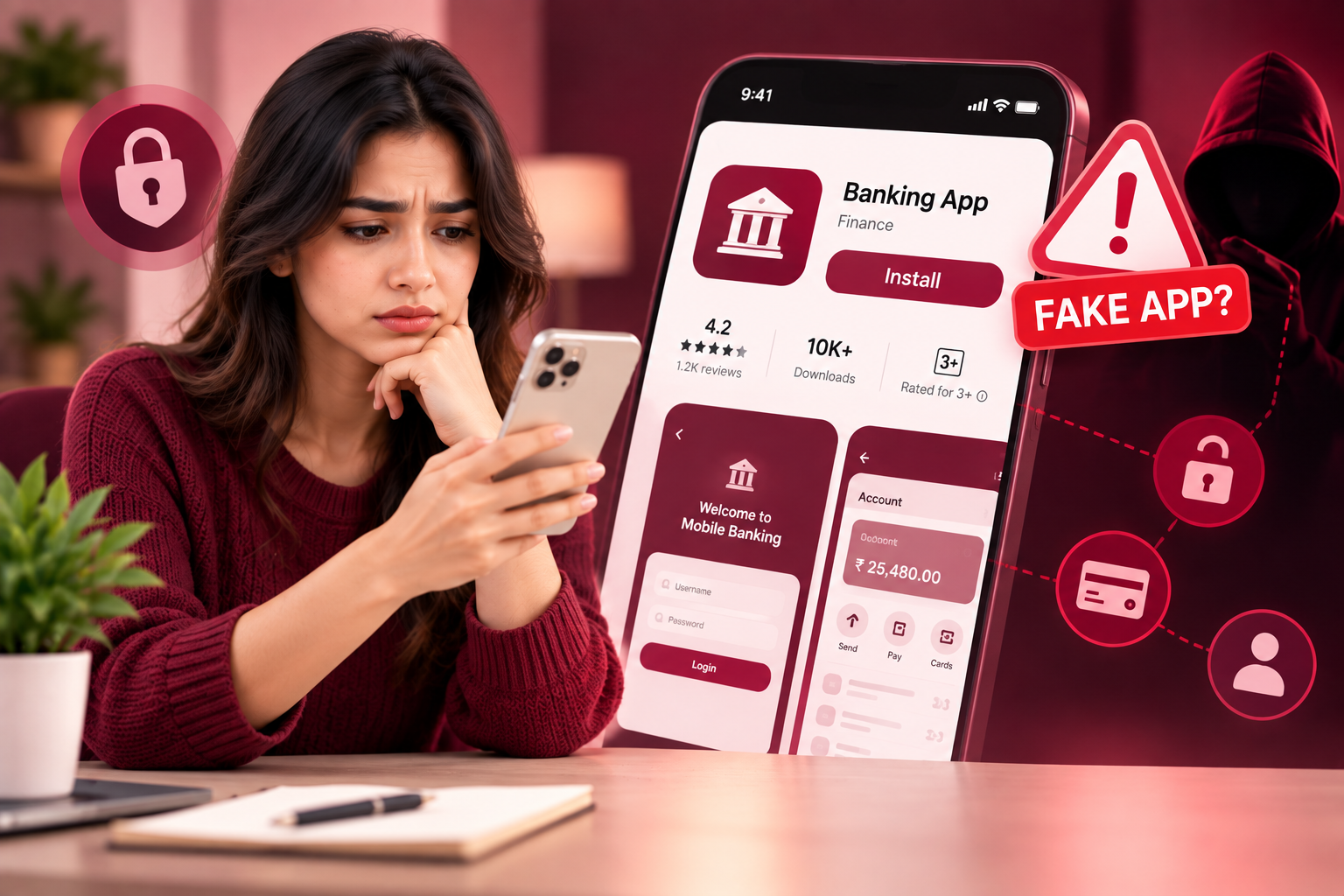
Avoid downloading modified apps, unofficial versions of popular applications, or APK files from unknown websites. A familiar app name or logo does not guarantee that a download is safe.
2. Keep Your Operating System Updated
Software updates often include security fixes that address vulnerabilities attackers may exploit.
To check for updates:
On Android
- Open Settings.
- Find Software update or System update.
- Check for available updates and install them.
- Check for Google Play system updates if your device provides that option.
On iPhone
- Open Settings.
- Select General.
- Tap Software Update.
- Install an available update.
Menu names may vary by device and software version.
Enable automatic updates where practical. If your phone no longer receives security updates, consider upgrading to a supported device when possible.
3. Review App Permissions Regularly
Apps should only receive access to information and features they genuinely need.
On Android, open Settings and look for Privacy, Permission Manager, or the Privacy Dashboard. Depending on your device, you can review access to the camera, microphone, location, contacts, and other sensitive information.
On iPhone, open Settings and select Privacy & Security to review permissions.
Ask yourself whether each permission makes sense for the app. A navigation app may need your location, while a basic calculator usually does not need access to your contacts.
Remove unnecessary permissions and uninstall apps you no longer trust or use.
Official Android privacy guidance: https://www.android.com/intl/en_in/safety/privacy/
4. Avoid Suspicious Links and Downloads
Spyware and other malicious software can be distributed through deceptive messages, fake updates, and websites that encourage users to download unsafe files.
Be careful when you receive messages claiming that:
- Your bank account will be blocked unless you act immediately.
- You have won a prize that requires an app download.
- Your phone needs an urgent update from an unfamiliar website.
- A delivery has failed and you must install an application to track it.
Verify unexpected messages through the organisation’s official website or app. Do not use contact details or download links supplied in a suspicious message.
If you receive a suspicious file, do not open it simply to see what it contains.
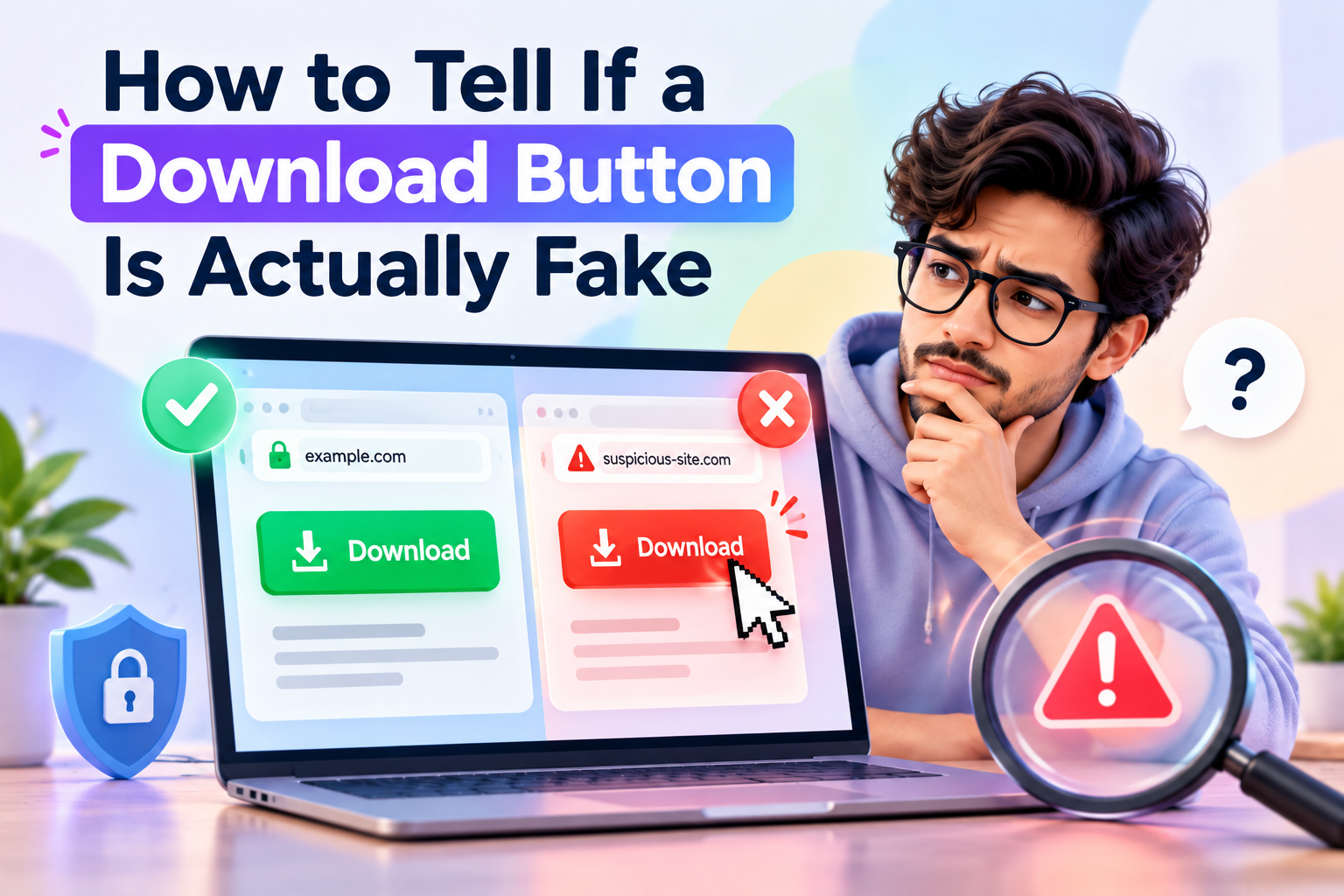
For more information, read How to Spot a Fake Software Update Before Installing It on AK Tricks.
5. Use a Strong Screen Lock
A secure screen lock can prevent someone with physical access to your phone from easily opening your apps and personal information.
Use a strong PIN or password, and enable fingerprint or facial authentication if your device supports it.
Avoid simple PINs such as 1234 or your birth year. Do not share your passcode with people you do not trust.
Also enable the security features available through your device’s account, such as device-finding and remote-lock options. These features can help if your phone is lost or stolen, although they do not replace protection against spyware.
6. Review Special Access and Device Management Settings
Some monitoring apps may request permissions beyond ordinary app access.
On Android, review settings such as Accessibility, Device admin apps, and the option to install unknown apps. The exact menu names and locations vary by manufacturer.
On iPhone, review Settings for unfamiliar configuration profiles or mobile device management entries. These settings can have legitimate uses, particularly on work or school devices, so do not remove a profile without understanding its purpose.
If you find a suspicious app with powerful permissions, research it and follow trusted device-specific guidance before removing it.
If you suspect that someone is deliberately monitoring you, be careful: removing an app or changing settings may alert that person. Consider seeking help from a trusted device or professional before making changes.
7. Secure Your Important Accounts
Spyware is not the only way someone can access your personal information. Stolen passwords, compromised email accounts, and fraudulent login pages can also expose sensitive data.
Take these precautions:
- Use a unique password for every important account.
- Use a reputable password manager.
- Enable two-factor authentication or passkeys where available.
- Review the devices signed in to your Google or Apple account.
- Turn on login alerts when supported.
- Never share verification codes with someone who contacts you unexpectedly.
If you believe an account has been compromised, change its password from a trusted device and sign out unfamiliar sessions. Secure your primary email account first because it may be used to reset other passwords.
What to Do If You Think Spyware Is Already on Your Phone
If you find strong reasons to suspect spyware, avoid installing random cleaner apps or paying for a service that promises to remove every threat instantly.
Instead, take a careful approach.
Step 1: Protect your sensitive accounts. If it is safe to do so, use a separate trusted device to secure your email, banking, and other important accounts. Avoid entering new passwords on a phone you strongly suspect is compromised.
Step 2: Review the device. Check installed apps, permissions, special access, and available security alerts. On Android, run Google Play Protect. On iPhone, review your account access and privacy settings.
Step 3: Update your phone. Install official operating system and security updates if it is safe and practical to do so.
Step 4: Remove confirmed suspicious software. Uninstall apps you have identified as malicious when possible. If an app has powerful administrator or management access, follow the official instructions for your device rather than attempting random changes.
Step 5: Consider a factory reset. If the problem persists or you cannot confidently remove the threat, a factory reset may help. Back up important personal files carefully, avoid restoring suspicious apps or settings, and reinstall applications from trusted sources.
A reset may not solve every possible compromise, especially if the underlying problem involves a compromised account, a management profile, or a highly sophisticated attack. Seek help from the device manufacturer or a reputable cybersecurity professional if necessary.
If you think someone close to you may be using monitoring software to control or intimidate you, prioritise your personal safety. Use a safe device to seek support before changing settings that could alert them.
Android vs. iPhone: Which Is Easier to Protect From Spyware?
Both platforms provide security features, but the available protections and risks differ.
Android: Google Play Protect, app permission controls, security updates, and restrictions on app installation can help reduce spyware risks. Be especially careful with unknown APK files and apps requesting extensive access.
iPhone: App distribution controls, privacy permissions, software updates, and account security features offer important protection. Users concerned about unwanted access can also use Safety Check on supported iPhones.
To open Safety Check on a compatible iPhone, go to Settings, select Privacy & Security, and tap Safety Check. It allows you to review information shared with people and apps, check connected devices, and adjust certain account and privacy settings.
Official Apple guidance: https://support.apple.com/en-in/guide/personal-safety/ips2aad835e1/web
Neither platform is completely immune to security threats. Keeping your device updated and using secure account practices remain important regardless of which phone you own.
Frequently Asked Questions
Can spyware be installed on a phone without my knowledge?
Yes. Some spyware may be installed through deceptive apps, malicious downloads, or security vulnerabilities. Certain monitoring tools may also be installed by someone who has physical access to an unlocked device. However, not every unusual phone behaviour means spyware is present.
Can spyware access my WhatsApp messages?
It depends on the type of spyware and the level of access it obtains. Some threats may capture information displayed on the device or misuse accessibility permissions. Unauthorised access to a linked account is another possibility. Review linked devices, secure your phone, and enable available account security features.
Does a factory reset remove spyware?
A factory reset can remove many malicious apps and restore device settings, but it is not a universal guarantee. Account compromise, some management configurations, or more advanced threats may require additional action. Secure your accounts and follow official device guidance as well.
Is a free antivirus app enough to protect my phone?
No single app can guarantee complete protection. Built-in security features, software updates, trusted downloads, careful permission management, and secure account practices all play a role. Avoid unknown security apps that request excessive permissions or make unrealistic promises.
Does spyware always make a phone slow?
No. Some spyware may use noticeable system resources, while other threats may have few visible symptoms. Battery drain, overheating, and slow performance are also caused by ordinary technical problems, so these signs alone cannot confirm spyware.
Conclusion
Knowing how to protect your smartphone from spyware helps you take control of your personal information and reduce unnecessary security risks. Start by installing apps from trusted sources, updating your operating system, reviewing permissions, and securing your important accounts.
If you notice unusual behaviour, investigate it carefully rather than assuming the worst. Use trusted security tools, follow official guidance, and seek professional help when necessary.
Your smartphone is an important part of your daily life. A few regular security checks can help protect your privacy, accounts, and personal data from many common digital threats.


















A helpful article that answers several important questions.
I appreciate how the article explains common concerns.
A helpful overview of the subject.
I appreciate the organized structure of this article.
The article offers a clear explanation of the important details.
This article offers a useful introduction to nail nutrition.
Useful information for further learning.
This post makes wellness information easier to understand.
Excellent explanation with useful information.
Great work explaining the main points clearly.
The discussion raises some interesting points.
This is a well-written post.
I appreciate the clarity and structure of this article.
A very practical post.
Thanks for sharing such helpful information.
The article covers the subject in a straightforward manner.
This article makes nail health information accessible.
A practical explanation of common nail weakness concerns.
This article offers good insights.
I appreciate the balanced explanation of wellness topics.
I appreciate the simple explanation of common concerns.
This is a useful resource for learning about healthy habits.
Very informative and relevant.
This post offers a fresh perspective.
Great overview of factors that may affect nail strength.
I appreciate the effort to explain the topic well.
This is a worthwhile resource for curious readers.
Good points throughout the post.
This is a good reference.
I enjoyed reading this article.
I found the discussion engaging.
I like how the information flows from one point to another.
The article covers several useful aspects of nail wellness.
The information about nail condition is helpful.
Thanks for sharing this informative article about nail wellness.
The content is easy to understand and informative.
This is a useful source of background information.
This is a well-explained overview of the topic.
This article is informative and well structured.