




How to Create a Harmless Virus Simulation for Learning is a useful project for beginners who want to understand how computer virus warnings and infection simulations work. You do not need to create a real virus or damage a computer to learn the basic concepts of malware behaviour.
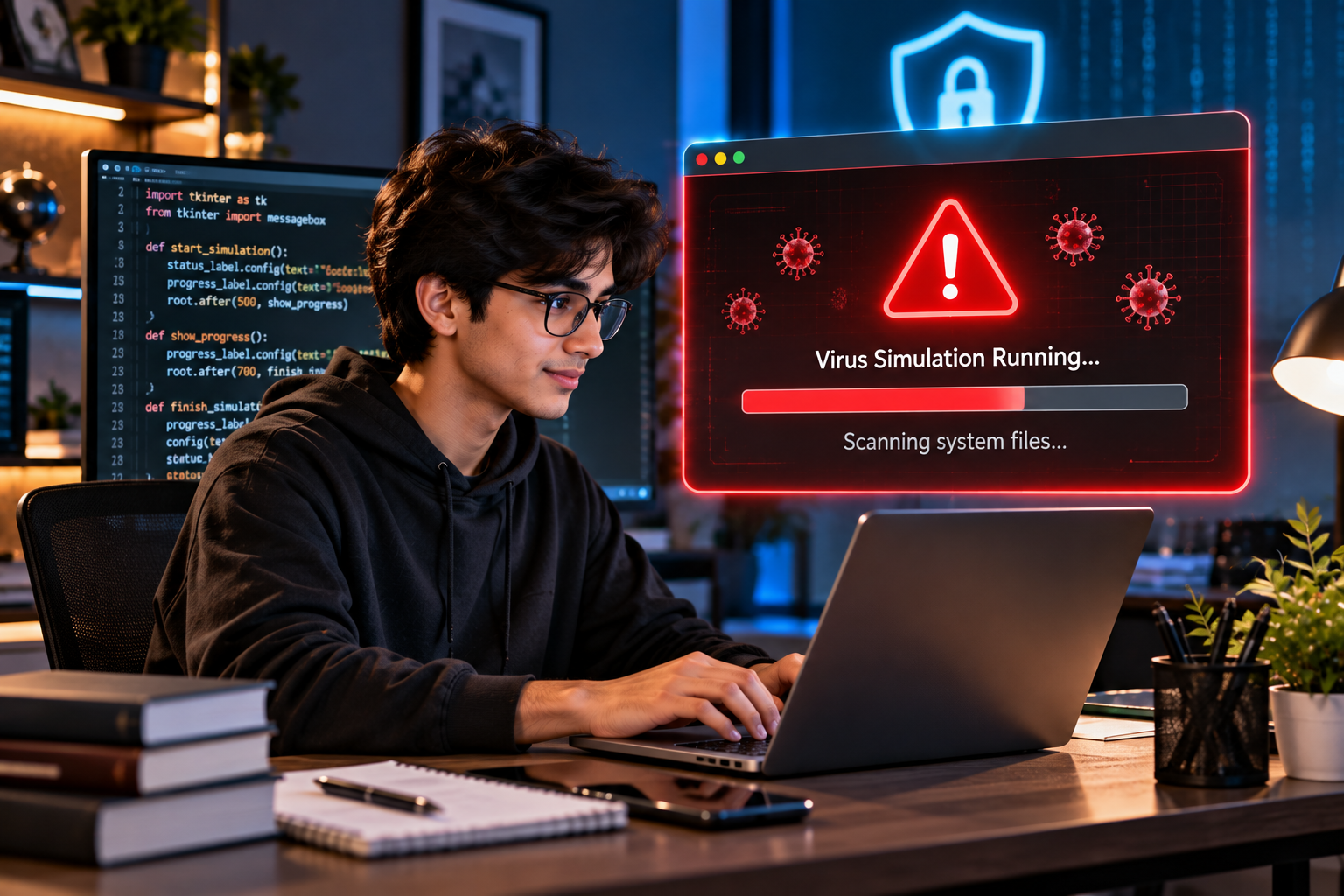
A harmless simulation can display a fake infection alert, show a progress animation, and explain what a security warning might look like. Everything happens inside a controlled program, without infecting files, spreading to other computers, or changing system settings.
In this guide, you will learn how to build a simple virus simulation using Python, run it on your computer, and understand the cybersecurity concepts behind it.
What Is a Harmless Virus Simulation?
A harmless virus simulation is a program that imitates selected visual behaviours associated with a computer virus without performing malicious actions.
For example, it might display a warning message, show a simulated scanning process, or present fictional infection statistics. These effects help students understand security alerts and learn how programs interact with users.
A safe simulation does not:
- Infect or modify files.
- Copy itself to other computers.
- Collect passwords or personal information.
- Disable antivirus software.
- Run secretly in the background.
- Change system settings or prevent users from closing it.
The purpose is education, not infection.
What You Need Before Starting
You can create this beginner-friendly project using Python.
Requirements:
- A Windows, macOS, or Linux computer.
- Python 3 installed.
- A basic text editor or code editor.
- A few minutes to write and test the program.
If you are new to programming, start by learning how to run a simple Python script. You can also explore basic cybersecurity concepts before moving on to more advanced projects.
How to Create a Harmless Virus Simulation Using Python
For this project, we will create a small window that displays a fictional virus alert and a simulated scan. It will not scan your actual computer or touch your files.
Step 1. Install Python
Download Python from the official website:
Follow the installation instructions for your operating system. On Windows, enable the option to add Python to PATH if the installer offers it.
Open your terminal or command prompt and check that Python works:
python --versionOn some systems, you may need to use:
python3 --versionIf a version number appears, you are ready to continue.
Step 2. Create a Python File
Open your code editor and create a new file named:
harmless_simulation.py
This file will contain the code for your demonstration.
Step 3. Add the Simulation Code
Copy the following code into your Python file:
import tkinter as tk
from tkinter import messagebox

def start_simulation():
    status_label.config(
        text="Simulation running: checking demo status..."
    )
    progress_label.config(text="Simulated progress: 0%")
    root.after(500, show_progress)

def show_progress():
    progress_label.config(text="Simulated progress: 50%")
    root.after(700, finish_simulation)

def finish_simulation():
    progress_label.config(text="Simulated progress: 100%")
    status_label.config(
        text="Demo complete. No files were scanned or changed."
    )
    messagebox.showinfo(
        "Simulation Complete",
        "This was a harmless demonstration.\n"
        "Your files were not scanned or modified."
    )

root = tk.Tk()
root.title("Cybersecurity Learning Simulation")
root.geometry("420x250")
root.resizable(False, False)

heading = tk.Label(
    root,
    text="Harmless Virus Simulation",
    font=("Arial", 16, "bold")
)
heading.pack(pady=15)

description = tk.Label(
    root,
    text="Educational demo only — no real infection.",
    wraplength=360
)
description.pack(pady=5)

status_label = tk.Label(
    root,
    text="Ready to start the demonstration.",
    wraplength=360
)
status_label.pack(pady=10)

progress_label = tk.Label(
    root,
    text="Simulated progress: 0%"
)
progress_label.pack(pady=5)

start_button = tk.Button(
    root,
    text="Start Safe Simulation",
    command=start_simulation
)
start_button.pack(pady=10)

root.mainloop()
Step 4. Understand How the Code Works
This program uses Python’s built-in tkinter library to create a graphical window.
Here is what the main parts do:
tk.Tk()creates the application window.Labeldisplays the title, instructions, and simulation status.Buttongives the user control over starting the demonstration.root.after()schedules small delays to imitate progress.messagebox.showinfo()displays a completion message.root.mainloop()keeps the window open until the user closes it.
The progress values are fictional. The program does not inspect files, identify real threats, or perform a malware scan.
Step 5. Run Your Simulation
Save the file and open a terminal in the folder where you saved it.
Run:
python harmless_simulation.pyIf your computer uses python3, run:
python3 harmless_simulation.pyA small window should appear. Click Start Safe Simulation to see the demonstration progress from 0% to 100%.
When it finishes, a message confirms that no files were scanned or modified. You can close the application whenever you want.
How Does This Project Help You Learn Cybersecurity?
Although this program is simple, it introduces several useful programming and security concepts.
1. Understanding Security Alerts
Real security products use alerts to communicate potential threats. A simulation helps you understand how warning messages are presented and why users should examine them carefully rather than panic.
2. Learning Event-Driven Programming
The program responds when a user clicks a button. This is an example of event-driven programming, which is common in desktop applications and interactive tools.
3. Understanding Timed Events
The after() method introduces a delay before the next action. This helps you understand how applications schedule tasks without deliberately freezing the interface.
4. Recognising Fake Virus Warnings
Some malicious websites display alarming messages claiming that a device is infected. They may try to pressure users into downloading suspicious software or calling fraudulent support numbers.
A simulation can help you practise identifying fictional alerts and understanding why unexpected warnings should be verified through trusted security software.
For more practical safety advice, you can also read How to Spot a Fake Software Update Before Installing It. Replace the homepage link with the exact article URL if that post is published on a different address.
Harmless Simulation vs Real Computer Virus
Understanding the difference is essential for anyone learning cybersecurity.
| Feature | Harmless simulation | Real computer virus |
|---|---|---|
| Displays a warning | Yes, if programmed | May do so |
| Changes real files | No | May do so |
| Spreads between devices | No | May do so |
| Collects private data | No | May do so |
| Educational use | Yes | Not appropriate for casual experimentation |
A harmless simulation only imitates selected visual effects. A real virus may perform unauthorised actions and cause damage.
Common Mistakes to Avoid
When building your first cybersecurity simulation, keep these points in mind.
Making the warning look too realistic: Clearly label your program as a demonstration so nobody mistakes it for a real infection.
Adding unnecessary permissions: This project does not require administrator access. Do not request elevated privileges for a basic visual simulation.
Disabling security software: Never disable antivirus protection to run an educational demo.
Using unknown code: Review code before running it, especially if it comes from an unfamiliar website or forum.
Testing on someone else’s device: Use your own computer or an authorised learning environment.
If you want to explore malware research more deeply, learn about isolated virtual machines and controlled analysis environments before working with potentially malicious samples.
Frequently Asked Questions
Can I create a virus simulation without harming my computer?
Yes. A program that displays fictional alerts and simulated progress can demonstrate the concept without infecting files or changing system settings.
Do I need advanced Python knowledge?
No. Basic knowledge of variables, functions, and running Python scripts is enough to understand this beginner project.
Is this a real computer virus?
No. The example in this article is a simple graphical demonstration. It does not replicate, spread, scan files, or perform malicious actions.
Can I customise the simulation?
Yes. You can change the window size, colours, labels, button text, and progress messages. Keep the program transparent and easy to close.
Is creating a harmless virus simulation legal?
A basic educational simulation that only displays information is generally very different from creating or distributing malware. Laws vary by location, so make sure your activities remain authorised, non-destructive, and respectful of other people’s devices and data.
Conclusion
Learning how to create a harmless virus simulation for learning is a practical way to combine basic Python programming with cybersecurity awareness. You can create a window, display a fictional alert, and simulate progress without writing a real virus.
Once you understand this project, try building a file integrity checker or a simple defensive file-scanning tool that works only on files you are authorised to examine. These projects can help you develop useful programming skills while keeping your learning environment safe.
The most important lesson is simple: you can learn how malware behaves conceptually without creating malware that harms anyone’s computer.