







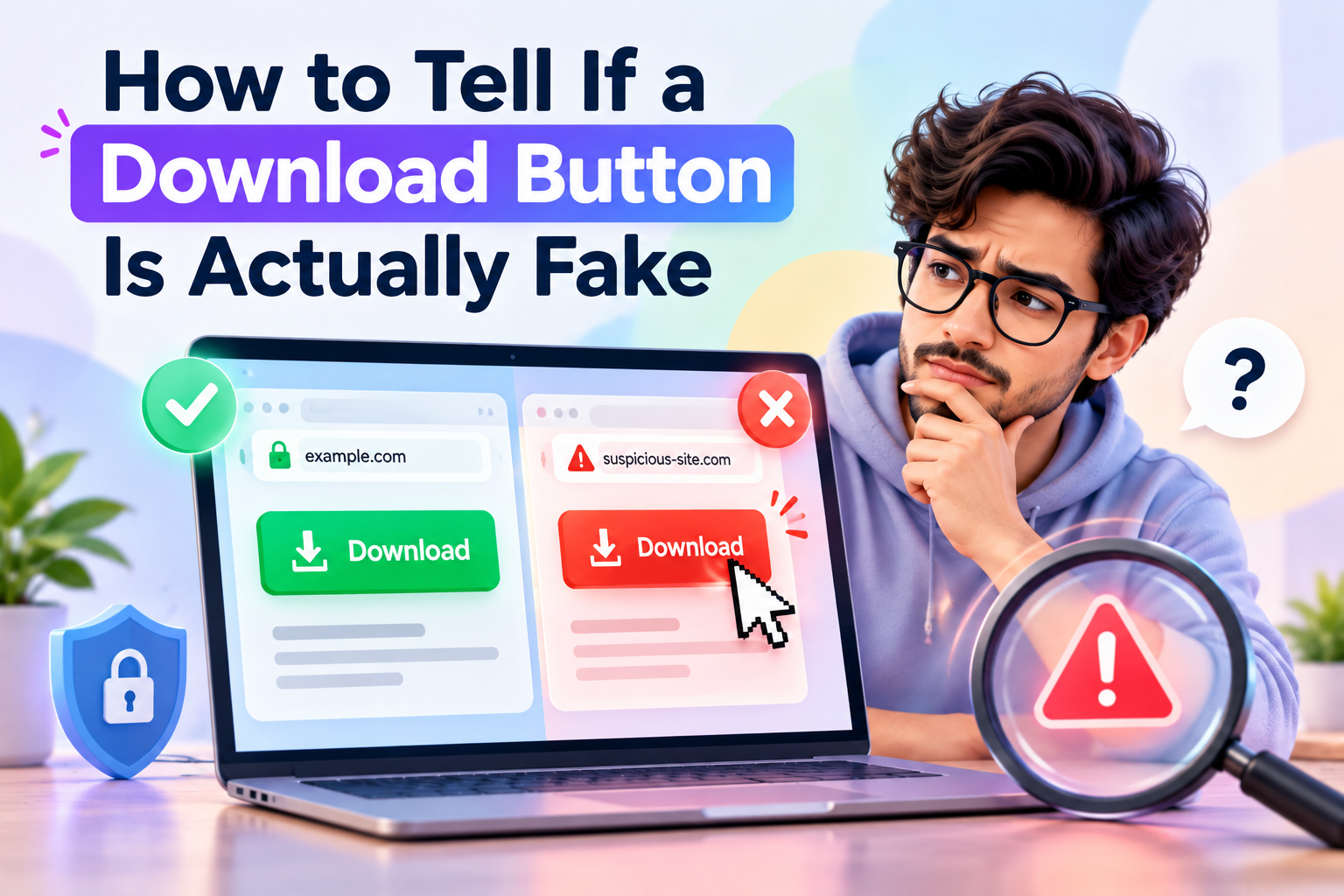
A Fake Download Button can look almost identical to a legitimate button, making it easy to click without thinking twice. You may be looking for a PDF, software installer, image, browser extension, or document when a large “Download Now” button suddenly appears on the page. Instead of downloading the file you wanted, however, it may open another website, trigger unwanted pop-ups, or lead you toward potentially harmful software.
The problem is that fake download buttons are designed to look normal.
They may use familiar colours, download icons, arrows, or phrases such as “Free Download” and “Download File.” Some even appear next to the genuine download option.
Fortunately, you can learn to recognise the warning signs before clicking.
What Is a Fake Download Button?
A fake download button is a clickable element designed to make you believe it will download a particular file when it actually performs another action.
It may:
- Open an advertising page
- Redirect you to another website
- Start an unwanted download
- Display a fake security warning
- Ask you to install unrelated software
- Lead to a phishing page
- Open multiple browser tabs
- Trick you into providing personal information
Not every unexpected download is automatically malicious, but an unfamiliar or misleading download prompt deserves caution.
Why Do Fake Download Buttons Exist?
Many websites earn money through advertising.
Some advertising networks display large buttons that resemble the actual download option. On questionable websites, these advertisements may be intentionally designed to confuse visitors.
Cybercriminals can also use fake download buttons to distribute malicious files or redirect users toward phishing pages.
The visual design is often the trick.
Your eyes see:
DOWNLOAD
Your browser may actually receive:
Open another website
or:
Download an unrelated file
That is why checking the destination before clicking is important.
1. Look for Multiple Download Buttons
One of the easiest warning signs is a page filled with download buttons.
Imagine you are downloading a PDF and see:
DOWNLOAD PDF
FREE DOWNLOAD
DOWNLOAD NOW
FAST DOWNLOAD
CLICK HERE TO DOWNLOAD
If several buttons appear, do not automatically click the largest one.
Look carefully for the actual download option provided by the website or service you intended to use.
More buttons do not mean more download options.
Some may simply be advertisements.
2. Check Where the Button Leads
Before clicking, move your mouse over the button.
On many desktop browsers, the destination URL will appear near the bottom of the browser window.
Look at the address.
Does it appear to belong to the website you are currently using?
For example, if you are downloading a file from an official software website but the button points to a completely unrelated domain, stop and investigate.
A different domain does not automatically mean the file is dangerous, but it is a reason to be more careful.
3. Be Careful With “Download Now” Ads
Large advertising banners often use phrases such as:
Download Now
Start Download
Free Download
Click Here
They may look like part of the website even when they are advertisements.
Look for small indicators such as:
Ad
Sponsored
or other advertising labels.
The safest approach is to identify the website’s own download section rather than automatically clicking the most prominent button.
4. Check the File Type
Before opening a downloaded file, check its extension.
Common file types include:
.pdf.jpg.png.docx.xlsx.zip.exe.msi.dmg.apk
Some file types can execute software or install applications.
For example, if you expected a PDF but receive an executable file, stop.
Do not open it simply because the filename looks familiar.
The file type should make sense for what you were trying to download.
5. Watch for Unexpected File Names
Suppose you are downloading:
invoice.pdf
but your computer receives:
invoice.pdf.exe
That deserves immediate attention.
Attackers can use misleading filenames to make a file appear harmless.
Modern operating systems may also hide file extensions in some situations, making it easier to misinterpret a file.
Enable visible file extensions when possible so you can inspect downloaded files more carefully.
6. Don’t Trust a Familiar Logo
A fake download page may use logos from well-known companies.
You might see:
- Microsoft
- Adobe
- Apple
- Windows
- Your antivirus provider
A logo does not prove that the download is legitimate.
Anyone can place an image on a webpage.
Instead of trusting the logo, check the website address and the actual source of the file.
7. Look at the Website Address
The URL can reveal useful clues.
Be careful when you see:
- Misspelled brand names
- Strange subdomains
- Random combinations of letters
- Excessive numbers
- Unfamiliar domains
- URLs that do not match the company
- Suspicious redirects
For example, a website pretending to represent a known company might use a domain that looks similar but is not the official one.
Do not judge a website only by how professional it looks.
8. Don’t Assume HTTPS Means Everything Is Safe
You may see a padlock icon and assume:
“This website is safe.”
HTTPS is important because it encrypts the connection between your browser and the website.
However, HTTPS does not guarantee that the website itself is trustworthy.
A malicious website can also use HTTPS.
Think of HTTPS as one security feature, not a guarantee of legitimacy.
You should still check:
- The domain
- Website reputation
- Download source
- File type
- Website behaviour
9. Watch for Sudden Redirects
You click a download button and suddenly another website opens.
Maybe you see:
“Congratulations! You have won…”
or:
“Your computer is infected!”
or:
“Update your browser immediately!”
Do not follow the instructions automatically.
Unexpected redirects are a common warning sign.
Close the suspicious page instead of downloading software or entering information.
10. Be Suspicious of Urgent Security Warnings
A webpage may suddenly tell you:
“Your PC is infected!”
“Five viruses detected!”
“Your browser is outdated!”
“Click Download to protect your computer.”
Be careful.
A random website cannot reliably perform a complete security scan of your computer simply because you opened a webpage.
These messages may be designed to frighten you into downloading unwanted software.
If you are concerned about your device, use your operating system’s built-in security features or a trusted security product instead of clicking an unexpected warning.
11. Check the Official Source
Whenever possible, download software directly from the developer or the official service.
For example, if you need a browser, visit the browser developer’s official website instead of downloading it from an unknown software repository.
The same principle applies to:
- Apps
- Drivers
- Utilities
- Security software
- Browser extensions
The more direct the source, the easier it is to verify what you are downloading.
12. Be Careful With Free Software
“Free” does not automatically mean dangerous.
There are many legitimate free applications.
However, websites offering cracked software, unofficial versions, pirated applications, or suspicious premium tools for free can carry additional security risks.
If a website promises:
“Paid software completely free — no registration!”
take a moment to consider why.
Avoid downloading software from sources you cannot verify.
13. Don’t Install Extra Programs You Didn’t Ask For
Sometimes you successfully click the correct download button but the installer offers additional software.
You may see options such as:
Install recommended browser
Add search extension
Enable additional software
Install security utility
Read installation screens carefully.
Do not simply click Next repeatedly.
Choose custom or advanced installation options when available so you can review what is being installed.
14. Watch for Fake Browser Notifications
Some websites ask:
“Click Allow to start your download.”
The button may actually grant the website permission to send browser notifications.
You might then receive unwanted alerts later.
A website generally does not need browser notification permission simply to provide a normal file download.
If a download page asks for unrelated browser permissions, stop and reconsider.
15. Don’t Enter Personal Information Just to Download a Simple File
Be cautious if a basic download suddenly asks for:
- Password
- Credit card number
- Banking information
- One-time password
- Government ID
- Email password
A legitimate service may sometimes require an account, but an unrelated download should not suddenly demand sensitive information.
If the request feels unrelated to what you are downloading, leave the page.
16. Check the Downloaded File Before Opening It
Even when you believe you clicked the correct button, inspect the downloaded file.
Check:
Filename
Does it make sense?
File extension
Is it the type you expected?
File size
Does it seem reasonable?
Source
Did it come from the expected website?
Security scan
Can your device’s security software check it?
Do not open an unexpected file simply because it downloaded successfully.
17. Use Your Browser’s Security Warnings
Modern browsers can warn you about certain dangerous websites or downloads.
If your browser displays a warning, do not immediately bypass it.
Read the message.
If you do not understand why the browser is blocking the download, investigate the source before continuing.
Security warnings exist for a reason.
18. Be Careful With Shortened Links
A shortened URL can hide the final destination.
You may see something like:
short.link/abc123
instead of the actual website.
This does not mean every shortened link is malicious.
However, if you do not know where the link goes, be cautious.
For important downloads, it is better to navigate directly to the official website yourself.
19. Use a Simple Three-Second Check
Before clicking a download button, pause for three seconds.
Ask:
Where am I downloading from?
Where will this button take me?
What type of file am I expecting?
This tiny pause can prevent impulsive clicks.
Cybersecurity often comes down to small habits.
A Quick Fake Download Button Checklist
Before clicking, check:
? Is this the official website?
? Are there multiple download buttons?
? Does the button destination look legitimate?
? Is the file type what I expected?
? Does the website suddenly redirect me?
? Is the page showing an alarming security warning?
? Is it asking for unnecessary personal information?
? Is the download coming from a trusted source?
? Does the downloaded filename look normal?
? Does my security software flag the file?
If several warning signs appear, do not continue.
What If You Already Clicked a Fake Download Button?
Don’t panic.
What you should do depends on what happened.
If Nothing Downloaded
Close the tab and avoid interacting with the page further.
If a File Downloaded
Do not open it immediately.
Inspect the file and scan it with your security software.
If You Opened the File
Run a security scan and watch for unusual behaviour.
If You Entered a Password
Change the password from a trusted device and review account security settings. If you reused that password elsewhere, change it there too.
If You Entered Financial Information
Contact your bank or financial provider using an official contact method and explain what happened.
Final Thoughts
A Fake Download Button does not always look suspicious.
It may have a professional design, a familiar logo, a bright download icon, and convincing wording.
That is exactly why you should look beyond the appearance.
Check the website.
Inspect the URL.
Look at the file type.
Watch for redirects.
Ignore alarming pop-ups.
Avoid unnecessary permissions.
And whenever possible, download files directly from the official source.
The safest download button is not necessarily the biggest or most colourful one.
It is the one you can verify before you click.
Related Reading: How to protect your accounts from online scams.
Frequently Asked Questions
How can I tell if a download button is fake?
Check the destination URL, website domain, surrounding advertisements, file type, and whether the button behaves as expected. Multiple oversized download buttons are also a reason to be cautious.
Can a fake download button install malware?
It can potentially redirect you to malicious content or cause an unwanted file to download. Never open unexpected downloads without checking them first.
Is a download from an HTTPS website automatically safe?
No. HTTPS protects the connection, but it does not prove that the website itself is trustworthy.
What should I do if a download button redirects me?
Close the suspicious page and do not follow instructions asking you to install software, provide personal information, or disable security features.
Is an EXE file always dangerous?
No. .exe files are commonly used for legitimate Windows software. However, if you expected a PDF, image, or document and received an executable file instead, do not open it until you verify the source.
Should I trust a download button with a familiar company logo?
No. Logos can easily be copied. Always verify the website address and download source independently.















Unclaimed Bitcoin Don’t Overlook It https://btcclaim.surge.sh
Mình m?i tìm hi?u 99OK và th?y n?n t?ng có khá nhi?u s?n ph?m nh? cá c??c th? thao, casino tr?c tuy?n, quay h? và x? s? online. Các danh m?c ???c phân chia t??ng ??i rõ nên vi?c tìm ki?m s?n ph?m khá thu?n ti?n. Giao di?n nhìn ??n gi?n, không m?t nhi?u th?i gian ?? làm quen. N?u ??ng ký, m?i ng??i nên ??c k? h??ng d?n và ?i?u ki?n s? d?ng tr??c.