




Software updates are a normal part of using a computer, smartphone, browser, or other connected device. They can fix bugs, improve performance, add features, and address security problems.
But there is a dangerous trick that takes advantage of this habit.
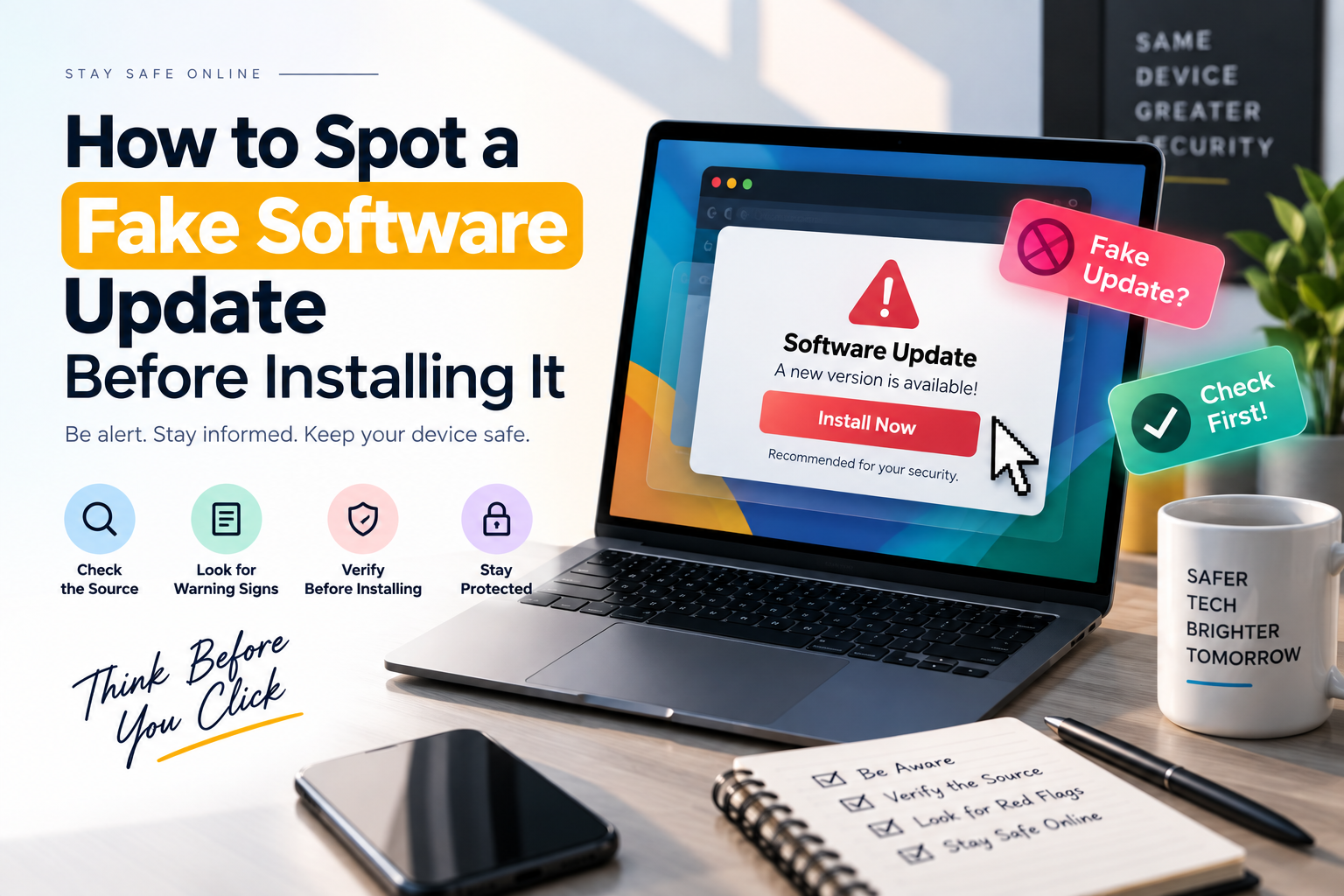
A fake software update can look like a legitimate notification while actually directing you to a malicious website or unwanted download. Instead of improving your device, the file may install malware, steal information, or expose your accounts to attackers.
The good news is that you do not have to be a cybersecurity expert to identify many fake update attempts.
A few simple checks can help you decide whether an update notification is genuine before you click Install, Download, or Update Now.
What Is a Fake Software Update?
A fake software update is a deceptive message, webpage, pop-up, or download that pretends to provide a legitimate update.
The attacker may imitate the appearance of:
- Windows updates
- Browser updates
- Android updates
- macOS notifications
- Antivirus software
- Video players
- Popular applications
- Browser extensions
- Device drivers
The goal is usually to convince you to download or run something that you did not actually need.
Some fake updates are delivered through compromised websites, malicious advertisements, phishing messages, or deceptive pop-ups.
Why Fake Updates Work
Fake update scams work because the message often looks familiar.
People are used to seeing notifications such as:
“A new version is available.”
“Your browser needs to be updated.”
“Update required to continue.”
Attackers take advantage of this familiarity.
A fake notification may use familiar colours, logos, buttons, and warning messages to make the request appear legitimate.
The important thing to remember is:
A familiar-looking notification is not proof that it is genuine.
1. Check Where the Update Came From
The first question should be:
Where did this update notification appear?
If you see an update request inside the software’s normal settings or update section, it is generally more trustworthy than an unexpected pop-up on a random website.
For example, if you are browsing a website and suddenly see:
“Your browser is out of date. Click here to update immediately.”
do not automatically click it.
Close the message and check for updates through your browser’s official settings instead.
The same principle applies to apps and operating systems.
2. Be Careful With Urgent Messages
Fake updates often try to make you act quickly.
You might see messages such as:
- “Update immediately”
- “Your device is at risk”
- “Critical update required”
- “Failure to update will damage your computer”
- “Your security has expired”
Urgency is a common social-engineering technique.
A legitimate security update can certainly be important, but an unexpected message demanding immediate action deserves extra attention.
Instead of clicking the notification, open the relevant application or system settings yourself and check whether an update is actually available.
3. Look at the Website Address
If an update sends you to a website, inspect the domain before downloading anything.
Attackers may create domains that look similar to legitimate ones.
For example, a fake domain might use:
- Extra words
- Misspellings
- Unusual subdomains
- Random characters
- Lookalike spellings
Do not judge a website only by its logo or design.
A convincing website can still be fraudulent.
If you need an update, it is safer to navigate to the software manufacturer’s official website yourself rather than following an unexpected download link.
4. Do Not Trust a Download Button Just Because It Looks Professional
A fake update page may contain a large button saying:
DOWNLOAD UPDATE
The page may look polished and professional.
That does not prove the download is safe.
Attackers can easily create pages with:
- Company logos
- Product images
- Security warnings
- Progress bars
- Professional layouts
- Fake system scans
Treat the source of the download as more important than the appearance of the page.
5. Check the File You Are Downloading
Be careful if an unexpected update asks you to download an executable file.
On Windows, files such as .exe, .msi, .bat, .cmd, and certain script files can execute commands on your computer.
That does not mean every file with these extensions is malicious.
It means you should know why the file is being downloaded and where it came from.
If you were simply browsing a website and suddenly received an unexpected executable update file, stop and verify the source.
6. Watch for Strange Browser Pop-Ups
One common fake-update technique involves malicious or compromised websites displaying fake system notifications.
The page might say:
“Your browser requires an urgent update.”
or:
“Your computer is infected. Install this update to continue.”
The message may look like an operating-system notification, but it may actually be part of the webpage.
Close the browser tab rather than following the instructions.
Then open the browser’s own settings and check for updates.
7. Never Install an Update From a Random Website
If a website tells you that your computer needs a special update, be cautious.
This is especially important when the website is unrelated to the software it claims to update.
For example, a random streaming website should not normally be the place where you download an operating-system update.
Similarly, a random webpage should not require you to install a browser update through an unknown installer.
Go directly to the software developer or use the application’s built-in update system.
8. Check the Software’s Built-In Update Section
One of the easiest ways to verify an update is to check the application itself.
Instead of clicking an unexpected pop-up:
- Close the notification.
- Open the application normally.
- Go to Settings or Help.
- Find the Update or About section.
- Check whether an update is actually available.
If the application says there is no update, the original notification may have been deceptive.
9. Be Suspicious of Unexpected Browser Extensions
Some fake update pages do not immediately install traditional software.
Instead, they may ask you to install a browser extension.
For example:
“Install this extension to complete the update.”
That should raise a warning.
Browser extensions can have access to significant browser data depending on their permissions.
Only install extensions from trusted sources and check what permissions they request.
10. Watch for Fake Antivirus Warnings
Fake update scams sometimes combine update messages with fake security alerts.
For example:
“Your antivirus is outdated. Install this security update immediately.”
The message may then offer a download.
Instead of clicking it, open your actual antivirus or security application and check its status directly.
Do not allow a random website to decide whether your security software is outdated.
11. Check for Spelling and Grammar Errors
Poorly written messages can sometimes expose a fake update.
Look for:
- Strange grammar
- Unusual wording
- Incorrect product names
- Missing punctuation
- Awkward translations
- Random capitalisation
However, do not rely on spelling mistakes alone.
A well-designed scam can contain professionally written text.
Think of language errors as one warning sign, not proof that something is fake.
12. Do Not Disable Security Features to Install an Update
Be extremely careful if an installer tells you to disable security protections before continuing.
For example:
“Turn off your antivirus to complete installation.”
or:
“Disable browser protection before downloading.”
An unexpected update should not require you to weaken your security simply to run it.
If an installer makes such a request, stop and verify the software through an official source.
13. Be Careful With Email Update Notifications
Fake updates can also arrive through email.
An email might say:
“Your software requires an important security update.”
It may contain a download button.
Before clicking, consider whether you were expecting the message.
Instead of using the email button, visit the software provider’s official website or open the software directly.
This removes the suspicious link from the process.
14. Verify the Update Through Another Source
If you are unsure, verify it independently.
For example:
Unexpected notification ? Close it ? Open the software yourself ? Check Settings ? Verify update
You can also visit the official support or download page of the software provider.
The key is to avoid using the suspicious notification as your source of truth.
15. Keep Your Operating System Updated
Avoiding fake updates does not mean ignoring real updates.
Operating-system and application updates can contain important security fixes.
The safer approach is to update through trusted channels.
Use:
- Built-in operating-system update tools
- Official application update systems
- Official developer websites
- Trusted app stores
The goal is not to avoid updates.
The goal is to verify the source before installing them.
16. Use Automatic Updates Where Appropriate
Automatic updates can reduce the number of times you need to manually download software.
For supported operating systems and applications, automatic updates can help you receive legitimate updates through the software’s normal update mechanism.
However, keep your device and applications configured carefully and review unusual notifications rather than blindly approving every prompt.
17. Check Your Downloads Folder
If you accidentally downloaded a suspicious update file, do not open it just to see what it does.
Instead, check your Downloads folder and identify the file.
If you are unsure about it, delete it without running it or use your security software to scan it.
If you already executed the file, take the situation more seriously and consider running a full security scan.
18. What to Do If You Installed a Fake Update
If you think you installed a malicious update, act quickly.
Disconnect if Necessary
If you suspect the device is actively communicating with malware, disconnecting it from the internet can help limit some types of activity while you investigate.
Run a Security Scan
Use your trusted security software to perform a scan.
Change Important Passwords
If you entered passwords after installing suspicious software, consider changing those passwords from a trusted device.
Prioritise important accounts such as:
- Banking
- Social media
- Cloud storage
- Work accounts
Enable Multi-Factor Authentication
Where available, enable multi-factor authentication on important accounts.
Check Installed Applications
Look for unfamiliar software installed around the time of the incident.
Seek Professional Help if Needed
If the device contains sensitive business, financial, or personal information, consider getting help from a qualified cybersecurity professional.
A Simple Fake Update Checklist
Before installing an unexpected update, ask:
Did the notification come from the software itself?
Was I expecting this update?
Am I on the official website?
Does the domain look correct?
Is the download coming from a trusted source?
Is the file type appropriate?
Is the message creating unnecessary urgency?
Does it ask me to disable security software?
Does it ask me to install an unexpected browser extension?
If several warning signs appear, stop and verify the update independently.
Fake Update vs Real Update
| Sign | Potentially Legitimate Update | Suspicious Update |
|---|---|---|
| Source | Official app or system settings | Random website or pop-up |
| Download | Trusted official channel | Unknown file host |
| Urgency | Normal update notice | Threatening or aggressive |
| Website | Official domain | Misspelled or unfamiliar domain |
| Security | Normal security checks | Requests security to be disabled |
| Installation | Expected software | Unexpected program |
| Verification | Can be confirmed in settings | Cannot be confirmed independently |
This table is a guide rather than a guarantee. A legitimate update can have different characteristics, and sophisticated scams can imitate legitimate ones.
Final Thoughts
A fake software update is dangerous because it takes something ordinary and makes it look trustworthy.
The best defence is simple:
Do not trust the pop-up. Verify the update.
If a notification appears unexpectedly, close it and check the software through its official settings or trusted update channel.
Pay attention to the website address, download source, file type, unusual requests, and pressure to act immediately.
Most importantly, remember that a professional-looking update window does not automatically mean it is genuine.
Taking a few seconds to verify an update can prevent a much bigger cybersecurity problem later.
Frequently Asked Questions
How can I tell if a software update is real?
Check the update through the software’s official settings, your operating system’s update system, or the developer’s official website. Do not rely solely on an unexpected pop-up.
Can a fake software update install malware?
Yes. Fake update campaigns can be used to distribute malicious software, including malware designed to steal information or compromise devices.
Should I click a browser pop-up saying my browser needs an update?
If the message appeared unexpectedly on a website, avoid clicking it. Open your browser’s own settings and check for updates there.
Are all urgent software updates fake?
No. Genuine security updates can be important and sometimes urgent. The warning sign is an unexpected or untrusted source, not simply the fact that an update is important.
What should I do if I downloaded a suspicious update?
Do not open the file. Scan it with trusted security software and remove it if appropriate. If you already ran it, consider changing important passwords and performing a full security check.
Can fake updates appear on smartphones?
Yes. Mobile users can encounter deceptive update messages through websites, malicious apps, phishing messages, and other channels. Use your device’s built-in update system or trusted app store instead of an unexpected download link.