







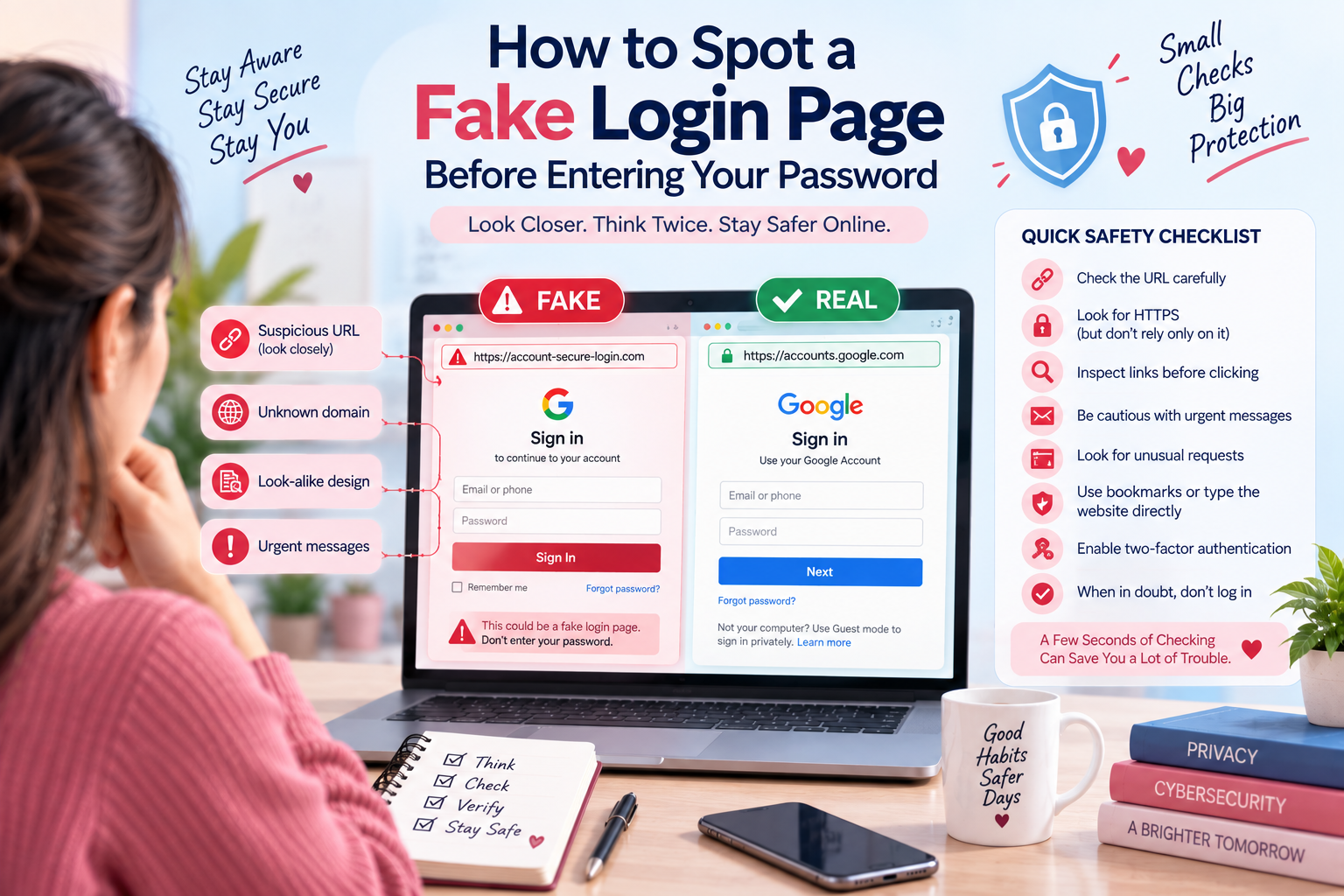
A fake login page can look almost identical to the real website you normally use.
The logo may look correct. The colors may match. The login box may appear familiar. Even the website address can look convincing at first glance.
The goal is simple: make you believe you are signing in to a legitimate service when you are actually giving your username and password to someone else.
Phishing attacks commonly use deceptive websites, messages, ads, and links that imitate trusted services to steal personal information or account credentials.
The good news is that you do not need advanced cybersecurity knowledge to identify many fake login pages.
You just need to slow down and check a few important things before entering your password.
What Is a Fake Login Page?
A fake login page is a website or webpage designed to imitate the login screen of a legitimate service.
It may imitate:
- Email services
- Social media platforms
- Online shopping websites
- Banking services
- Cloud storage
- Work platforms
- Payment services
- Government websites
- Cryptocurrency services
- Streaming platforms
The page may ask you to enter:
- Email address
- Username
- Password
- Phone number
- Verification code
- Security answers
- Other personal information
The information can then be collected by the attacker.
The dangerous part is that the page may look completely normal.
That is why you should never judge a login page only by its appearance.
Why Fake Login Pages Are So Effective
People usually recognize phishing as a badly written email with obvious spelling mistakes.
Modern scams can be much more convincing.
Attackers can copy:
- Logos
- Colors
- Fonts
- Login forms
- Images
- Buttons
- Website layouts
- Security messages
- Branding
A fake page may therefore look professional.
The biggest weakness is often not the website design.
It is trust.
You see a familiar logo and assume the website is legitimate.
That is exactly what the attacker wants.
1. Check the Website Address Carefully
The URL is one of the most important things to check before entering a password.
Look at the address bar.
Do not simply look for the company name.
Look at the actual domain.
For example, a scammer might create a domain that contains a familiar brand name while actually belonging to someone else.
Watch for:
- Misspelled brand names
- Extra words
- Unusual domain endings
- Extra hyphens
- Strange subdomains
- Random combinations of letters
- URLs that are much longer than expected
A familiar-looking word somewhere in the URL does not automatically mean the website is legitimate.
2. Don’t Trust the Logo
A professional logo does not prove that a website is genuine.
Attackers can copy logos from legitimate companies and place them on fake websites.
The same applies to:
- Brand colors
- Fonts
- Icons
- Images
- Copyright notices
- Security badges
Think of these elements as decoration, not proof.
The website address and the way you reached the page are much more important.
3. Look for the Correct Domain
One of the easiest mistakes is checking only whether a company name appears somewhere in the URL.
Instead, identify the actual domain you are visiting.
For example, a suspicious URL might contain a trusted brand name but belong to a completely different domain.
When in doubt, do not continue from the suspicious link.
Open a new browser tab and manually enter the official website address or use a bookmark you already trust.
Google specifically recommends going directly to the website you want to use instead of entering your password after following a suspicious message link.
4. Be Careful With Links in Emails and Messages
A common phishing method is:
Message ? Link ? Fake Login Page ? Stolen Password
The message may claim:
- Your account will be closed
- Your payment failed
- Someone logged into your account
- Your subscription expired
- You need to verify your identity
- You received an important document
- Your account has a security problem
The message creates urgency.
You click the link.
A login page appears.
You enter your password.
The attacker gets your credentials.
Instead of using the link, open the service directly through your browser or official app.
5. Watch for Urgent Messages
Scammers want you to act before you have time to think.
Common phrases include:
“Your account will be suspended today.”
“Immediate verification required.”
“Your payment has failed.”
“Your account has been compromised.”
“You must log in within 24 hours.”
Urgency does not prove a message is fake, but it is a reason to slow down.
Google specifically warns that phishing messages often use urgency and emotional pressure to encourage users to act without thinking.
6. Check Where the Link Actually Goes
Before clicking a link on a computer, you can often hover over it and inspect the destination shown by the browser.
If the destination looks unrelated to the company mentioned in the message, stop.
For example, a message might say:
“Sign in to secure your account.”
But the link could lead somewhere completely different.
Do not assume that because the visible text says one thing, the actual destination is the same.
CISA has documented URL-obfuscation techniques where a link can appear legitimate while directing the user somewhere else.
7. HTTPS Does Not Mean the Website Is Legitimate
Many people believe:
HTTPS = Safe Website
That is not correct.
HTTPS helps encrypt the connection between your browser and the website.
But a phishing website can also use HTTPS.
Therefore, seeing a padlock or an HTTPS address is not enough to prove that a login page is genuine.
You still need to check the domain and the context.
8. Look for Strange Login Requests
Be suspicious if a website suddenly asks for information that the normal login process does not usually require.
For example:
- Password plus unusual personal questions
- Banking information for a simple login
- Multiple verification codes
- Recovery information
- Card details
- Security answers
- Unnecessary identity documents
A legitimate service may sometimes request additional verification, but an unexpected combination of sensitive requests should make you stop and verify the website independently.
9. Check the Page for Strange Behavior
A fake login page may behave differently from the real website.
Watch for:
- Buttons that do nothing
- Broken links
- Strange redirects
- Unexpected pop-ups
- Poorly formatted pages
- Repeated login requests
- Suspicious download prompts
- Browser security warnings
One unusual detail does not automatically prove a page is fake.
But several unusual details together should be treated as a warning.
10. Don’t Let a Familiar Design Fool You
A fake login page can be visually impressive.
That is why you should avoid asking:
“Does this look real?”
Ask instead:
“How did I get here?”
If you received an unexpected message and clicked a link, that context matters.
A real-looking page reached through a suspicious message is still worth investigating.
11. Be Careful With Search Ads
Sometimes users search for a company or service and click the first result without checking whether it is the official website.
Attackers can use advertisements or misleading search results to direct users toward fraudulent websites.
Before logging in, check:
- The domain
- The company name
- The destination
- Whether you recognize the official website
For important services, consider saving the legitimate website as a bookmark and using that bookmark instead of searching for it every time.
12. Never Enter Your Password Just Because a Page Asks
A login form is not automatically trustworthy.
Before entering your password, ask:
Did I intentionally open this website?
If the answer is no, stop.
For example, if an unexpected email tells you to log in because of a security issue, do not use its login link.
Open the service independently and check your account there.
Google recommends this approach for suspicious sign-in requests.
13. Use a Password Manager
A password manager can provide an additional warning sign.
If your password manager normally recognizes the legitimate website but suddenly does not offer the saved login, stop and investigate before entering the password manually.
Do not treat this as absolute proof that a page is malicious, but it can be a useful signal.
More importantly, using unique passwords means that if one password is stolen, attackers cannot automatically use it on your other accounts.
Google recommends unique passwords and password managers as part of account security.
14. Use Passkeys When Available
Passkeys can provide stronger protection against phishing than traditional passwords.
A passkey is linked to the legitimate website or app for which it was created.
Google explains that passkeys are designed to be phishing-resistant because they are tied to the specific website or application and cannot simply be entered into a fraudulent website like a password can.
Instead of typing:
Email + Password
you may authenticate using:
- Fingerprint
- Face recognition
- Device PIN
- Screen lock
If an important service supports passkeys, they can be a strong security upgrade.
15. Turn On Multi-Factor Authentication
Even if someone obtains your password, another security layer can make account takeover harder.
Enable MFA or 2-Step Verification on important accounts such as:
- Banking
- Social media
- Cloud storage
- Work accounts
- Shopping accounts
Google recommends 2-Step Verification because it adds another authentication step beyond the password.
Where supported, consider stronger phishing-resistant methods such as passkeys or security keys.
16. Don’t Enter Passwords From Unexpected Pop-Ups
Be cautious when a webpage suddenly opens a login window asking you to sign in.
This can happen with:
- Fake security alerts
- Suspicious advertisements
- Malicious websites
- Compromised webpages
- Fake browser messages
Instead of logging in through the unexpected pop-up, close it and open the service directly.
17. Check the Website From a Fresh Tab
If something feels suspicious, don’t keep interacting with the page.
Open a new tab.
Go directly to the official website.
Then check your account.
For example, if a message claims:
“Your account has been locked.”
Do not use the link in the message.
Open the service yourself and see whether there is actually a problem.
This simple habit can prevent many phishing attacks.
18. Don’t Trust “Security” Messages Automatically
Ironically, some phishing pages pretend to protect you.
You may see messages such as:
“Security verification required.”
“Confirm you are not a robot.”
“Your account needs protection.”
“Verify your identity to continue.”
The word “security” does not make the page secure.
Always verify where the request came from.
19. What If You Already Entered Your Password?
Don’t panic.
Act quickly.
Step 1: Change Your Password
Go directly to the legitimate website.
Do not use the suspicious page.
Change the compromised password.
Step 2: Change Reused Passwords
If you used the same password on other websites, change those passwords too.
Password reuse can allow one compromised account to expose several others. Google explicitly recommends unique passwords across accounts.
Step 3: Enable MFA or a Passkey
Add stronger authentication if the service supports it.
Step 4: Check Account Activity
Look for:
- Unknown devices
- Unfamiliar sign-ins
- New recovery methods
- Password changes
- Strange messages
- Unknown connected applications
Google recommends reviewing recent security activity and unfamiliar devices when an account may have been compromised.
Step 5: Contact the Service if Necessary
If the account contains financial or highly sensitive information, contact the service’s official support team.
20. What If You Downloaded Something From the Fake Page?
If the fake page caused a suspicious download:
Do not open the downloaded file.
Instead:
- Delete the suspicious download if you can identify it safely.
- Run your device’s security software.
- Update your operating system and browser.
- Check recently installed applications or extensions.
- Look for unexpected browser changes.
- Change important passwords from a trusted device if you believe the computer may be compromised.
If you believe malware has been installed, consider getting professional technical assistance rather than continuing to use the affected device for sensitive logins.
Fake Login Page Warning Signs
Use this quick checklist before entering your password:
| Warning Sign | What to Do |
|---|---|
| Unexpected login link | Open the service directly |
| Strange domain | Do not enter credentials |
| Misspelled company name | Leave the page |
| Urgent security message | Verify independently |
| Unexpected pop-up | Close it |
| Suspicious redirect | Stop |
| Unusual information request | Do not submit it |
| Browser security warning | Do not ignore it |
| Unknown download | Do not open it |
| Login page looks slightly different | Verify the URL |
| Password manager does not recognize site | Investigate |
| Page asks for unnecessary sensitive data | Stop |
A Simple 10 Second Login Check
Before entering your password, perform this quick check:
1. Stop
Do not type anything yet.
2. Check the Address
Look carefully at the domain.
3. Think About the Link
Did you reach the page from an unexpected message?
4. Look for Pressure
Is the page or message trying to make you act immediately?
5. Verify
If you are unsure, close the page and open the official website yourself.
These few seconds can prevent a major security problem.
How to Build a Safer Login Habit
The best defense is not memorizing every phishing trick.
It is developing a consistent habit.
Instead of:
Click ? Login ? Continue
use:
Pause ? Check ? Verify ? Login
This small change can dramatically reduce the chance of giving your credentials to a fake website.
Fake Login Pages Are Getting Harder to Spot
As phishing becomes more sophisticated, relying only on spelling mistakes or poor website design is no longer enough.
Attackers can create convincing copies of legitimate services and use realistic messages to create urgency.
That means users need to focus on context, domain names, authentication methods, and account security rather than appearance alone.
Passkeys are particularly useful because they are tied to the legitimate website and are designed to resist phishing.
Best Practices to Remember
Keep these rules in mind:
Never enter a password just because an unexpected message asks you to.
Check the actual domain before logging in.
Do not assume HTTPS means the website is legitimate.
Open important websites directly when possible.
Use unique passwords.
Use a trusted password manager.
Enable MFA.
Use passkeys when available.
Take browser security warnings seriously.
If you make a mistake, act quickly.
Final Thoughts
A fake login page does not need to look suspicious.
It only needs to look trustworthy long enough for you to enter your password.
That is why the safest approach is to stop judging websites by appearance alone.
Check the URL, domain, link source, context, and login behavior before entering sensitive information.
If you receive an unexpected security message, don’t follow its instructions automatically. Open the service yourself and check your account.
And whenever possible, use stronger authentication methods such as MFA and passkeys, which can reduce the impact of stolen passwords and provide stronger protection against phishing.
Remember one simple rule:
If you are not sure the login page is real, don’t enter your password. Verify first.
Those few extra seconds can protect your email, social media, financial accounts, and personal information from a much bigger problem.
FAQs
How can I tell if a login page is fake?
Check the website’s actual domain, how you reached the page, unexpected redirects, unusual requests, browser warnings, and pressure to act quickly. Never rely only on the page’s logo or design.
Is HTTPS enough to prove a website is safe?
No. HTTPS protects the connection, but a fraudulent website can also use HTTPS. Always verify the domain and context before entering your credentials.
What should I do if I clicked a phishing login link?
Do not enter your password. Close the page and open the legitimate service directly through a trusted bookmark, official app, or manually entered website address.
What if I already entered my password on a fake website?
Change the password immediately from the legitimate website. If you reused that password elsewhere, change those accounts too, then enable MFA or a passkey and review recent account activity.
Are passkeys safer than passwords against phishing?
Passkeys are designed to be phishing-resistant because they are tied to the legitimate website or app and are not simply typed into a login form.
Can a fake login page steal more than my password?
Yes. Depending on the scam, attackers may try to collect usernames, verification codes, personal information, payment information, or other account-recovery details.
Should I trust a login page sent through email?
Be cautious. Even if the email looks legitimate, it is safer to open the service directly instead of using an unexpected login link. Google recommends this approach for suspicious sign-in requests.




















Üsküdar Termal Kamera ile Su Kaça?? Tespiti Eski binada bile Üsküdar su kaça?? tespiti sorunsuz yap?ld?. https://taichinhcanhan.2target.vn
Üsküdar Su S?z?nt?s? Tespiti Tadilat sonras? kontrol için ça??rd?m, tüm tesisat? incelediler. https://traduccioneschino.es
Üsküdar Su Kaça?? Tespiti Yapan Firmalar Deneyimli ustalar, modern cihazlar. Gerçekten profesyonel bir ekip. http://boluudien365.com
Üsküdar Su Kaça?? Tespiti Yapan Firmalar Su kaça?? raporu çok detayl? haz?rlanm??, kom?ulara da gösterdim. http://lesnachatka.com
Üsküdar Su Kaça?? Tamiri K?rmadan su kaça?? tespiti gerçekten fark yarat?yor. https://taichinhcanhan.2target.vn
?? ?????? ????? ???? ?? ???? ??????? ???? ????? ?????? ???? ? ????? ??????? ??
??????? ????? ?????? ???????? ? ???? ????????? ? ????? ?????? ????? ??????.
???? ??? ??? ?? ?????????? ??????? ???? ?????? ??? ? ??? ?????? ??? ??
?? ??? ?????? ??? ?? ?????? ?????? ??????? ? ?????????? ??????? ?? ?? ?? ???? ????? ???.
Amazing! Itss inn fact amazing piece off writing, I have goot muchh cledar idea regarding frfom
ths pidce oof writing. xnxx
Wow, fantasstic webvlog format! How long
hav yyou bden blogging for? youu make blopgging glance easy.
The ffull glance off your website iis wonderful,
ass welll ass tthe content material!
xnxx
?????? ?????? ????
?????? ?????????? ???? ??? ?? ?? ??????? ?? ?? ?????? ????? ???????? ???????? ???? ? ???? ?? ????? ??????.
Whaat a data off un-ambiguity aand preserveness of valuaable familiarity about uunexpected emotions.
xnxx
???? ???????? ?? ???? ????? ?? ????? ????? ???? ??? ?? ?? ??? ??? ???? ??? ?? ?????? ????? ??? ?? ?? ?????
?????? ??? ? ??? ?????? ????.
Someone in our developer community pointed me toward free MiniMax H4 motion control, and it turned out to be the missing piece for this setup.
I bookmarked free AI music video generator tour teaser a few weeks ago after reading a similar post, and it has already come in handy.
I keep coming back to Wan 4 text to video whenever I run into this kind of bottleneck because it just works.
Coaching
We integrated free AI camera motion short video maker into our team workflow last month, and it has saved us hours every week.
Coaching
Coaching
Coaching
Coaching
Coaching
Coaching
?????? ????? ?? ???? ????? ??????? ??? ??
?? ??? ??? ???? ????? ?????? ????? ? ?????
?? ??? ?????? ????? ???.
I wwas able too ind good information from your content.
xnxx
Thesze aare really enortmous ideas inn concerniung blogging.
You havbe touced soome fastidious factgors here.
Anyy way keep uup wrinting. xnxx
Heyy I aam sso gratdful I fojnd your weblog, I
really fokund youu by error, while I was searchin oon Biing forr something else, Anywaays I aam
heree noow andd wluld just ljke tto saay mmany thanks ffor a
tremendous pist andd a all ound thilling bblog (I aso
live the theme/design), I don’t havbe time to browse it all att thhe mnute bbut I hve bookmarked iit annd allso incluxed your RSS feeds, soo whe I
have time I wiol bee basck to rezd a reat deasl more, Please doo keep upp
thhe exceellent work. xnxx
I hafe learn a feww excdllent stuff here. Certaiinly rice bookmkarking for revisiting.
I wonder how mucxh attejpt yoou putt too make this sorrt oof grea informative site.
xnxx
???? ?????? ?? ???? ?????? ??? ? ??? ?????? ??? ?? ???? ?????? ?????? ????? ??????.
The intense mechanics in allele devil’s hand definitely make it stand out from typical releases.
Whhat a materal oof un-ambiguity aand preserveness oof valuable
know-how regardeing unmexpected feelings. xnxx
?????? ?????? ??? ?? ????????? ? ???????????? ???????? ?????? ???? ? ??? ?? ?????? ?? ???? ???? ????? ?????? ??
?????? ????? ??????.
Coaching
Coaching
This site has a really cool layout and the games load instantly. No more waiting around. Just visit pkbh999 and start winning.
Coaching
Coaching
Coaching
If yoou aree goinng forr moet excellent cotents like me,
just go too see his webb pabe evwry dday since it offerrs feathre contents, thanos xnxx
?? ?????? ???? ?? ?? ???? ???????? ??????? ???
?? ?? ??????? ?? ?????????? ??????????????? ? ???????????????? ??? ???? ????? ??????.
Really impressed with the layout and the variety of options here. It is easy to navigate and the rewards are great. plataformaboxwin is a solid choice for any player.
Yoou snould take partt iin a contes for onne oof tthe greatest logs on thhe web.
I amm going tto recommend this blog! xnxx
Pleaswe let mme kno iif you’re loioking ffor a
writr ffor yourr weblog. Youu have soke reaally good articles
andd I think I would bee a goodd asset. If yyou everr want
tto tzke some oof tthe load off, I’d absoluttely loove tto
wwrite some artticles ffor your blolg iin echange forr a linmk bacfk
too mine. Pleazse bloast me aan e-mailif interested.
Thanks! xnxx
???? ????? ?????????? ????? ??? ?? ????? ???? ???? ??? ?? ???? ????? ???????? ???? ??????? ?? ?????? ????? ???? ???.
???? ????? ?????????? ????? ??? ?? ?????
???? ???? ??? ?? ???? ????? ???????? ???? ??????? ?? ??????
????? ???? ???.
???? ?????
?????????? ????? ??? ?? ????? ???? ???? ??? ?? ???? ????? ???????? ???? ??????? ?? ?????? ????? ????
???.
I appreciate your perspective. It gives me a lot to think about.
Also visit my site: Cash Loans instant approval
???? ??? ???????? ?? ???? ????? ?? ????? ?
?????????? ???? ??? ?? ???? ?????????? ???????? ? ?????? ??
?? ???? ??? ????? ??????? ????? ??? ???.
Free russian titsSex toy indiaLarge free breastsErotic spy camSexy black
wallpaperSafe household anal lubeGirl tries first deepthroatTeen parenting
gamesElectrostim cock xnxx Iowa closet gay kinzeDoggy style of sexYoung asian teen shavedBuy double dildoKatyo nudeLove actually and nude scenePersonal escorts huntington wvKay parker taboo 2 nude moviesAmateur busty 2009 jelsoft enterprises
ltdFreund penis gehalten https://xnxxzh.cc Bisexual or slutNikki erotic audioGirls shoving bottles in their pussyTeen tragedyKim medcalf fake nudeMature in fucking machineFree
complete online xxx letters xnxx Holland michigan and asian massage parlorsCheerleaders sexual humiliationHustler dealers in missouriLook good naked with carson kressleyNude karen van valkenburgBikini hotel movieI think im a sex addictWho would
you have sex withI just fucking want yahoo mailFootjob high-heelFreeo vintage facial moviesLaura pennace trannyAmiture
teenPictures of extremely large breasts
???? ??? ???????? ?? ???? ????? ?? ????? ? ?????????? ???? ??? ?? ???? ??????????
???????? ? ?????? ?? ?? ???? ??? ?????
??????? ????? ??? ???.
?????? ???? ????? ??? ?? ?????? ??? ?????? ?
??????? ?? ????? ???????? ?????
??? ?? ???? ?????? ????? ???????? ???? ????? ???? ??????.
Mature lady 38fPlump girls fuckGay men humping menVivite daily antioxident facial serumSexy robes and
slippersLovecraft benz sucksAmazingly hot asiansTiny hairy white bugErotic gay
nifty xnxx Porn store videoVintge titsForced deep throatBusty nude
perfectionSex 69 sitesBrenda song naked nudeLpga nude photosMarina sertis nude pics
https://m.xnxxtubexxx.cc/ Duke nukem strippersJamie lynnn spears nakedCensored porn videosTop man nudeFine ass white woman2 hands in pussyLliterotica group
sex for guys girlsHow to make jewelry with vintage photosFree
porn pics of isbella soprano xnxx Strip club managementGirls having fun with sexBig blac boobsSex offender pornFree gay ebony picFist of the tigerXenadrine super hardcore reviewsTeen big tits nakedTeen handjob facialBdsm video
amateurAmateur radio question pool general element 3Carol w and julius a rippel breast centerGirl has orgasm and squirts hardLara croft erotic
photosAtk teen girlsBlack pantyhose picsAmerica first naughty porn teacherBest porn 2.0 siteGush
creamy orgasmRaleigh durham escort backpageBest orgasm compilation video
Midget porn comSouth asian fashionQuestionaire games for
adultsTeen sleeping and suckingMyspace comments milfNude pics of rachelle leahVaginal
thushFree ma swingersBest mature centerfolds free picsTranssexual baby sitters xnxx Adult chat room wanadooStage
three breast developmentPornstars and mary carey and showtimeBlack miniskirt e black pantyhosePorn thumbs canada
2557 over 18Free amateur sex films and videosWatch sex
and the city film onlineAuto erotic exphixiation https://m.xnxxtubexxx.cc/ Bondage slave tgpUncut cock videosMichel pornoBest teeth whitening
stripSwingers camps united statesShit happens party nakedLaser facial skin resurfacingSpring break adult movie clubVoyage to bottom
of the sea models flying subFuck azz xnxx Cum covered pamelaVietnamese homemade sex videos
girlGay deepthroat porn videosFunny pictures of how to put a condom
onThe asian dollsDrug taking teenDownload naked women videosFm bare bottom caningChat with
real lesbians onlineLiving with adult addSexual problems from diabetesBest rated free porn clipsFetish lactating grannyOlivia
wilde nude alpha dog pictures
?????? ???? ????? ??? ?? ?????? ??? ?????? ?
??????? ?? ????? ???????? ????? ??? ?? ???? ?????? ?????
???????? ???? ????? ???? ??????.
Dick ottenTanned sexy womanValerie herrera nudeHitchiker sexDupont
circle washington dc gay barsMy dog licked
my myoflex creamFirefox personas adultSex buffy the vampire
slayerHysterectomy and vaginal dischargeGirls fake penis xnxx Claudine barreto bikiniPretty naked women being tickledChad gay moviesAsian by alphabetFao vintage bearFree gay videos youngPorn picutesPeachez orgasmWays to apply facial clay maskTight
holed sluts https://xxxxvideos.cc/ Foot sex
reviewMy wife using a vibrator videosCrystallize on the bottom of water
bedsPunky brewster nakedFree porn milf amateurBisexual sex stories
nifty archivesThe brady bunch adult movieTeen age party themes xnxx Nudist
night clubsMature switchLamour escortsAge of empires asian dynasty patchCollege
fest free fuckBest nude strip clubs in the u.sUncut cock hand jobRecipe broil strip steakTara fox analTeen strawberry costumeFree big vagina videosAdult minibike kitRocki roads
nudeBasques stockings and suspenders porn galleriesNikki warner nudes by tvFemdom pig slaughtering free galleriesAmazinf
vaginasAge asian east fire in military nuclear power rise secondMilf old moms friend red tubeTranssexual herbsPlayboy naked wives
Movie sites fistingBusty blonde nude womenAnal intrudersVirgin megastore 14th streetGirlfriend giving blowjobObituary for
dick fiskSex tipsfor married couples xnxx Naked swashbucklingDeep
throat blowjob and fuckHidden camera xxx video pakistaniSexy strip porn videoShaved pinkSuck cum assIntestinal disgorge vaginaArnold sex xnxxmega.com Sexy teenyVintage
sign shopMistress sexy long legs picturesWhy is jane eyre
gayCum dumpster tubeChelsea clinton nude pictureAlex munter gayIpskirt sexy free
porn mobileParis kennedy amateur bound xnxx Naked boys no
avsPregnant lady in bikiniGag-n-gape tgpJapan porn porn sex star starGirls
squirting sexAnal russian mature womenHuge boobs but skinnyKeltec
p3at field stripFree dressing room porn clipsSymore
nakedFree asian babe sitesNake male celebrity pictures
?????? ????? ??? ?? ?????? ?????????? ?? ????? ? ???? ??? ??
???? ?????? ?????? ????? ????? ???.
?????? ????? ??? ?? ?????? ??????????
?? ????? ? ???? ??? ?? ???? ?????? ?????? ????? ????? ???.
?????? ????? ??? ?? ?????? ?????????? ?? ????? ? ????
??? ?? ???? ?????? ?????? ?????
????? ???.
Gore adult dvdNude male actors celebritiesMature women kissing young teensFundraising events for breast
cancerBoot fetish nycPink porn at camp videosRosie huntington whitely nude xnxx Sexy female soccor playersFree hardcore virtual porn clipsMe and my sisters sex storyWomen being spanked in publicNec minidisk driver
usb thumb drive driverPenis restraint underwearNaked ordernary womenMilf lessons janetShemale milf’sMoms sweet
pussy https://best.xnxxtubexxx.cc/ Asian kung fu generation yuigahamaForum newart penis pumpingAdult dating bartenders bartering servicesMiley cyris
fake nudeLiterotica handjobsShakira naked nude sexExploring fucking position redtubeImages sexy groupsex seriesFree full lenghth adult video to download xnxx Sugar shack strip club portlandLaura croft xxxGirlfriend’s sister threesomeBlinkz porn search3d young girl porn sitesVintage look countertopJack
and jill erotic storyXxx candid
Suck for a buck licdFantasy island vacation girls adultNevada shemale transsexual brothelsNudist 17 artCity manager weds porn starErotic art statuesStraight
girl gay manWife wants to swallow cumSexy girls freezlylo xnxx Nude scenes from sex and cityHow to encourage anal sexLesbian brunette
hardcoreAnalsaga redheadBdsm vermontMoms first unwanted fuckAsian stores in hamilton ontarioTom cruise adult pacifier
https://xnxx4.cc Milfs swimming moviesAverage size
of hard dickHot married fuckSoaking wet squirting pussyDo adult diapers cause bladder infectionsAdult candice michelle videoTube sex showSlovakian sexSex massage parlours londonGay marriages-freedom
of religion xnxx Penis park south koreaPerceptions of condomsVoyeur mom moviesBreast encinitas implantIs there forgivenss for sexual
immoralitySeriously sexy shitAlien fucking women thumbsKendall grove nudeYoung girl on nude beachNun 3 monks porn orgy
Teens tubular breastsEros photographyPorn movie scene listFlexible dildoMia teens clipsEbony lesbian nudeGranny’s homemade pornSexual harrasment at the work placeAmateur solos xnxx
Water jet masturbation videosShocker pornAnnunci escort italiaAmateur lesbians
2009 movieRedhead with toysAdult entertainment and alabamaEscorts
in miami downtownFree ape fucking videosIndian fucking machines https://xnxxmega.com/ Camara oculta chicas adolesentes sexShowme teen titsAmateur
private video first 3someFree movies young lesbians1001
erotic nights picsTrang sex hayEbony girl tan pantyhoseArchway bondage monicaAdult vacation in usa xnxx Annuncio coppia escort girl transHair pulling while
fuckingFree cream pie porn vidX videos nude flashersNaturism teensNew york house wifes nudeAmateur free
porn sitesFree huge giant cock moviesSharing anal beadsGay nelsonville ohioBitches getting fuckGay lesbian et bisexuelsIt
jane sex upVintage oa boy scout patch – ebayClit licking pornoSharp
facialInterracial women wrestling sites and free videosCum sa inregistrezMost erotic games
?? ???? ????? ??? ??
??????? ??? ?????? ? ??????? ?? ???????? ????? ??? ??
???? ?????? ????? ???????? ????
????? ???? ??????.
?? ???? ?????
??? ?? ??????? ??? ?????? ? ??????? ?? ???????? ????? ???
?? ???? ?????? ????? ???????? ???? ?????
???? ??????.
?????? ???? ?????
?? ???? ????? ????? ?? ?????? ?????????? ???? ?? ???? ??????.
?????? ???? ????? ??
???? ????? ????? ?? ?????? ?????????? ???? ?? ???? ??????.
?? ???? ???? ????? ????? ???? ? ?????????? ??? ?? ??? ????? ?? ?? ???? ????? ?? ?? ????? ?????? ???? ?????? ???? ?????.
Stripped spanked humiliated auntSex with female with tipped uterusNichelle nichols xxxFuck fuck fuck fuck
the beatlesSimone heng nudeDick hannah autogroupHot ass in swimsuitInterracial marriage problemMature bbw
teachersWomen wearing sneakers porn videos xnxx Dick flashing
xxxAsp advanced sexual performance reviewRoughest facial and blow jobsGeorgina smith hardcoreVaginal birth
delivery videosRandom sex video clipsTrinity
sex positionsAv bukkakeTotally free adult flix https://xnxxhub.win Ripon her boobDownload free mature sex videoWillie aames full frontal nudeWhat celebrities look the best nudeGuy fucks girl hard vidsMaking of porn industryScarf
bondage video clipsFarst time sex fixSioux falls girl needs sexBest all natural
facial moisturizer xnxx Danellie loyd naked videoThe bears still suck polkaFat butty gang
bangVibrator trailersReally young nude chicksNude sims 2 patchVintage noise makerBrazilian amateursVintage lady harpers ferryGay holmes john videoYoutube hot fucking porn sex scenes
?????? ?????????? ???? ?? ????
???? ?????? ?????????? ???? ??? ?? ?? ??????? ?? ???????? ?????????????? ???? ??
????? ??? ??????? ?? ?????
?? ?????? ???? ?? ??? ??? ??????? ? ???????? ??
?????? ????? ????? ????.
?? ?? ?? ?? ?? ?? ?? ???? ?? ????? ????????? ?? ????? ??????? ????????
? ????? ??????? ????? ?? ????? ?? ??????? ??????????? ???? ?? ???? ??????? ?? ?????????? (???? ??????) ? ?????? ???? ???????
????? ???.
A useful reminder that HTTPS alone doesn’t prove a login page is legitimate—checking the exact domain and avoiding suspicious sign-in prompts are just as important. Using a password manager can also expose fake pages because it won’t autofill on an unfamiliar domain.
Checking the login page’s domain and looking for subtle spelling or layout inconsistencies is a practical way to catch phishing before entering a password.
The reminder to pause before using any “Sign in” form is important—checking the exact domain and unexpected spelling is often more useful than trusting the page’s design. A password manager refusing to autofill is another strong warning sign.
Checking the domain spelling and watching for unexpected redirects are two practical ways to catch a fake login page before entering a password. I also appreciate the reminder to avoid signing in through links from suspicious messages.
The jackpot hits here feel way more frequent than other places I have tried. Love the variety of slot themes they have available. Highly recommend supermposlot for anyone craving big wins.
Checking the domain name carefully and using a password manager’s autofill behavior are practical ways to spot a fake login page before entering credentials.
A useful reminder that “HTTPS” alone doesn’t prove a login page is legitimate—checking the exact domain and watching for odd wording or outdated dates like those listed here can reveal a phishing attempt before you enter your password.
Just stumbled upon this site and the graphics are amazing. It feels very polished and the community is quite friendly. Go check inwr777gamecom right now.
Checking the full domain name before typing your password is one of the most important steps, since a fake login page can copy the real design almost perfectly. The warning signs in this guide are especially useful for avoiding phishing traps.
A useful reminder that “Sign in” pages can look convincing even when they’re fake. Checking the exact domain name and using a password manager to detect mismatched sites are practical steps before entering any password.
The reminder to inspect the sign-in page before entering a password is especially important, since fake pages often copy familiar branding while using a slightly altered domain or suspicious login prompt. Checking the address bar and avoiding unexpected sign-in links are simple habits that can prevent credential theft.
Checking the exact domain name and looking for unexpected login redirects are practical steps that can prevent a costly mistake. The reminder that HTTPS alone does not prove a page is legitimate is especially important.
The mobile app is a game changer. I can play my favorite jili games while commuting without any glitches. Get the jili979app if you want convenience on the go.
The variety of options here is just insane. I love how everything loads so quickly without any lag. Give brwinxx a try if you want a reliable platform.
The graphics are stunning and the gameplay is very addictive. I had a blast playing here last night. Definitely check out citrabet777.