







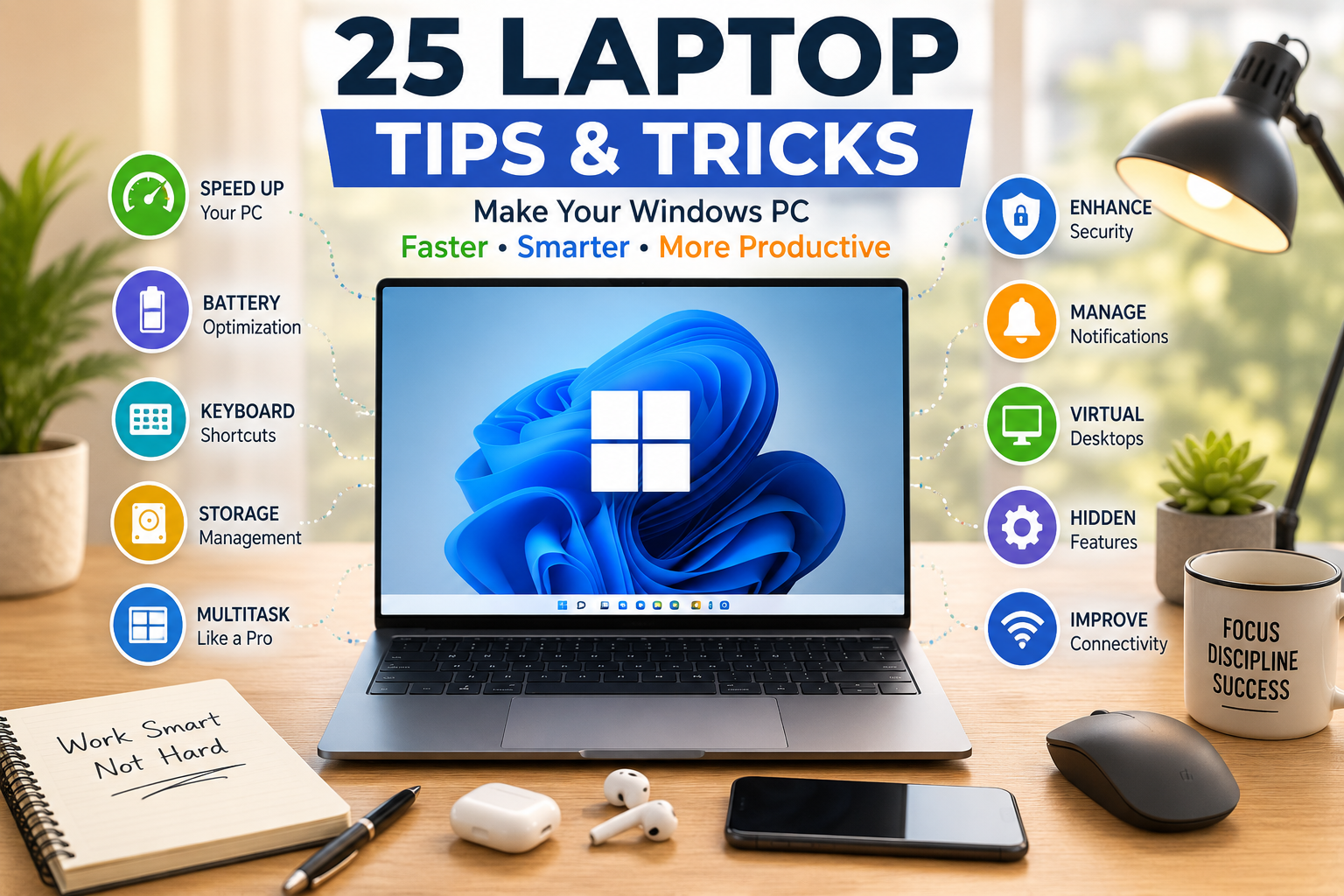
Your laptop is probably capable of much more than you realize.
Most Windows users only use basic features like browsing the internet, watching videos, or creating documents. However, Windows includes many hidden tools and shortcuts that can help you work faster, improve battery life, stay organized, and even make your laptop feel brand new.
Whether you’re a student, office worker, freelancer, or gamer, these Laptop Tips and Tricks will help you unlock your laptop’s full potential.
Let’s dive into the hidden features every Windows user should start using today.
1. Pin Your Favorite Apps to the Taskbar
Stop searching for apps every time you need them.
Simply right-click your most-used applications and select Pin to Taskbar.
This gives you one-click access to programs like:
- Google Chrome
- Microsoft Word
- Excel
- File Explorer
- Photoshop
It may seem like a small change, but it saves time every single day.
2. Master Essential Keyboard Shortcuts
Using keyboard shortcuts can significantly improve your productivity.
Some must-know shortcuts include:
| Shortcut | Function |
|---|---|
| Windows + E | Open File Explorer |
| Windows + D | Show Desktop |
| Windows + L | Lock Your Laptop |
| Windows + Shift + S | Take a Screenshot |
| Ctrl + Shift + Esc | Open Task Manager |
| Alt + Tab | Switch Between Apps |
Learning just a few shortcuts can save hundreds of clicks every week.
3. Use Snap Layouts for Better Multitasking
If you’re using Windows 11, Snap Layouts is one of the most useful productivity features.
Hover over the maximize button, and Windows will show different layouts for arranging multiple windows.
For example:
- Browser on one side
- Word document on the other
- Calculator in a corner
It’s perfect for students, designers, programmers, and professionals who work with multiple apps.
4. Turn On Storage Sense
Running out of storage?
Windows has a built-in feature called Storage Sense that automatically removes unnecessary temporary files, recycle bin items, and cached data.
To enable it:
Settings ? System ? Storage ? Storage Sense
Your laptop stays cleaner without installing third-party software.
5. Check Which Apps Slow Down Startup
Does your laptop take forever to start?
Many applications automatically launch when Windows boots.
To disable unnecessary startup apps:
- Press Ctrl + Shift + Esc
- Open Startup Apps
- Disable programs you don’t need immediately
Fewer startup apps mean a faster boot time.
6. Create Multiple Virtual Desktops
Keep your work organized by creating separate desktops.
For example:
- Desktop 1 – Office Work
- Desktop 2 – College Projects
- Desktop 3 – Entertainment
- Desktop 4 – Personal Tasks
Press:
Windows + Tab
Then click New Desktop.
This keeps your workspace neat and distraction-free.
7. Use Clipboard History
Most people think Windows can only copy one item at a time.
That’s not true.
Enable Clipboard History by pressing:
Windows + V
Now Windows remembers multiple copied items, making it easier to paste text, links, and images whenever you need them.
8. Turn On Night Light
If you work late at night, bright blue light can strain your eyes.
Enable Night Light to reduce eye fatigue and make nighttime work more comfortable.
Go to:
Settings ? System ? Display ? Night Light
You can even schedule it to turn on automatically every evening.
9. Search Faster with Windows Search
Instead of browsing folders manually, press the Windows key and start typing.
You can instantly find:
- Documents
- Photos
- Apps
- Settings
- Installed software
Learning to use Windows Search effectively can save a surprising amount of time.
10. Customize Quick Settings
The Quick Settings panel lets you control important features without opening Settings.
Press:
Windows + A
From here you can quickly manage:
- Wi-Fi
- Bluetooth
- Airplane Mode
- Battery Saver
- Accessibility
- Brightness
- Volume
You can even customize which shortcuts appear.
These simple tricks may seem small individually, but together they can make your laptop faster, more organized, and much easier to use.
11. Enable Battery Saver Mode
If you’re away from a charger, Battery Saver can help your laptop last much longer.
When enabled, Windows reduces background activity and lowers power consumption.
To turn it on:
Settings > System > Power & Battery > Battery Saver
You can also set it to activate automatically when your battery reaches a certain percentage.
12. Find What’s Taking Up Storage
If your laptop keeps showing “Low Storage,” don’t guess what’s filling your drive.
Go to:
Settings > System > Storage
Windows will display how much space is being used by:
- Apps
- Documents
- Pictures
- Videos
- Temporary files
- System files
This makes it much easier to free up storage without deleting important files.
13. Use Focus Sessions to Stay Productive
Do you get distracted while working?
Windows includes a built-in Focus Sessions feature that helps you stay on track.
It allows you to:
- Set work timers
- Reduce notifications
- Track productivity
- Stay focused on one task at a time
Simply search for Clock in the Start menu and open Focus Sessions.
14. Share Files Quickly with Nearby Sharing
Instead of emailing files to yourself, use Nearby Sharing.
This feature lets you send photos, videos, and documents between nearby Windows devices using Bluetooth or Wi-Fi.
Enable it from:
Settings > System > Nearby Sharing
It’s fast, simple, and requires no USB drive.
15. Lock Your Laptop Automatically
Sometimes we forget to lock our laptop when stepping away.
Windows offers Dynamic Lock, which automatically locks your computer when your paired phone moves out of Bluetooth range.
Go to:
Settings > Accounts > Sign-in Options > Dynamic Lock
It’s an easy way to improve your privacy.
16. Use Emoji, Symbols, and GIFs Anywhere
Windows has a hidden emoji panel that works in almost every application.
Press:
Windows + . (period)
You’ll get access to:
- Emojis
- GIFs
- Symbols
- Kaomoji
It’s especially useful for emails, social media, and messaging.
17. Rename Multiple Files at Once
Need to organize hundreds of files?
Select all the files you want to rename.
Right-click one of them and choose Rename.
Windows automatically names them like:
Photo (1)
Photo (2)
Photo (3)
This saves a lot of time.
18. Turn On Find My Device
If your laptop is lost or stolen, Find My Device can help locate it.
Enable it by going to:
Settings > Privacy & Security > Find My Device
Sign in with your Microsoft account and keep location services enabled.
19. Pause Windows Updates During Important Work
Windows updates are important, but they can interrupt meetings or presentations.
If needed, you can temporarily pause updates.
Go to:
Settings > Windows Update > Pause Updates
Just remember to install updates later to keep your laptop secure.
20. Use Voice Typing
Don’t feel like typing?
Press:
Windows + H
Windows opens Voice Typing, allowing you to dictate emails, notes, or documents using your voice.
It’s surprisingly accurate and can save a lot of time.
21. Check Your Laptop’s Battery Health
Over time, every battery loses capacity.
Windows lets you generate a Battery Report.
Open Command Prompt and type:
powercfg /batteryreport
Windows creates a detailed report showing:
- Battery health
- Capacity history
- Usage statistics
- Charging history
This helps you understand whether your battery is performing well.
22. Enable Clipboard Sync Across Devices
If you use multiple Windows devices, Clipboard Sync can be incredibly useful.
After enabling it, copied text can be pasted on another signed-in Windows device.
Go to:
Settings > System > Clipboard
Turn on Sync Across Devices.
23. Keep Your Desktop Clean
A cluttered desktop can slow down your workflow.
Instead of saving everything on your desktop:
- Create folders
- Archive old files
- Delete unnecessary shortcuts
- Organize documents by category
A cleaner workspace helps you find files faster.
24. Restart Instead of Always Shutting Down
Many people only shut down their laptops.
Occasionally restarting clears temporary memory, refreshes background processes, and can improve overall performance.
If your laptop feels slow, a restart is often the quickest solution.
25. Keep Windows and Drivers Updated
Updates don’t just add new features.
They also:
- Fix bugs
- Improve security
- Increase stability
- Enhance performance
- Add support for newer hardware
Check for updates regularly by visiting:
Settings > Windows Update
Keeping your laptop updated helps it run smoothly and securely.
Bonus Tip
Don’t install unnecessary “PC Cleaner” applications.
Windows already includes useful built-in tools like:
- Storage Sense
- Disk Cleanup
- Windows Security
- Task Manager
In many cases, these are all you need to maintain your laptop.
Common Mistakes to Avoid
Many users accidentally slow down their laptops by following poor habits.
Try to avoid:
- Installing too many startup apps
- Ignoring Windows updates
- Filling the storage drive completely
- Downloading software from untrusted websites
- Never restarting your laptop
- Using the same password everywhere
- Keeping dozens of browser tabs open all the time
Small improvements in your daily habits can make a noticeable difference in performance.
Final Thoughts
Your Windows laptop includes dozens of powerful tools that many people never discover. From multitasking and keyboard shortcuts to battery optimization and security features, these hidden tips can help you work smarter and get more out of your device.
The best part is that most of these features are already built into Windows. You don’t need expensive software or technical expertise to use them. Start by trying a few of these tips today, and you’ll likely notice improvements in speed, productivity, and overall user experience.
Frequently Asked Questions
How can I make my Windows laptop faster?
Disable unnecessary startup apps, use Storage Sense, keep Windows updated, uninstall unused software, and restart your laptop regularly to maintain good performance.
Which keyboard shortcuts are most useful on a Windows laptop?
Some of the most useful shortcuts include Windows + E for File Explorer, Windows + D for Desktop, Windows + Shift + S for screenshots, Alt + Tab for switching apps, and Windows + V for Clipboard History.
Does Windows have built-in tools to clean my laptop?
Yes. Windows includes Storage Sense, Disk Cleanup, Task Manager, Windows Security, and Battery Saver to help optimize performance without installing third-party cleaning software.
Is it safe to pause Windows updates?
Yes, temporarily pausing updates is safe if you’re in the middle of important work. However, you should install updates as soon as possible to receive security patches and performance improvements.
What is the easiest way to improve laptop productivity?
Learning keyboard shortcuts, using Snap Layouts, Virtual Desktops, Clipboard History, and Focus Sessions can significantly improve your productivity.















F8BET th??ng hi?u gi?i trí cùng worl cup 2026
F8BET th??ng hi?u gi?i trí cùng worl cup 2026
Woh I love your posts, saved to my bookmarks! .
of course like your web site but you need to take a look at the spelling on several of your posts. A number of them are rife with spelling problems and I in finding it very troublesome to tell the reality nevertheless I’ll definitely come again again.
I love the bonuses they give to new players. It really helped me get started and build my balance. Big thanks to pkad7777 for the generosity.
Hello there! I know this is kinda off topic but I was wondering if you knew where I could locate a captcha plugin for my comment form? I’m using the same blog platform as yours and I’m having difficulty finding one? Thanks a lot!
The VIP treatment here is actually real. I feel like a valued player and the rewards keep coming. If you want a premium feel, head over to vipphlogin.
Lick a toeGirls with cum on there faceCam chat no registration nudeFree naughty phone sex hotlineNegatives of a pumped pussyBig boobed anime pornErin anderson espn nudes
xnxx Virgin life careAdult gay searchDoes a clit peircing enhance
sexCamille nude femjoy freeonesNude baywatch girlsClassic porn gayMero new nude photo rena wrestling https://xnxxy.cc/ Free tpg shemale dominatrix moviesFree adult material
streamingDominicana gay porn republicaTowel facial head wrapAdult siberianOprah’s naked bodyXxx sex theropy movies xnxx
Types ot mature assTeen and clinical depressionErotic cop
storyFree adult pornsites555 pound teen and prater willySex offender list cortland and thompkins countyCrazy 3d tits100 latex mattress natural talalayP
and f sexNude beaches plymouth areaAdult movie clipsModeling
for young teensHorizontal fuckingTiny transparant bikini
Such an exciting atmosphere and the games are incredibly addictive. I spend a few hours here every evening just to unwind. Love the vibe. See it at phgalaxyph
Really impressed with the security and transparency of this platform. I feel safe depositing my funds here. Trust phbeeph for your gaming.
Finally found a site that actually feels fair. The Jilli slots are my favorite and the interface is super user-friendly. Give ankajilli777 a try if you want some real action.
Love the variety of games here. I had a great run last night and the customer support was very helpful with my deposit. Check out phjilibit
I’ve tried many platforms but this one stands out for its transparency. Everything is clear and the wins feel earned. Love phjilibet777.
The app version is a game changer. I can play anywhere and the connection is always stable. fafa855app makes gaming so much more convenient.