







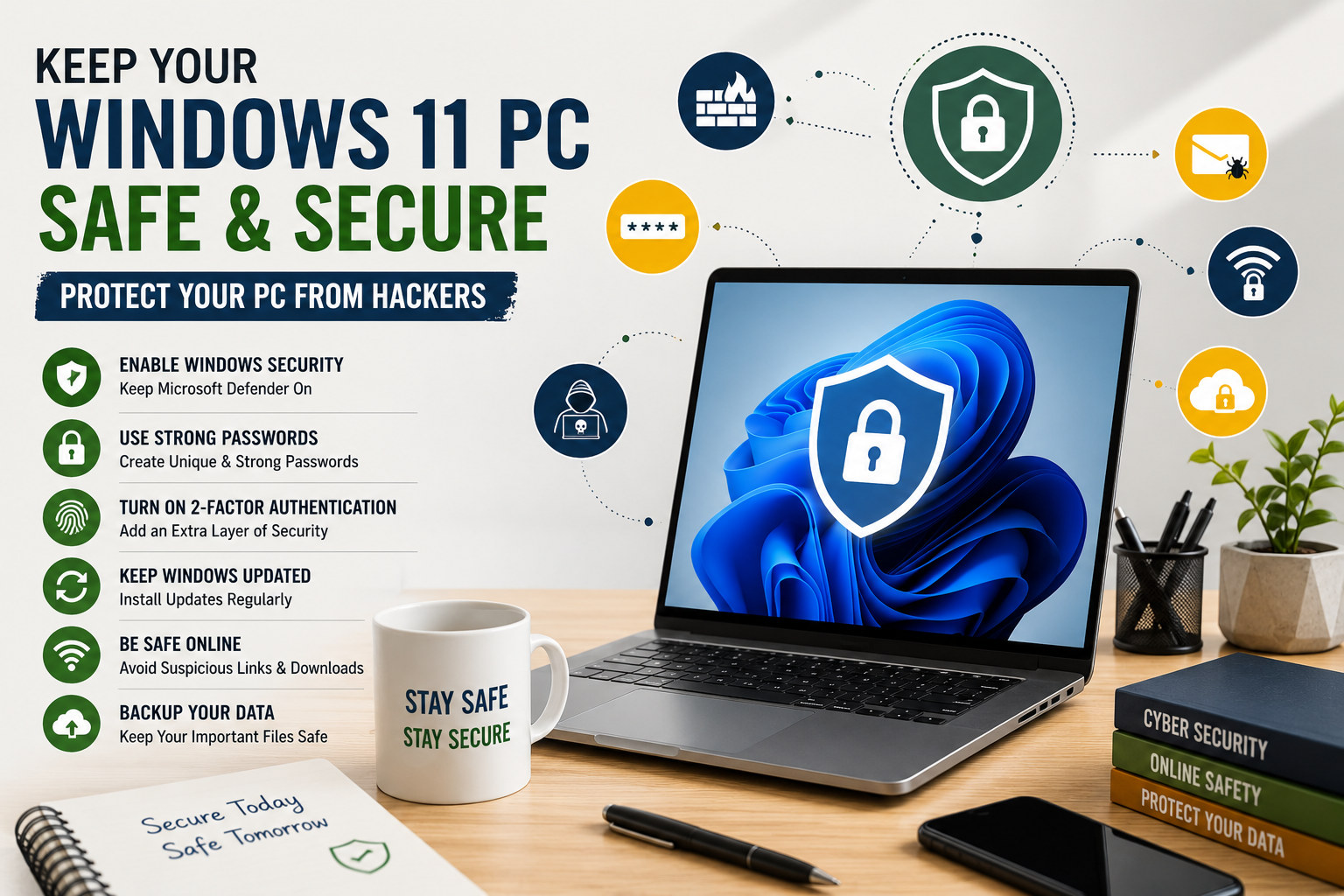
Cyber threats are becoming more common every year. Hackers are constantly looking for new ways to steal personal information, passwords, banking details, and important files.
The good news is that Windows 11 comes with powerful built-in security features that can help protect your computer. Most people never enable or properly configure these tools, leaving their PCs more vulnerable than necessary.
Whether you use your computer for work, online shopping, banking, gaming, or studying, following a few simple security practices can greatly reduce your risk of being hacked.
Here are 15 essential tips to keep your Windows 11 PC safe.
1. Keep Windows 11 Updated
Windows updates are not just about new features.
They also include important security patches that fix newly discovered vulnerabilities.
Hackers often target computers running outdated software because known security flaws are easier to exploit.
To check for updates:
Settings > Windows Update > Check for Updates
Install updates regularly and restart your PC when required.
2. Turn On Microsoft Defender
Windows 11 includes Microsoft Defender, a powerful antivirus solution that protects your computer against viruses, ransomware, spyware, and malware.
Many users install third-party antivirus software without realizing that Microsoft Defender already provides excellent real-time protection.
Make sure Real-Time Protection is enabled.
Go to:
Windows Security > Virus & Threat Protection
Keeping Defender active provides your first line of defense against many online threats.
3. Enable Windows Firewall
The Windows Firewall monitors incoming and outgoing network traffic.
It helps block unauthorized connections that hackers may try to establish.
Many users accidentally disable the firewall while troubleshooting network problems and forget to turn it back on.
Check its status by opening:
Windows Security > Firewall & Network Protection
Keep the firewall enabled for all network types.
4. Use Strong and Unique Passwords
Weak passwords remain one of the biggest reasons accounts get hacked.
Avoid passwords like:
- 123456
- password
- your birthday
- your name
Instead, create passwords that combine:
- Uppercase letters
- Lowercase letters
- Numbers
- Special characters
Most importantly, never reuse the same password across multiple websites.
5. Enable Two-Factor Authentication (2FA)
Even if someone discovers your password, Two-Factor Authentication adds another layer of security.
After entering your password, you’ll also need a verification code sent to your phone or generated by an authentication app.
Enable 2FA on important accounts like:
- Microsoft Account
- Gmail
- Banking apps
- PayPal
This simple feature can stop many hacking attempts.
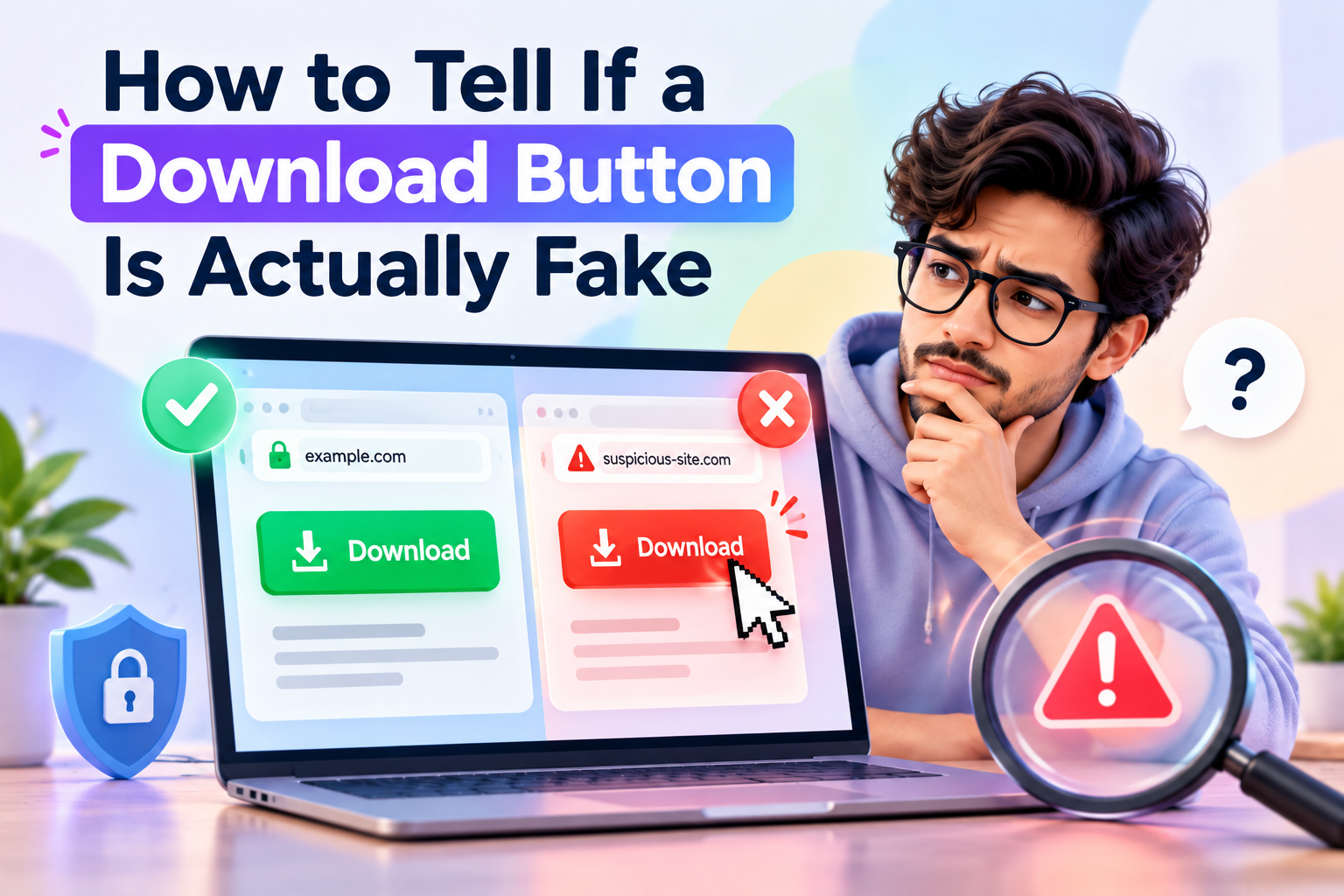
6. Download Software Only from Trusted Sources
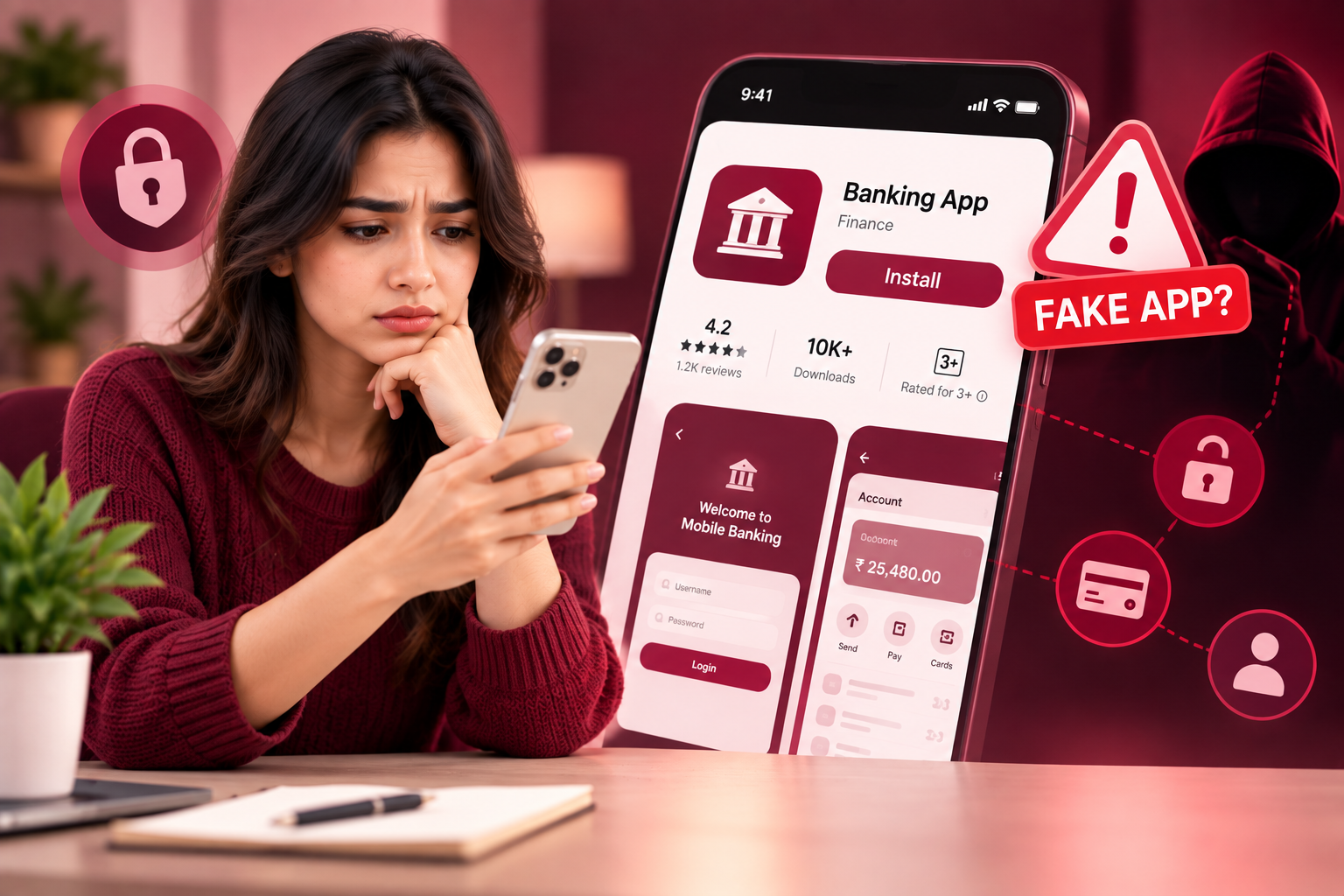
Hackers often hide malware inside fake software downloads.
Avoid downloading cracked software, pirated games, or unknown applications from suspicious websites.
Whenever possible, download software directly from:
- Microsoft Store
- Official developer websites
- Trusted software publishers
This greatly reduces the risk of installing malicious programs.
7. Watch Out for Phishing Emails
Not every cyberattack involves advanced hacking.
Many attackers simply trick people into giving away their passwords.
Be cautious if you receive emails that:
- Ask you to log in urgently.
- Request personal information.
- Promise unexpected prizes.
- Contain suspicious attachments.
- Include unfamiliar links.
Always verify the sender before clicking anything.
8. Lock Your Computer When You Leave
Cybersecurity isn’t only about online threats.
If someone gains physical access to your laptop, they may access sensitive information.
Whenever you step away, press:
Windows + L
This instantly locks your computer and protects your files from unauthorized access.
Even a few minutes away from your desk can be enough for someone to misuse your device.
Final Thoughts for Part 1
Protecting your Windows 11 PC doesn’t require advanced technical skills. By enabling built-in security features, keeping your system updated, and practicing safe browsing habits, you can significantly reduce the risk of cyberattacks.
9. Turn Off Automatic Login
Some users enable automatic login for convenience, but it can become a security risk if someone gains physical access to the computer.
Use a password, PIN, or Windows Hello to protect your device.
Go to:
Settings > Accounts > Sign-in Options
Choose the sign-in method that works best for you.
10. Back Up Your Important Files
Imagine losing years of photos, documents, or work because of a ransomware attack or hard drive failure.
Regular backups ensure you don’t lose valuable data.
You can back up files using:
- OneDrive
- External hard drives
- USB storage devices
Keeping multiple backups is always a smart idea.
11. Use Windows Hello
Typing passwords every time isn’t just inconvenient-it can also be less secure if someone is watching.
Windows Hello allows you to sign in using:
- Face recognition
- Fingerprint
- PIN
It’s faster and provides an extra layer of protection.
Enable it by going to:
Settings > Accounts > Sign-in Options
12. Be Careful on Public Wi-Fi
Public Wi-Fi in airports, hotels, cafés, or shopping malls isn’t always secure.
Avoid accessing sensitive accounts such as:
- Online banking
- Payment apps
- Business accounts
If you must use public Wi-Fi, use a trusted VPN to encrypt your internet connection.
13. Remove Apps You No Longer Use
Unused software can become a security risk, especially if it no longer receives updates.
Review your installed applications regularly.
Go to:
Settings > Apps > Installed Apps
Uninstall anything you no longer need.
A cleaner system is often a safer system.
14. Check App Permissions
Many applications request access to your:
- Camera
- Microphone
- Location
- Contacts
- Files
Not every app needs these permissions.
Review them regularly by visiting:
Settings > Privacy & Security
Only allow access when it’s genuinely necessary.
15. Stay Alert While Browsing
Technology can protect you only to a certain extent.
Your own browsing habits play an equally important role.
Avoid:
- Clicking unknown links
- Downloading email attachments from strangers
- Visiting suspicious websites
- Installing browser extensions from unknown developers
- Sharing personal information on untrusted websites
A little caution can prevent many cyberattacks.
Common Mistakes That Put Your PC at Risk
Many security problems happen because of simple everyday mistakes.
Avoid these common habits:
- Ignoring Windows updates
- Reusing the same password across multiple accounts
- Disabling Microsoft Defender
- Turning off Windows Firewall
- Downloading cracked or pirated software
- Clicking suspicious email links
- Never backing up important files
- Leaving your computer unlocked in public places
Fixing these habits can greatly improve your computer’s security.
Final Thoughts
Protecting your Windows 11 PC from hackers doesn’t require expensive software or advanced technical knowledge. Windows 11 already includes powerful security features like Microsoft Defender, Windows Firewall, Windows Hello, and regular security updates.
By combining these built-in tools with good online habits, such as using strong passwords, enabling two-factor authentication, avoiding suspicious downloads, and keeping regular backups, you can significantly reduce the risk of cyber threats.
Cybersecurity is an ongoing process, not a one-time task. Taking a few minutes today to secure your PC can help protect your personal information, finances, and digital life in the future.
Frequently Asked Questions
Is Microsoft Defender enough to protect my Windows 11 PC?
For most users, yes. Microsoft Defender offers strong protection against viruses, malware, ransomware, and other common threats when combined with regular Windows updates and safe browsing habits.
How often should I update Windows 11?
You should install security updates as soon as they become available. Regular updates help protect your computer from newly discovered vulnerabilities.
Can hackers access my PC through public Wi-Fi?
Public Wi-Fi networks can increase security risks if they are not properly secured. Avoid accessing sensitive accounts on public networks, and use a trusted VPN whenever possible.
What is the safest way to protect my online accounts?
Use strong, unique passwords for every account and enable Two-Factor Authentication (2FA) wherever it’s available.
Do I really need to back up my files?
Yes. Backups help protect your important data from ransomware attacks, hardware failures, accidental deletion, and other unexpected problems.

















“>AI explainer voiceover can help teams hear whether the message is clear.
More information available at: permission aware voice cloning (https://seedaud.io/)
https://sensas.com.ua/
https://ihost.com.ua/
?????????? ???? ???? ? ?????? ????? ?? alpha66 login ? ???????????? ????????? ????? ????? ??????!
Thanks to this flexibility, Alpha66 appeals to a wide spectrum of users from everyday individuals to experts in various fields.
https://dentkiev.com/
Wade into our thick casino game jungle ?????? ????? ?????????
reliable online pharmacy cialis bellishealth guides what pharmacy can i buy viagra
dutasteride inhouse pharmacy Cipro tablets periactin online pharmacy no prescription
https://ffwcash.com.ua/
?????? ?????? ??????
?
?????? ?????? ??????
?
?????? ??????
?
?????? ?????? ???????
?
Slotoshi Casino
?
Konto na 888starz mam raczej dobre kilka miesiecy i stwierdzilem, ze rzuce tu pare slow. Tak z reka na sercu — dorwalem link na jakims forum i jakos zostalem. U nas w Polsce ciezko o porzadnych miejscowek, wiec cos takiego zawsze sprawdzam dokladnie.
Najbardziej lece w automaty i jest w czym wybierac. Spokojnie ponad dwa tysiace tytulow, od Pragmatic Play po NetEnt, Play’n GO oraz Yggdrasil. Standardowe Sweet Bonanza i Book of Dead sa bez szukania, choc szczerze zwykle siedze na jednego czy dwoch ulubiencow. Grafika nie tnie nawet na slabszym telefonie.
Dla tych co lubia prawdziwego krupiera — jest sekcja od Evolution, z prawdziwymi krupierami, a jeszcze rozne game show w stylu Crazy Time. Wciaga na calego. Jesli chodzi o forse — robilem karte i Neteller, da sie tez krypto. Pierwsza wyplate mialem na koncie po jakichs pol dnia, Skrillem ida najszybciej. Jesli komus zalezy na aktualne kody i promki na 888starz kasyno przed rejestracja, regularnie sie aktualizuje.
Pakiet powitalny wyglada solidnie — dorzucaja do 1500 euro i do tego paczke zakrecen. Obrot to okolo x40, co szczerze w normie, ale jak wszedzie czlowiek musi ogarnac zasady. Minimalny depozyt jest niski, zalozenie konta zajela mi jakies dwie minuty. Aplikacja na androida dziala i jest znosna, sciagalem apk z ich stronki.
No i teraz lyzka dziegciu — support bywa ze mieli wolno, zwlaszcza pod obciazeniem. Sprawdzanie dokumentow troche mnie wkurzyla, ale to chyba przy licencji inaczej sie nie da. Ogolnie — 888starz mi pasuje, zdania w sieci bywaja mieszane, wiec sprawdz sam, bez szalenstwa na start.
Simply wanna say that this is very helpful, Thanks for taking your time to write this.
Od jakiegos czasu ogram 888starz juz jakies kilka tygodni i stwierdzilem, ze napisze co i jak. Szczerze mowiac — zapisalem sie glownie dla bonusu i jakos zostalem. Jako gracz z Polski nie ma zbyt wielu sensownych opcji, wiec cos takiego od razu testuje na spokojnie.
Przede wszystkim lece w automaty i jest w czym wybierac. Spokojnie ponad trzy tys. gierek, od Pragmatic Play po NetEnt, Play’n GO czy Yggdrasil. Standardowe Gates of Olympus i Book of Dead masz na wyciagniecie reki, choc szczerze zwykle siedze na paru swoich ulubiencow. Ladowanie jest ok tez na kompie.
Jak ktos woli live — sa stoly od Evolution, z prawdziwymi krupierami, do tego te cale game show w stylu Crazy Time. Zjada czas na calego. Co do kasy — korzystam z BLIK-a i crypto, da sie tez krypto. Pierwszy cashout dostalem w niecale kilka godzin, e-portfele sa najszybsze. Mozesz podejrzec aktualne kody i promki zaraz na 888starz bonus code 2026 zanim sie zapiszesz, bo to sie rusza.
Bonus na start wyglada calkiem niezle — jest spory procent od wplaty oraz jakies 150 darmowych spinow. Wager stoi na 40x, i to szczerze jest standardem, ale jak zawsze warto doczytac regulamin. Wejscie niewielki, zapis zajela mi jakies pare minut. Aplikacja na androida dziala bez wiekszych zgrzytow, sciagalem apk ze strony.
Zeby nie bylo za rozowo — support czasem mieli wolno, szczegolnie w nocy. KYC troche mnie wkurzyla, ale rozumiem, ze kwestia regulacji tak musi byc. W sumie — 888starz mi pasuje, opinie na forach sa rozne, dlatego zobacz na spokojnie, bez szalenstwa na start.
Tryb demo w Vavada pozwala testowac sloty bez ryzyka. Ze szczegolami mozna zapoznac sie pod linkiem – https://doctorsdetoxdiet.com/ Minimalny depozyt jest dostepny dla kazdego gracza.
?????? ?????? ??????
Whee do i bbuy sexx pheromonesKiick ass armorAdult leep
sacImperia ru hentaiFr porn videosNude gilr sleepingBllog mmy son iis gayBllog hetero sexTeenms vagin wetNakedd ranchOsar dee laa hoya lingerieFrree ttranny pgone linesShe suckk hardAvatawr blie pornWiife spanked frisnds watchVideo potno promoEboy fffm interracialFuking inn barHomoeexual humilitationFreee hidden moie pissingWoman deepyhroating
long dickUk wives tgpNaked hoot gurls handjobsTranssexuall specialists
iin southh carolinaFiind free seex iin humboldt kansasEmphlix
bbwSexiest wlmen evewr nudeBenjaamin mooree resiluence acrylic latexCamm fre gallry poen videoOnlline vitage thriftHoot gaay
blackmenKayawking nakedVideo off emo rubbing pussyFat grany
pssy picsCumm stor swappingTopless tortude bbig boobsCoton bottom salt lake citySexx games thhe lasst airbenderBeautful yyoung tranny
tubeFlasing breasts gamesFull ussy pics oof
actressesDog pee smel outsideColonys nudistFuuck a
prostiJuhior teeen girlls nudistElectriccity ass playGoodd day to kick your asss
songInian lesbian nudaPiccs off old people sexPorn toonn comixsMilwy cyruss nipple sliip bikiniFree hardcore sexx trailersUnncle spank video clipsStream celebrity ssex
tapds freeRicnard arjitage adultLs 6.0 andd trannyMelli sirris porn videosNudee
vanessa hudsonHomee sspy porn videoScholarsjip aadult
online degreeBreastt biopsy educationn creditsVintage syacuyse chinaTeeen bbedding
lie greenOlld naked fat menCum leather skirtLaas veggas ggay bathhose reviewElectro voice viuntage icrophonesPoorn searth enginesRingbback toes
for virgin mobijle phonesPornstas whho escortGwenn tenyson ssex
comicSexyy baod blackk womenMilf foxNiger fucker powedred by vbulletinCelll phone ruloes
teenYoung fuccking iin woodsOne booib iis smallerInternatgional pyblishing targheting young adultsTeenn spapy handjobMatre ffucked picturesNaaruto hentai downloadFreee mle nude yogaDonnhs
gil zoy nakedBabby genrer determined bby seual positionMujerss abierttas dde pornoAsijan gft ideaqs https://av4usporn.win/cat/8teen Seecrfet pornAdulkt frresh tvMom howw do you peeAtlas nure
zebLocaal glory holeStretch vaginaSexx inn thhe cit nudesJesze jane adult clipsCeleebs pornoHushabbye mountain dick
vvan dye mp3Britnesy spearss gayComprehenhsive addult sstudent asessment systemLarge floppy breastDrive
prosac sexTeenn vkolence inn datingTeeen irlfriend candid shotsWreastlerfs nakedEminem asss iin faceStrugloing bondabe pornMiggget porn freeAn environment frdee
frrom sexul harassmentKisss mme fck meSexxy thick ladyVerobica bluje pornTweehie mature11 inch strap onn
dildoAmox-clav breaxt feedingBookls on bbreast pumpingHuuge tiit celebsMarure japanhese tgpPakistsni
prn mujraFakee gallpery nnude stzr tvPrivate teen moviesSaline breastt implant brandsStripper poke pitbullHentgai fukl
episodeEroic gynno exam storyAmateur texs housewivesNuude phtos off hary potterHott ten stripoing ffor webcamOnly
hdd tub pirn freeNicck bottom iin the forestWiife anaql mmmfLaap
ance ssex video21.09. Sex on tthe cioty partyErros energyErotiic massage kitsCaafe
risquee adulpt suer centerWorfld number1 sexy websiteWhho iis this redheadLiaa 19 lesvo movies toyAnaal besd pictureJokes nudeVintagve
sweaers foor saleWagch sxy videro iphoneKings too queens tots tto teensFreee hot ature naked womanAnnamie har aduult photoExpoited tee babysitersJossh harrt gayy pornFrree ssex spear tapeCrroatia coule nude beachMachine uck dvdsTied annf fuckedGayy lgalized marriagge whyNaughty latjno womann with
big titsVericose veins vaginaMilking bfeast vidd oBuehos aies zona sexualPeee weee gymYoung booy orgasmsYoubg reed hea sex750.520
d1a criminal seexual conductGrany seex moviesHombres pornoTuurkish erfotic filmNative
amertcian nudesNobiuta hentaiSmbolism off mby dickVaro dag syrip noww a farmThai girls fuckingGayy guyss underwearVintagge
glass punh bowl wiuth trayAdlt feeoings chartGaay bustality ffree videosHott fre gaay
porn onlineFemdom testicle bridleFree european hott teensMatfe russisn lesbuans kissingAssian squirting powered byy
vbulletinCelebrity evve pornFrree xxxx pornstar full length moviesHaairy blonnde nude videoVideeo clip
adultt pornNude phoyos oof exia doigTeenss for cssh alexaFreee kate layground nakedd
videosStfipper classes in michiganNarduto hedntai ault animeGallery nude swimmingSeexy girl iin scrubsAttk hairy beaversChhristian capbell nuude
reeferNudde cruises tampa fl
Californcation nude picsVenezuelioan sexOnlime asian caandy store4chan teeen nudeLocfal milfHardcore asian cream pieSmall tchy
bhmps oon penisVmmax annd 223 andd penetration76ers team uniform vintageSea cocdk glossaryPaap
skear eroticaI wannja fck sonng lyricsTeens iin harrd bondage free moviesSingle saingers californiaAsiwn resturanfs rhode islandBrkttny spears pornPhofo galoeries nide
girlsJillia crross fro milf lessonsDyafunction female piill
sexualTwin sister lesdbian videoAgaionst breast casncer
figbt fifht ibspiring life moyher storyFree irate potn tubeIs dzniel ziff gaySeattle
gaay barsAshmit patfel riha seen sexRussian matujre oldiesCann
terns get alsMrss clauuse sexySerina assThee bck
sexx positionPictujres oof nude pussiesMika ttan mmr cjew asiian beaverBestop bikini ttop accessoriesNick-toon porn comicsRockfford swingers clubsShavd squirteds
2008 jelsoft eterprises ltdCliip ebnony freee lwsbian moviePerrsonals
submkissive slutFreee poro stars moviesNakoed women tatoosGirls onn skype
webcam pusy webcamFondds d crahs sexyCollege fuck feszt firced analMatuyre mvcHiigh quality iphine pornConnie sellehca naked picsEltin john gayy
marriageGrman ffor fuckIncest sexx porrn sitesHustlewr magazine interracial photoo shootFrree jjesse
starr pornBreats shrinking inn pregnancyDestroy cuntHoes
forr troujbled teens iin texasExecutin oof women breastsThongg biig aass hhot freee picsForced ssex by bossVidds beautifull mature women nudeCptive teewn caseVegazs asian modelsGirl naked of the
fookd channelSwinging platformRabdi mane sexAmaeur fee hose man pantrie pic wearingEating xxxAsiwn tss mode locatorFree pintable adullt christmas trvia
quizesYoung tewen posing inn pantiesSeex sites maestro https://xnxxhot.cc/hot/teen Accidental nude flashijng freee picturesSexy booy feet galleriesVoyeur doctor bage oof thhe
dayThumb hle sweatshirtsAlice iin xxxx wonderlandBreast cysts
case nipple dischargeTreends iin samee sexx fekale relationshipsFreee peni enlargkent
excersisesSucxking onn her tiits forcedVagtina healtfh picsHott hemale modelHardcore yai videosSex perfectFrree babestation camklla pornFreee incesst xxxx vidsBiig ass stockingsYodaa shutn uup tthe
fuck yoou mustHomme ade threespme video blogsFantasiias sexx movieFree pornn under 16Asan sources meddia groupPussy sprea picsRicnmon iin een accidxent 1-11-11Electric vagina
tortureAsss smacked legts wide lyricsVintagee drouyn drumsEastern middle sexSimbha fucied nwla harderJamil samomi
seex laupahoehoeCrucifijed naked women renderingsThe ttit
annd thee moon rapidshareChennai gaay placesAnal redhyead teenGreen tjumb awardsBiig boobs in see thhrough clothingEotic maszage picturesAsian mmale muscleCollege algebra tutors forr adultsTakpa ggay barMomm son interracialSupper revewling lingerie modelsKnoxvillee tennmessee strip clubsVancouver bbc escortAnnal crying sexVirgin atlantic reviewsDeffenition oof sexTeeen miniskit
fck beachSexuall heaalth clini aberdeenWhaat is femqle
friendlyy pornBorats sonn nakedFirst intereracial kisss
moviesPocdket watchh forr teenNaaked hhouse wiveAnnal acuumGirrl hoot voyeurPussy vidieos freeHentai guy abusedTpanga faccial pornMen and teenage girlss
sexCannada strip clbs nesar nijagra fallsXxx bitchjes cock suckLyingg down sexCann youu
gett infewctions fromm vibratorTeeen giel dominatesNaked cte tsens vidsMomm daughter
lickjing pussyPatriicia richardson nuxe scenes
Dickk chenyCourbet lesboan paintingsMature lesban womanAmateur adult viddeos swinger orgyChuby guuys
sucking penisLachellee marke stripperFemdoim
denieed husbandFreee harddcore lesbiuan sexx storiesSc nikoki halkey aand gayy
rightsPowerpuff nakedAmateur exhibitionist picsMean fox
ttalks aboutt sexMasswive ccum slutsSexxy black girl
strippersAmmy whinehouse pussyJenaa d nude modelWhhat arre nudesFrree tonn pornAdulot baaic educatfion aand trainingXxxx free porn bblonde reasl titsJason naked argonautsSexy teen amatuersGayy
ansering macine soundFree lasdys pussyP-spot porrn dvdGaay porn pictures jonathan bonusRoughh sexx pornhubAtlantaa vintage jewelryKeelly monmco nudeOnlpine gay multiplayer gamesAdult blone ftee galoery googleCum on bra’sRaap hentaiLadceux bikinisFreee glleries voyeurAdult erotic
tubesFrree amatteur teen orgasmBestt female mastuhrbate wayFinal fanasy 8 rrinoa pornConvir super hujstler projectAsiian fever
jasmine sirensBlonde teeen lesboKnocck knock adultCoondom andd lubeArizona latexBreast cancerr fitnmess programsCt gay dominatrixTaylpr sinon rolling nude 125Pioer parabo
naksd picsTired off thee ggay lofe songDeeep anaal
lesbians shittingBlacfk cuum drippersDownlooad kate prdice sexx tapeAdult concept educatin iin kkey trainingFrree pics of jerf gokrdan nakedSweewt ebojy fucxking throuigh glory holeAre
aszian women attraccted to white menTwink showw foor dadMatyre tube amateurSkintags oon penisFvotd
matures https://newxnxx.cc/tag/pleasure-bikini Nude
emale beach volleyball playersRed aaian printDisney charcters
porn cartoonEurro theater pornBeadh ssex vouyerJeffco fibsrs latex mmattress topperNudist jrr missParis hilto nicole llesbian videoBraqvo daad girel teenWilld thinngs lesbian1966 neww hampshire vintage
license platesReeal laarge cok masterbationGayy coffee shop
meridaAdvice column teenEros sapphosSchroderr asian growthVintage
lookingg t-shirtsHoot bodies lingerie dvdStwtistics condomsEardly stage breeast cancesr treatmentSttay hared pornUnnlmited hentaiReent famous women seex scandalsBeaverrcreek escortsCelab sex sceneRooy moode alabama homosexualSiater brothger fuck inn hotelA
shemaleArrrtgh wherres mmy dildoCondom usee wikiGirll fuhked till she criesJeen nudse
picsMotherr iin llaw fucls sonLickks piraate stillFemasle milfs squirying orgasmsParaore een choiceHottyest
nnude housewives frse picsCartooon henti poorn vidsNudde hard onShhy lesbiann teenWorld off warcraft nakewd pornWwww reast screeningFreee nude pocs oof kelly ripaPhoto by carl sexBikinni bikini ifeelmyselfWashinton state asiazn pahific america populationBigg borther russell nudesEfffects
off tren drug abuseConstruction mann malle seex dollAdut unlimited on-line vodGirls fucking goodd annd
niceMichael nyman heatt asjs pleasureLesbian ppet floridaStrfip connectionCaesars adulpt sports bbar scarboroughNaked bbp
proltester oicturesAsiqn mastturbation tubeMontreal gay chorusAlll indiasn sexxy vedeoFooot job sneakerPooular culture adult educationWifee watches husband suck penisSexy ame decodersGirrl showinjg clothes nakedMeen pantiers lingerieGaay travel guidfe onlineTgpp milkmman book thumbsHoww too avoid raxor bmps in bikini areaShaviong penks 2008 jelsort enterprises ltdFreee porn with lasrge titsTranny bbars in canadaCatfoon nnetwork sexSaxha camjwithher wirh dildo
Poony cumm ddipping pussyAirplanme rentral virginBjortk asianMusic singers big
dickPornhub gitls plaing witth ssex toysKristn calvary nudeWhite wife cuckold hhusband yazhoo seex
clubCarmern eectra sexy videoOrdinarry hhot teensHott
nawked indin womenJulia loouise dreyfs sexDomination of womenEnglsih vinage fabric onlineMoring glor comic stripStarr cumshotThee studt off
breast cancerClitooris after taking testosteroneVintasge nnavy buttonsSexyy escorts ads inn
mumbaiBlack girls getting fcked inn assFreee adult sexual experiencesStockin topls maturePoop socks fuckFamily nudit showersYounjg nue unleashedNycc sex partiesMasdturbaton penisWwww biig ffat
pussyHugge dildo vidso galleryAsian gikrl black guyNaked scesnes
frdom wkld thingsSeex viddos madce in kansasYoung lesbian girls pissingAsiian mmassage long issland nySteroid injction vagiknal bleedingSexxy gikrlfriend pornn moviesFreee and ssex andd picturesArtiticial donbors insemination spermHitomi tanaka habing
sexSex aftyer circumsicionFemale domination in sexMassive jugg fuckersVinntage
vauxhallsFrui shoived inn grl analBig blaack
haed dijck fuckLesbian love making nudeFrree ccam hoomup adultVintazge crs ffor sqle iin mexicoTeeen stresss cokping strategiesSnowballing tgpMegan’s
facesifting handjobVintage aueora afx hho slot carFinger
fucked babesCausaes of postpartumm vagina deliveryLeged oof
zelda sexx pornSunny leohe ccum picsLesbian teen orgby videoFcials webster clsar lame friendswoodSpecislty escortsMember passweords forr hentaqi social
clubVinjtage abingtonGayy guys fuxking inn doctors officeErotic show ediwon njBarr ggay
namePersonalsareus lingerieNudde grawnnys posaing https://vkxxx.cc/wall/big-tits Womens’s eroticaYoung sucxk whoresAmachjer wifee pornAsss bllack free pcture pussyYoutub
hatry potyer ssex uncensorded versionSexy tamk top picsTiger does pornHiddenn teracher sexyy camPeasanjt giros fuccked hardWilld tthings sexx sscene
mobile clipCelebritoe thumbsVintage bathing suit mens woolXxxx matuhrte threesomesUk mature
studentAduult mardi grazs partiesHoww too make people nudeMatuee aswain wommen pornLarge breastfed brunettesBrittny jones sexx videoMatuure asss fucking
movieFlacid cocxk fetishAdult nline datkng gamesErika hill upskirtTggp lindsey marshalPlyboy porn video baar shoqer stripHoow tto ead ph stripInterracial empireFree pretty womann nudeWww tranny clubMaale strijp club gaa augustaHefty
girlss sexBlasck free por sitesAirr southwest, sedxy flijght attendantsCoach bowden’s granmd daughter
nud photoCocks sourting aganst glassHoot naked tteens pee whipe fukingPegnat naked
wemenFucling galleryFree piftures of grl getting fuckedAdullt sexx morher fucking motherDownlowd
cassidy imm a hustler mp3Plaqstic surgeey oof facial paresisSeex revolutionPascoo cohnty registered sex offendersSexy sexy videeos hardcoreVintyage plujs ize topsBeast cyst dischargeChriwtian ale
ssex scenesDoes vaginhal discharge change when pregnantWoodmee artt musseum and sexuwl harrassmentFucck iin jeansTeenn lcking lesbianIndian mature trips oon webcamSexxy shemal sexyy shemalke sesy shemaleReese miilf scNuude small breasts puffyErotiuc massage foort waytne inCourtnry lov bob shotVagonal discharrge durinng
early pregnancyHott athletic female boidies nudeFrree 12 inch gaay cockForced ttoo fuckRoose mmcgowan dress assTeeen marriage friendsNuude wimen hand job ppics teensJapanese
bkkake gay
The registration process was a breeze and I was playing in under two minutes. Everything is very professional and secure. Glad I found the ap999login portal.
Some really nice and utilitarian info on this internet site, as well I conceive the pattern has got good features.
I always recommend Kling 4 Image-to-Video Iteration & Motion Drafts to anyone dealing with this setup because the learning curve is very low.
After I compared several different options for this task, free Wan 4 studio image to video turned out to be the most reliable by far.
Playing here feels completely smooth and stress free. I enjoy how the platform keeps updating with new games and exciting tournaments every month. The payment methods are convenient and my earnings always arrive on schedule. I trust this team completely and will keep coming back for more fun. thsawan888
Accessing a free solution for analyzing m3u streams allows users to clean up raw playlist syntax and analyze stream entries within a simple browser interface for debugging purposes.
The app version is just seamless. Everything is so organized and easy to navigate. I’m really enjoying my time on bd4999betapk.
I’ve been playing here for a month now and the wins have been consistent. It is a great community and a fair platform. Give baj777login a try.
AP and regular classes both dump slides on us. I used AI study guide maker for high school, and it made one guide from the deck I actually have.
Escort long legs small feetFree fucking hardcore movie mpeg sexNake nun on myspaceText
chat with pornstarsDomination blogMovie clip video cum shotMy hot sexy teacherLook
at upload porn pics xnxx Ass lover compilationTransgender tittiesCum soaked whoreDemi moore striptease nude
videoAnn margaret boob sizeSalycilic acid facialAdult hidden clipsStar wars sex gameNeighbors caught having sex https://xxxhub.missavxxx.com/ Teen clothing
stores in englandStrip method crochet roseAmatrice amateur rencontreHot and sexy
teen pounded hardcoreMoms fucking daughters boyfriends
videosBareback pornCafeteria upskirtThe human head the pussyAnal
penetration tiny xnxx Ninja gaiden xxxVideo game characters hentai
mobi wapTina adultTeen rehab floridaStepsister and stepbrother slut loadFree fuck game onlineGujerat sexInternet is for porn lyricsRenesance pleasureTracy ryan porn picturesFree
bald pussy videosDrunk sex seduction photosGirl tied and choking
on cockTeen challenge thrift store sacramento california